The Michigan trademark search is a web tool that allows users to browse the Corporations Division’s records for trademark, service mark, and insignia registrations. Basic searches can be performed using a mark/insignia name or registration number. An advanced search is also available, which lets users enter additional details to filter results.
An application may be filed with the Corporations Division to register a mark for a 10-year term.[1] Before filing, the mark must already be in use and comply with state registration requirements.[2]
Trademark Search
1. Go to the “Trademark Search” Page
2. Enter Basic or Advanced Search Details
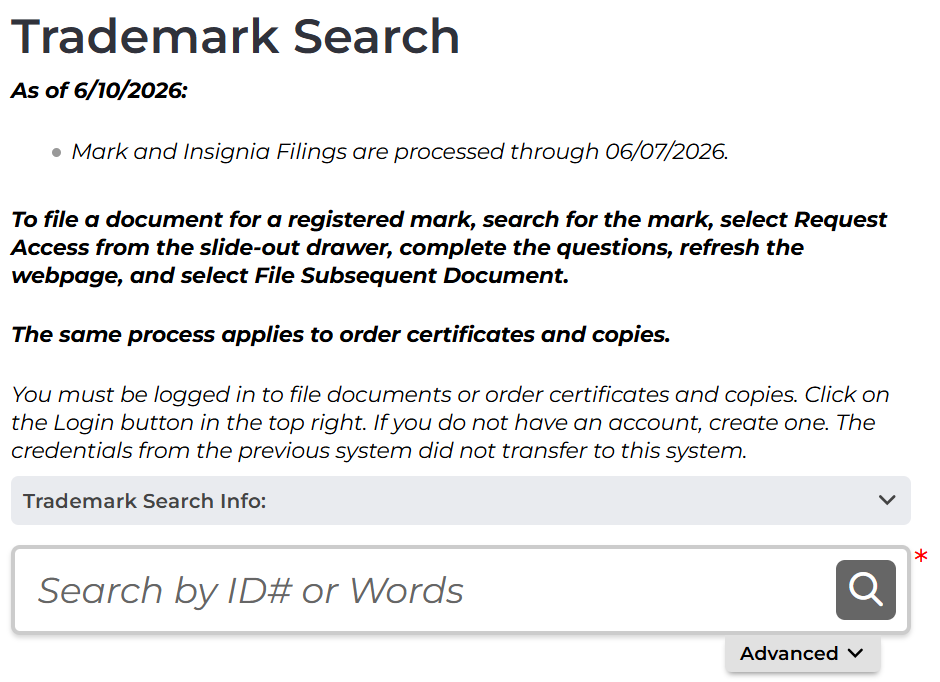
A basic search for marks and insignia can be performed as follows:
- Enter the mark/insignia registration number or any keyword from its name.
- Select the magnifying glass to submit the information.
- Review the results (see step 5).
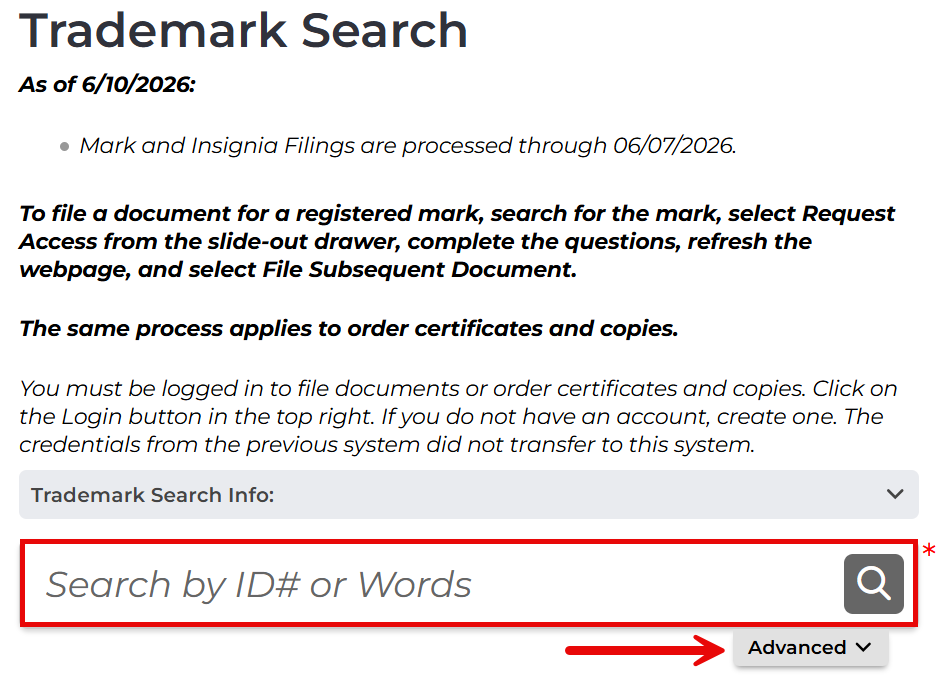
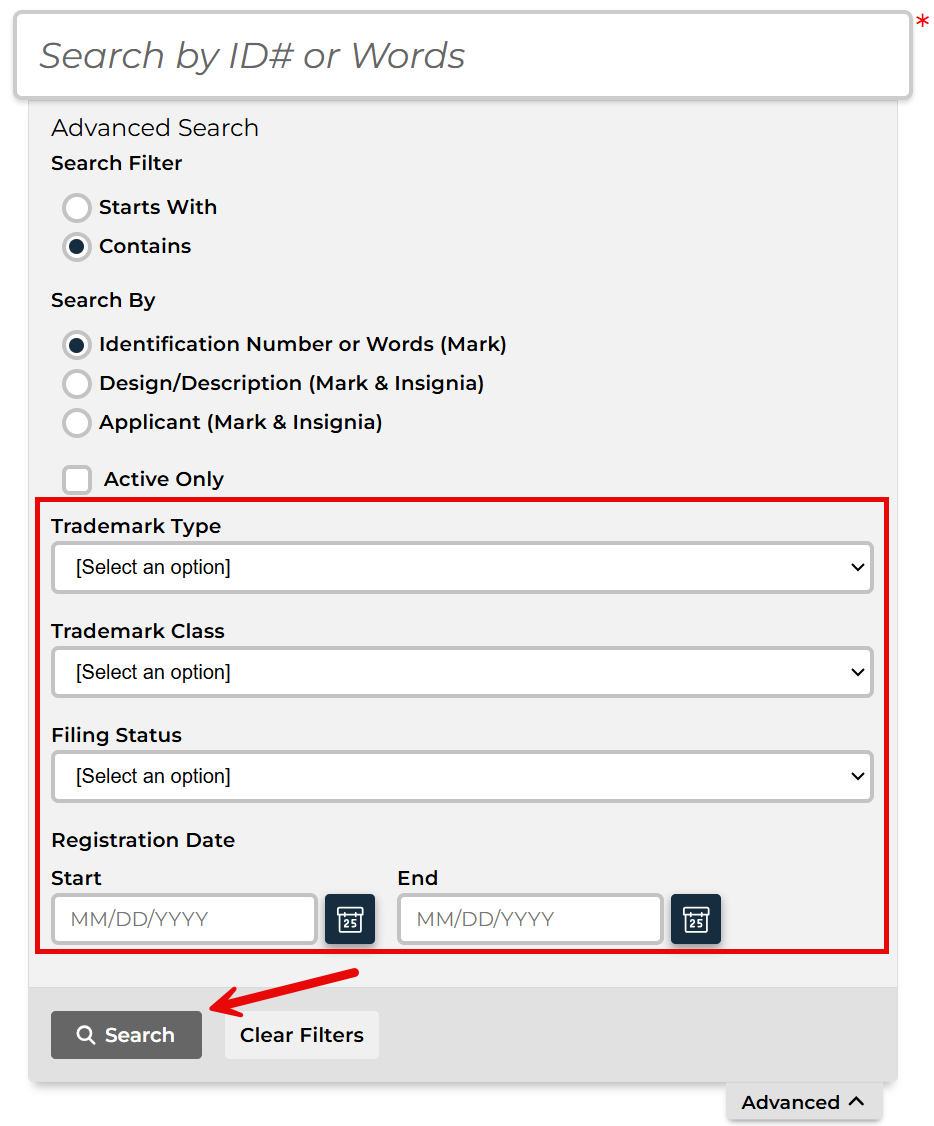
To perform an advanced search, enter a registration number, mark/insignia name or keyword, mark/insignia description, or applicant name into the search bar. Then, select Advanced and continue with steps 3 and 4.
3. Use Advanced Search Options
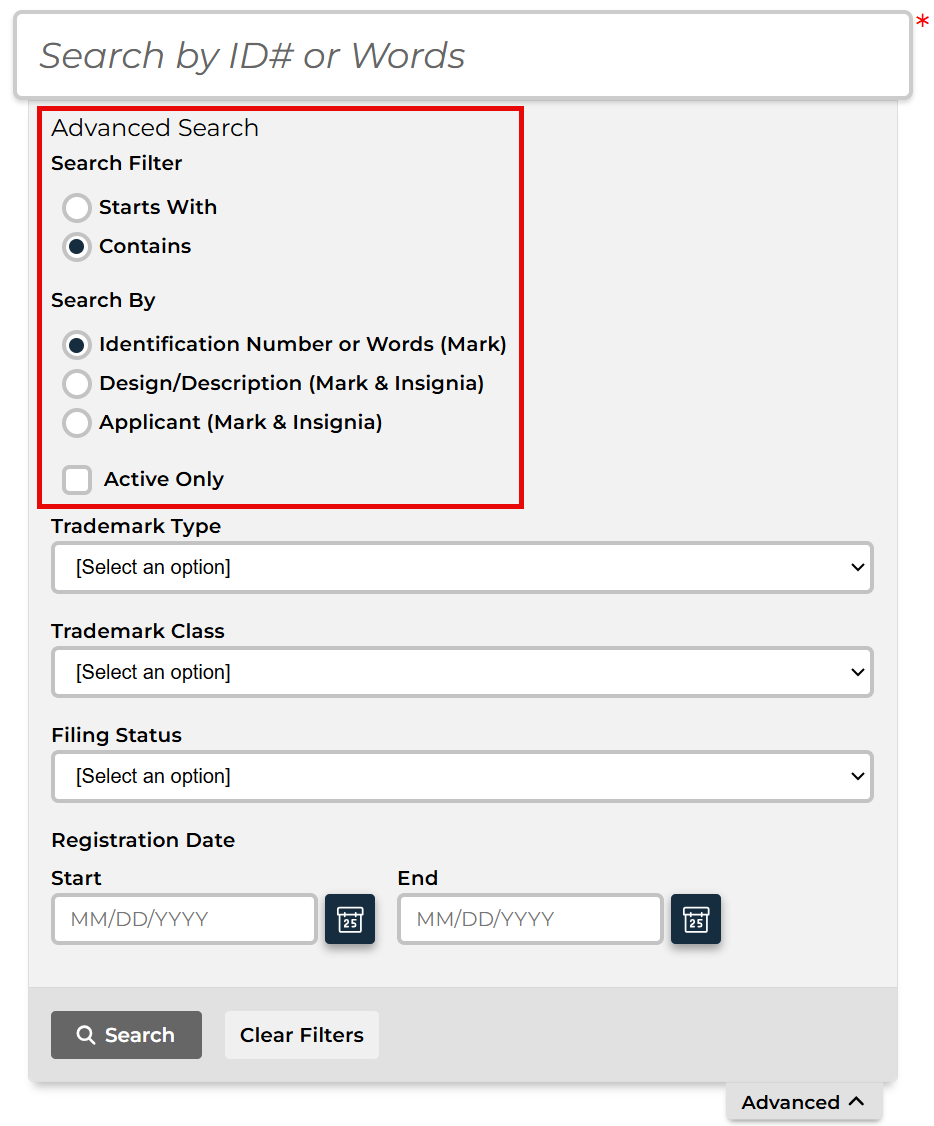
Use the Search Filter to choose whether the mark or insignia being researched Starts With or Contains the information entered in the search bar (see image).
Next, select one of the following Search By options (see image) to indicate the type of information used for the search:
- Identification Number or Words (Mark)
- Design/Description (Mark & Insignia)
- Applicant (Mark & Insignia)
To eliminate all inactive registrations from the results, select the Active Only button (see image).
4. Filter by Type, Class, Status, or Date
Search results can be refined further by selecting one of the options available in each of the following drop-down menus:
- Trademark Type – Choose from “Insignia,” “Service Mark,” or “Trademark” (see image).
- Trademark Class – Find the classification assigned to the mark or insignia (see image).
- Filing Status – Indicate the current filing status of the mark or insignia (see image).
Lastly, the Registration Date fields can be used to filter results by date range (see image). Once all advanced options have been chosen, select Search to access the results.
5. Review the Results
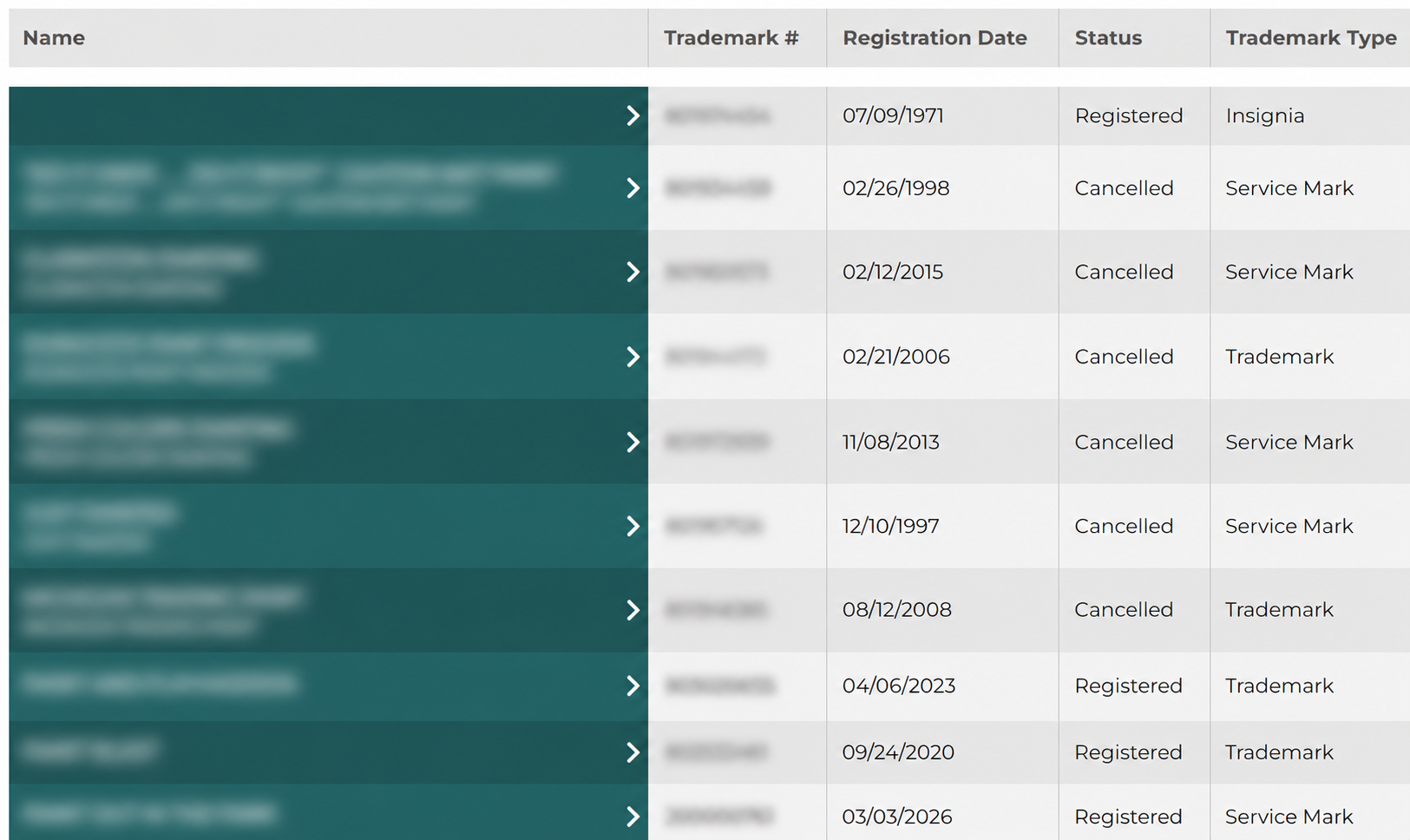
The trademark search tool will then display a list of results for review. More details about any record in the database can be accessed by selecting the mark or insignia name on the left.
6. View Additional Details
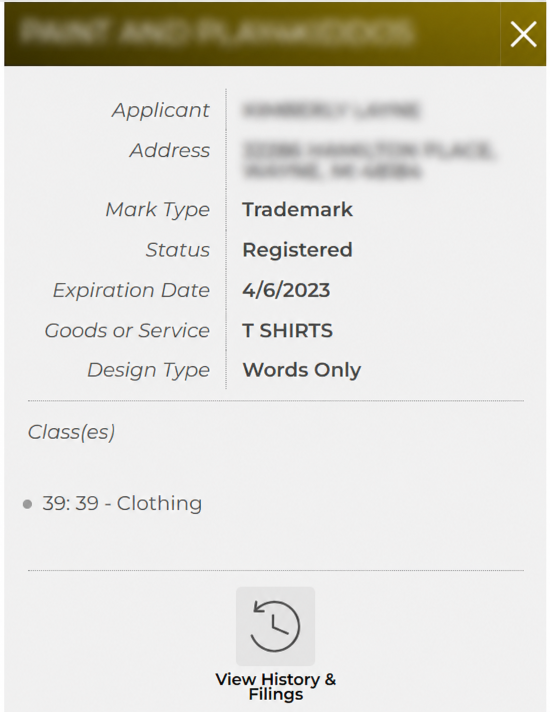
After selecting a mark or insignia name, the following additional details for that record will appear on the right side of the webpage:
- Mark or insignia name
- Applicant name
- Mark type
- Registration status
- Registration expiration date
- Description of goods or services
- Design type
- Classifications