The Colorado trademark search is a tool available on the Secretary of State website that enables users to research any trademark registered with the state. The portal allows users to search the business database generally or perform an advanced trademark to narrow the results.
Registering a trademark in Colorado does not protect it on a federal level.[1] Registrations are valid for a period of 5 years and must be renewed within 180 days of expiration.[2] Expired trademarks cannot be renewed.
Business Database Search
1. Go to “Business Database Search” Homepage
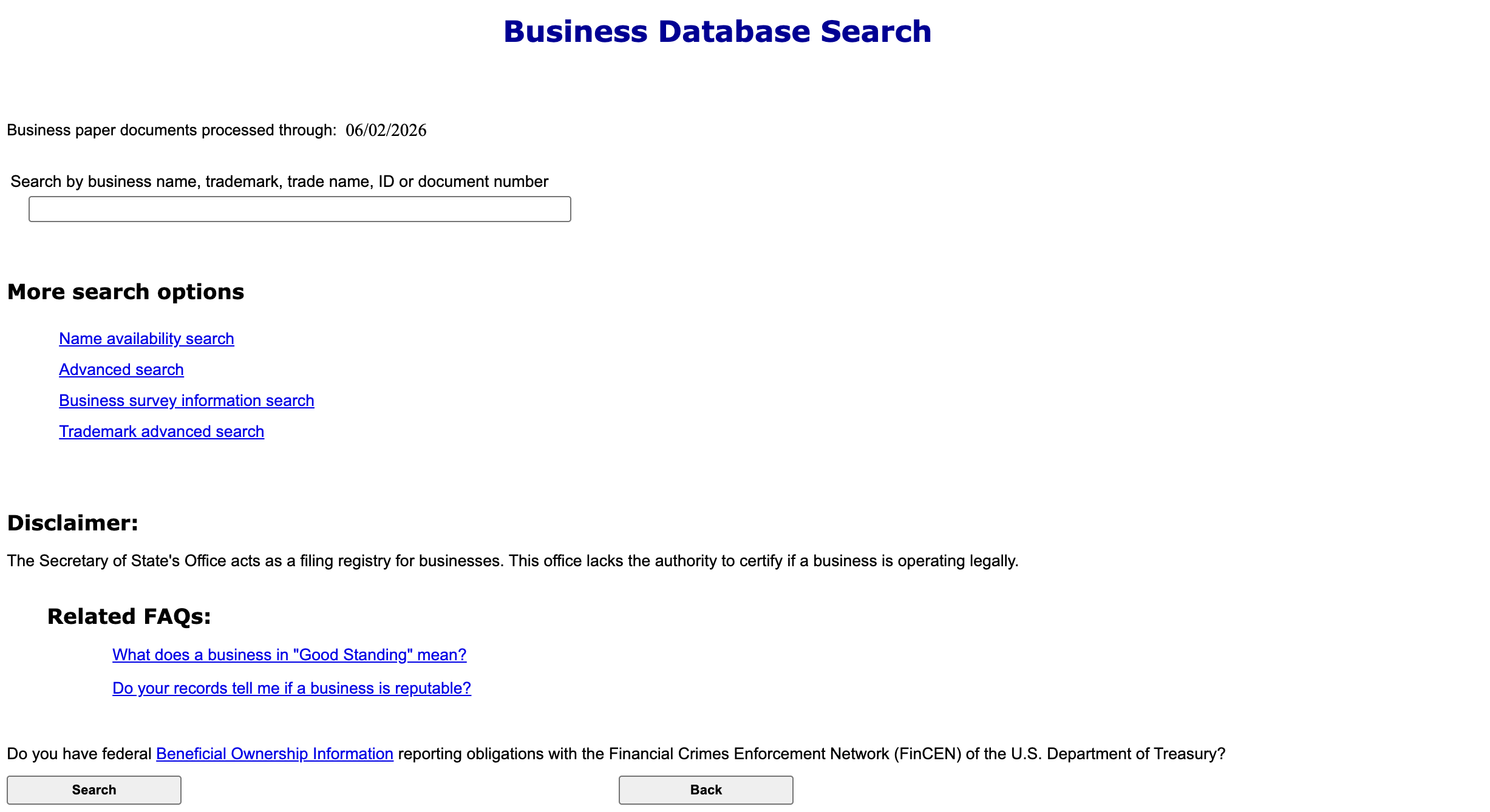
2. Enter Name
Enter keywords associated with the trademark, trade name, or business name in question.
To view exact results, enter a document number or ID. Click Search.
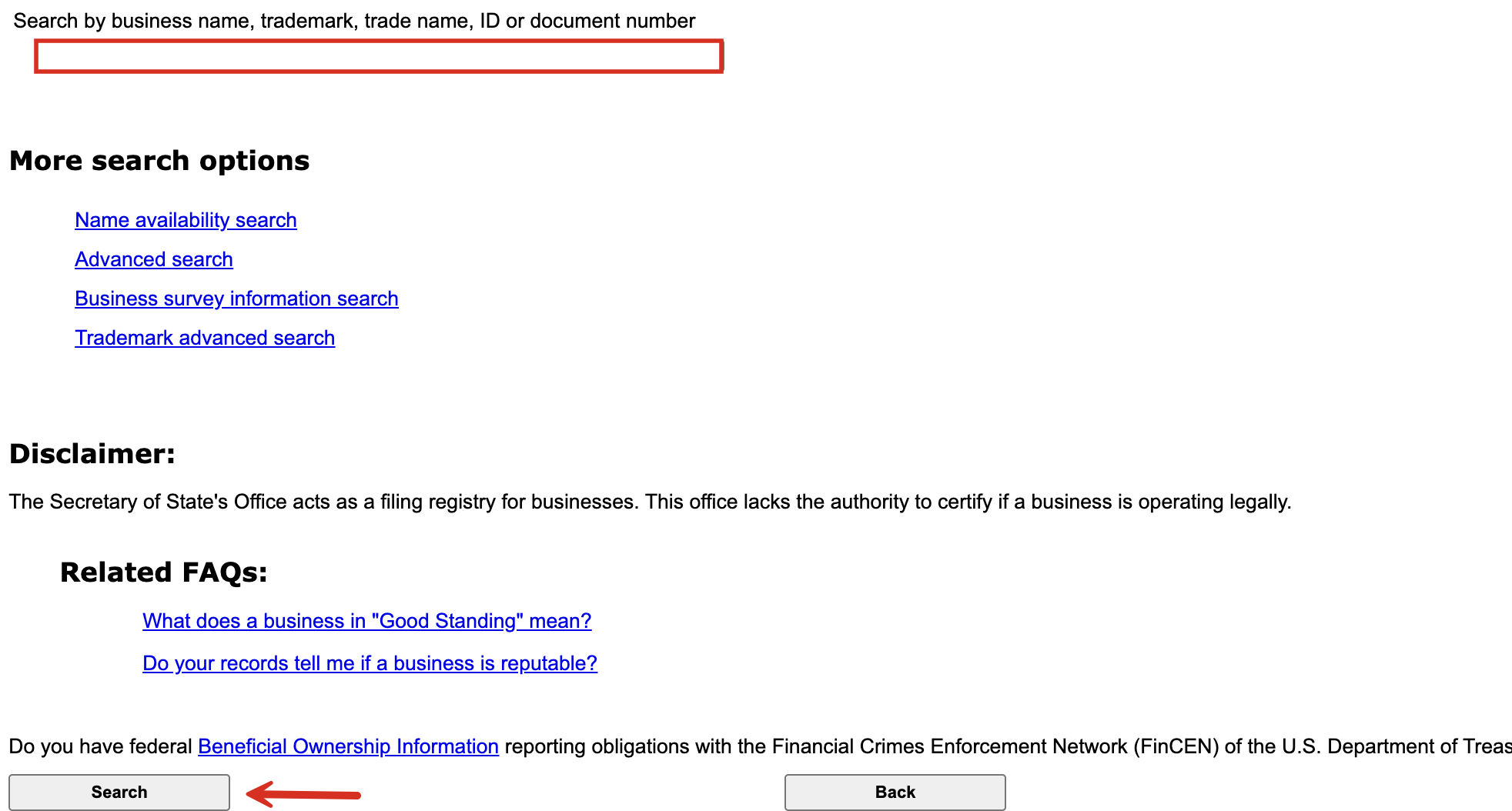
3. View Matching Records
A list of all matching records on file with the Secretary of State will be presented on the subsequent page.
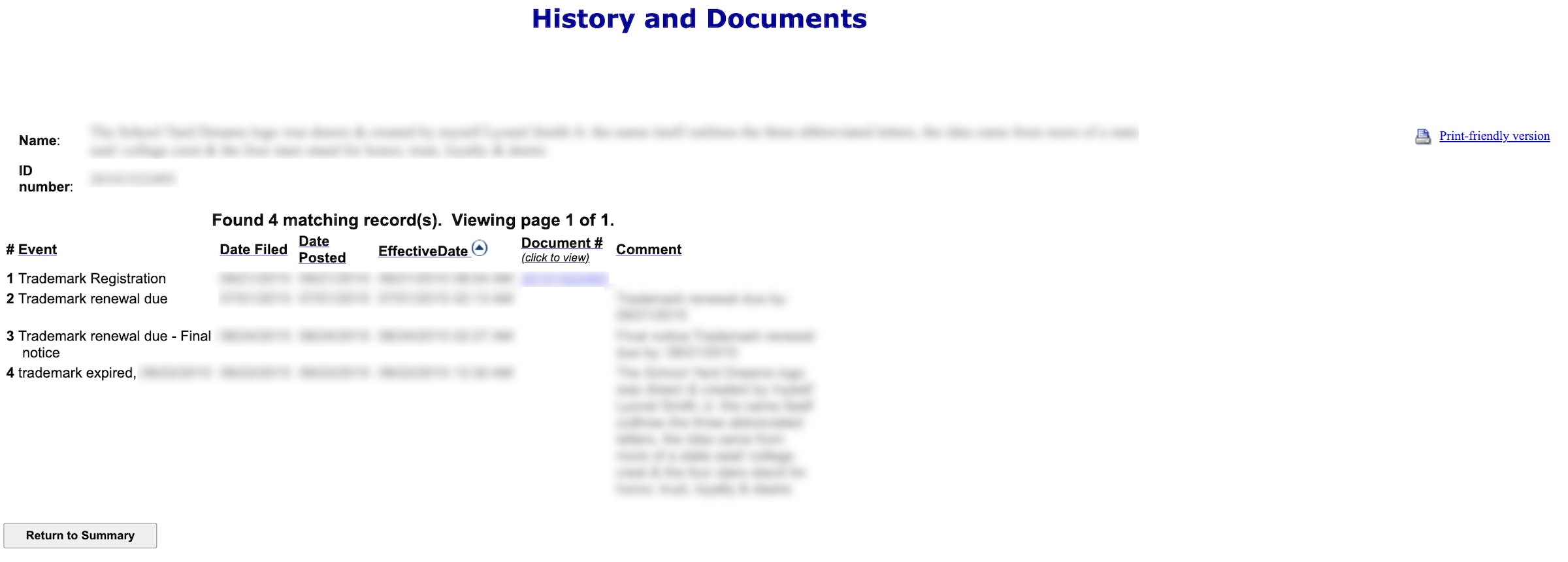
Search for “Trademark Registration” under Event if investigating a trademark and click ID Number to view details.
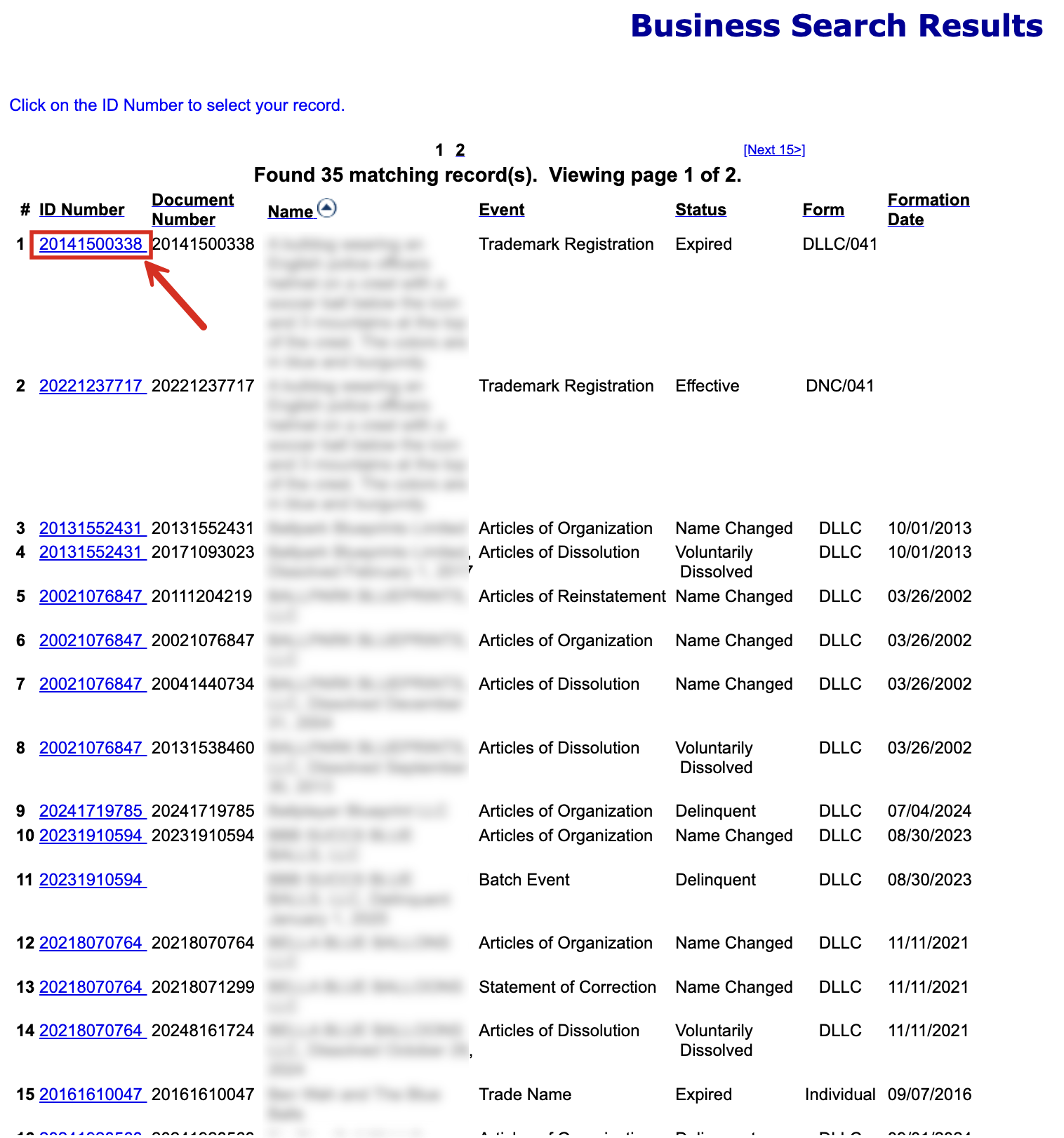
4. Review Summary
On the Summary page, users can review a full description of the trademark as well as the following:
- Status
- Date of first use
- ID number
- Renewal month
- Registration and expiration dates
- Class
- Description of goods or services
- Deleted goods or services
- Registrant name and addresses
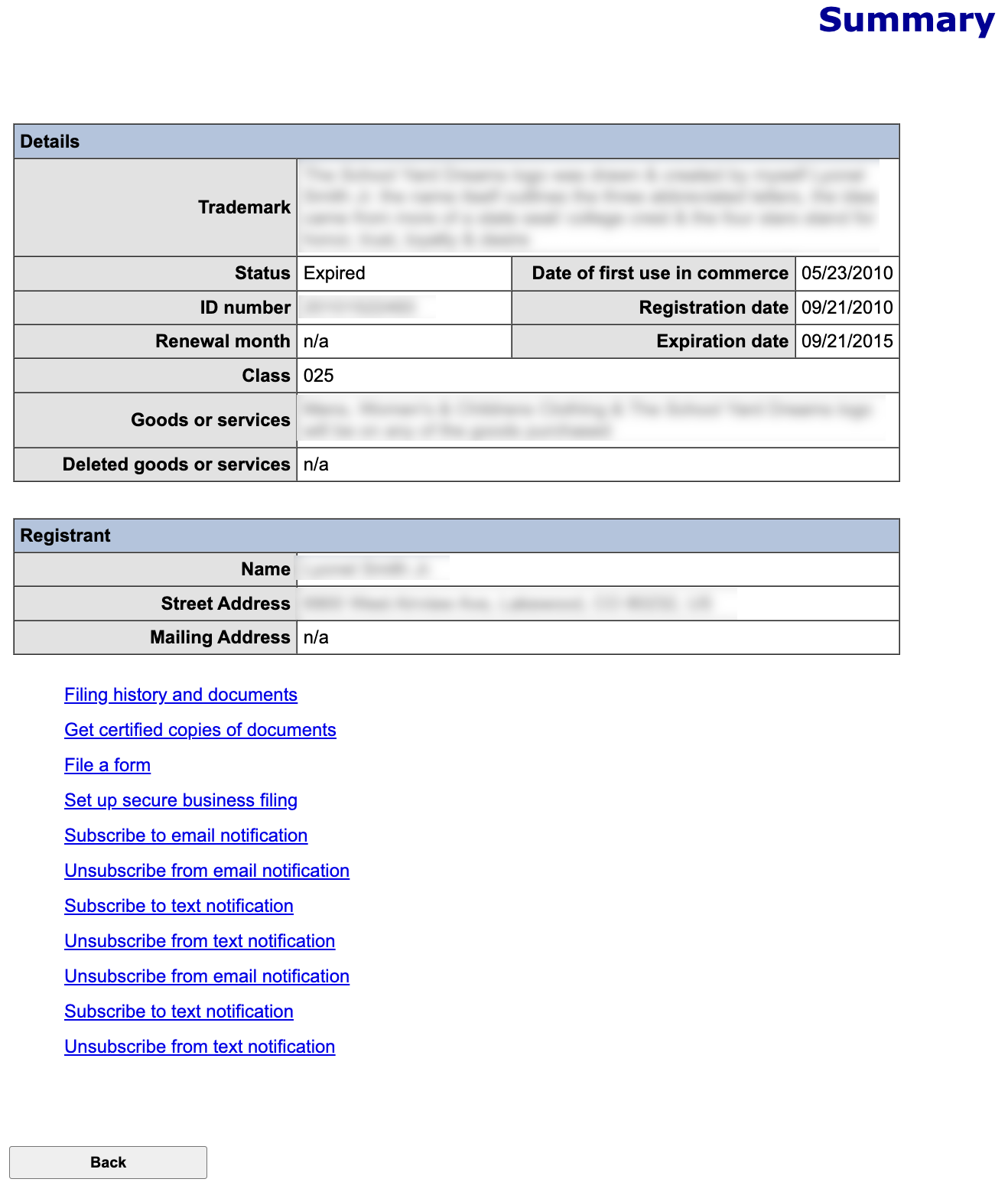
Advanced Trademark Search
1. Go to “Trademark Advanced Search” Page
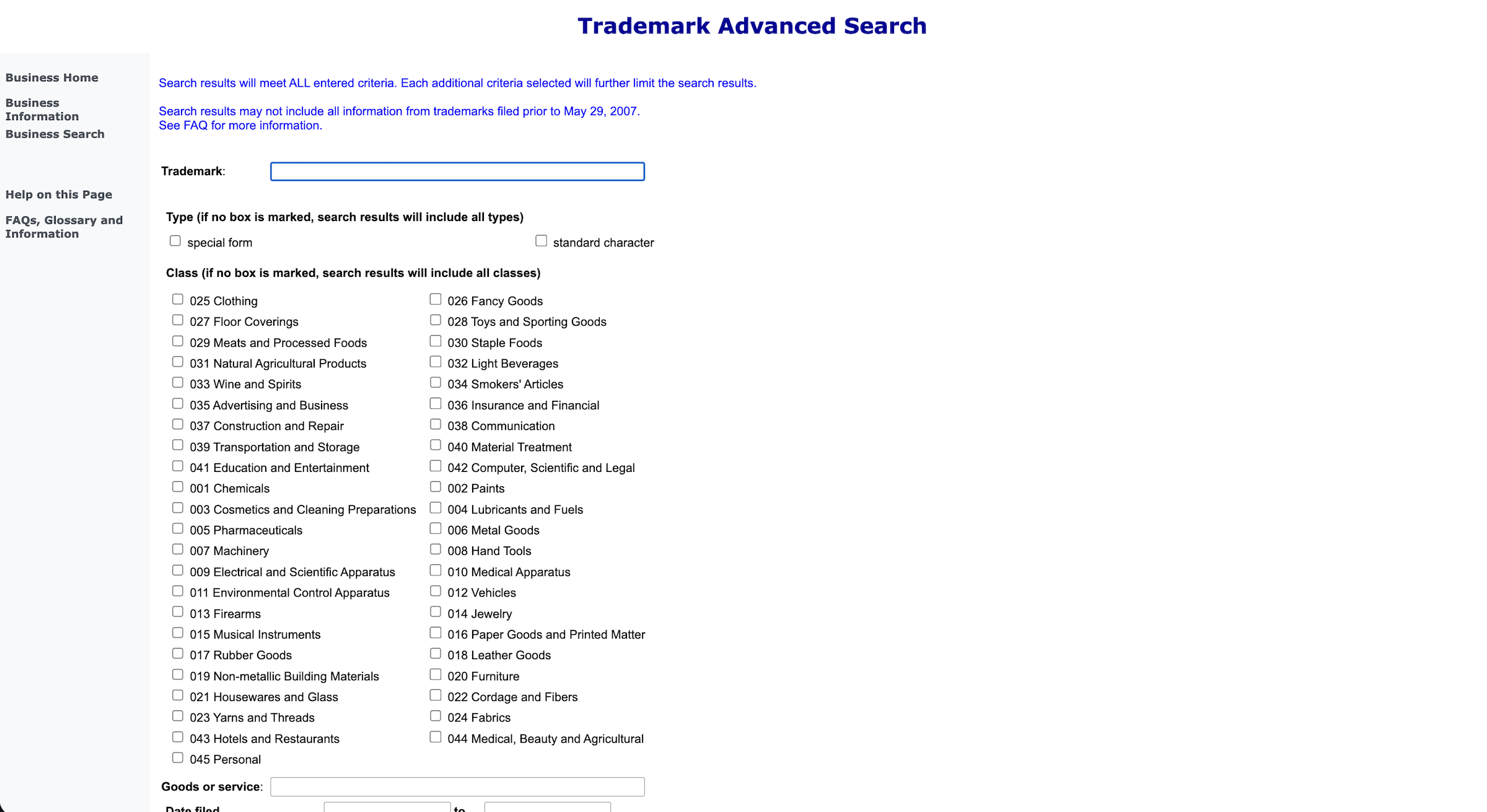
2. Enter Trademark Name and Class

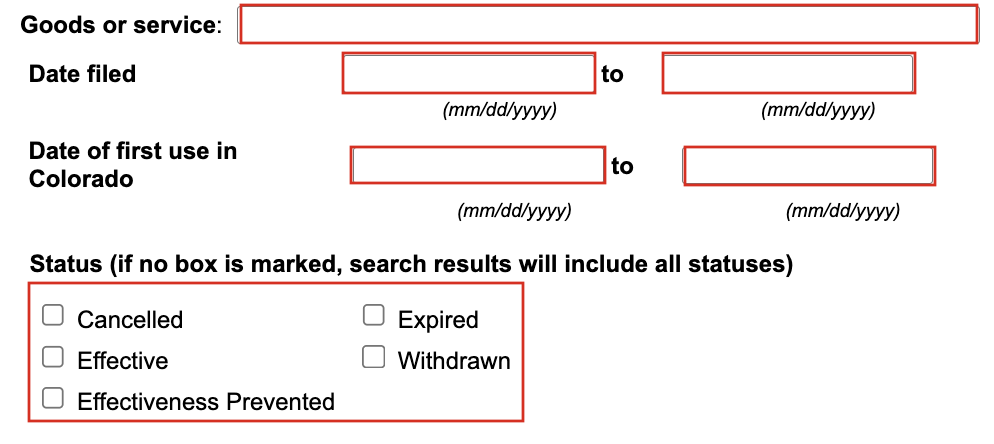
3. Enter Trademark Details
All of these fields/buttons can be left blank, although adding more information will narrow the search results.
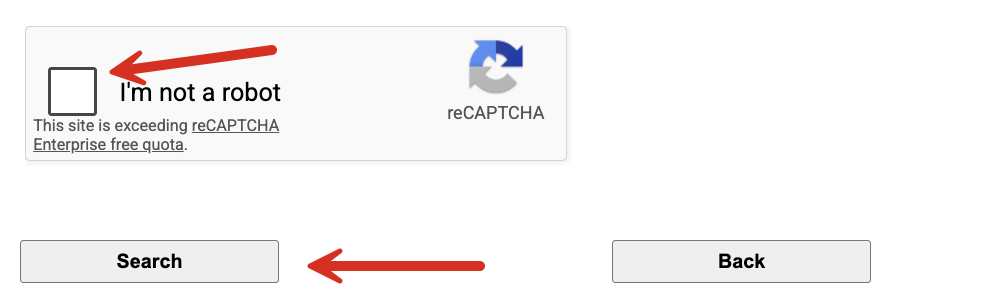
4. reCAPTCHA + Search
Select the I’m not a robot checkbox and click Search to review the records related to the data entered.
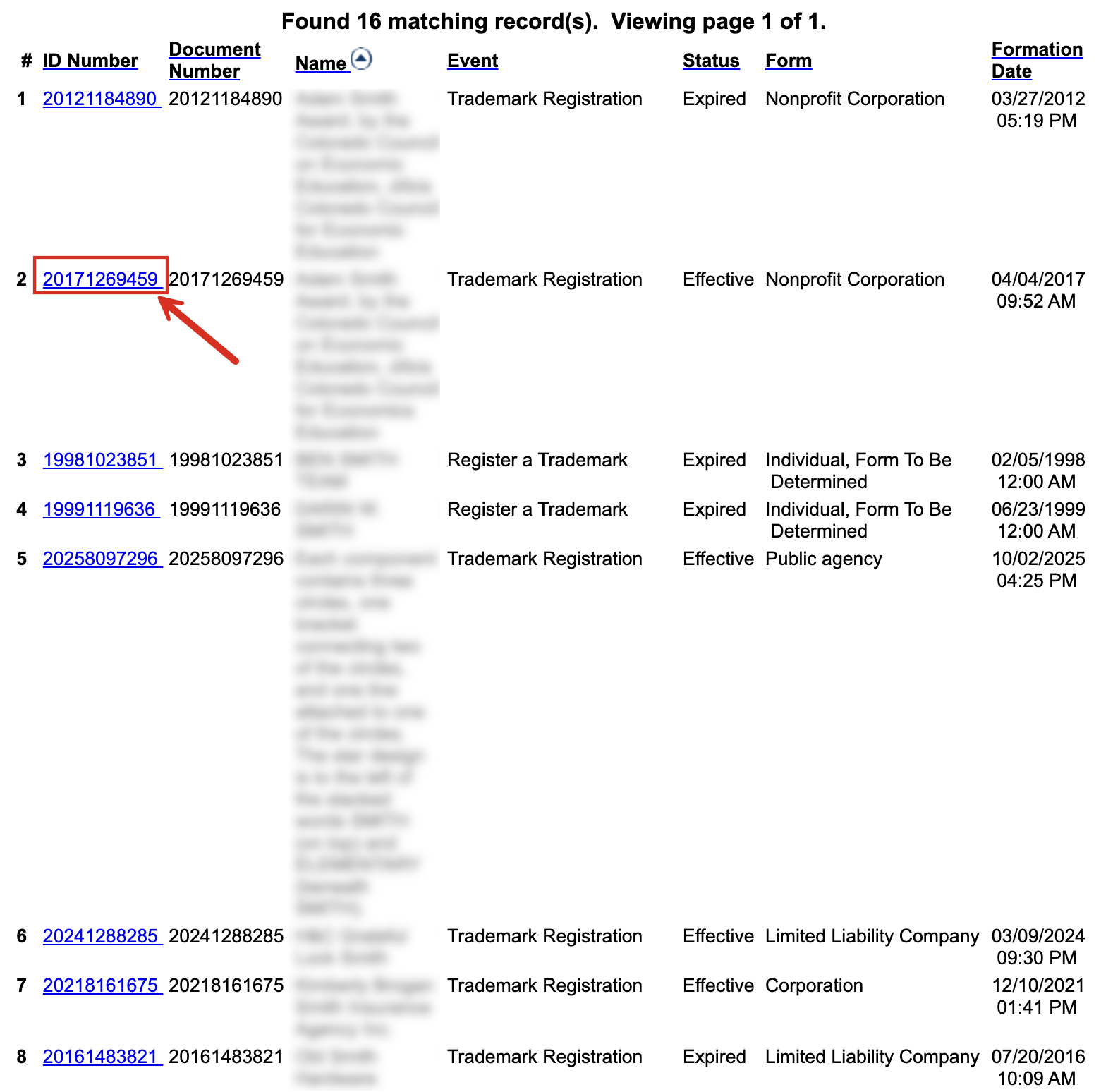
5. View Matching Trademark Records
The following page will feature all trademark records that match the search. Click any of the categories at the top to sort by that group. The ID Number can be selected for more information about any specific trademark.
6. Review Trademark Summary
The Summary page will enable the user to review the following information:
- Trademark description
- Status
- Date of first use
- ID number
- Renewal month
- Registration and expiration dates
- Class
- Description of goods or services
- Deleted goods or services
- Registrant name and addresses