
The North Carolina UCC search is an online tool used to look up whether an organization or individual has any liens or security interests on their personal property. The NC Secretary of State keeps a public record of all UCC financing statements. Through a free online search or by filing a UCC11 Information Request online, users can view the associated filings of any debtor in the system.
UCC Search
1. Go to UCC Search Homepage
2a. Perform Standard Article 9 Search
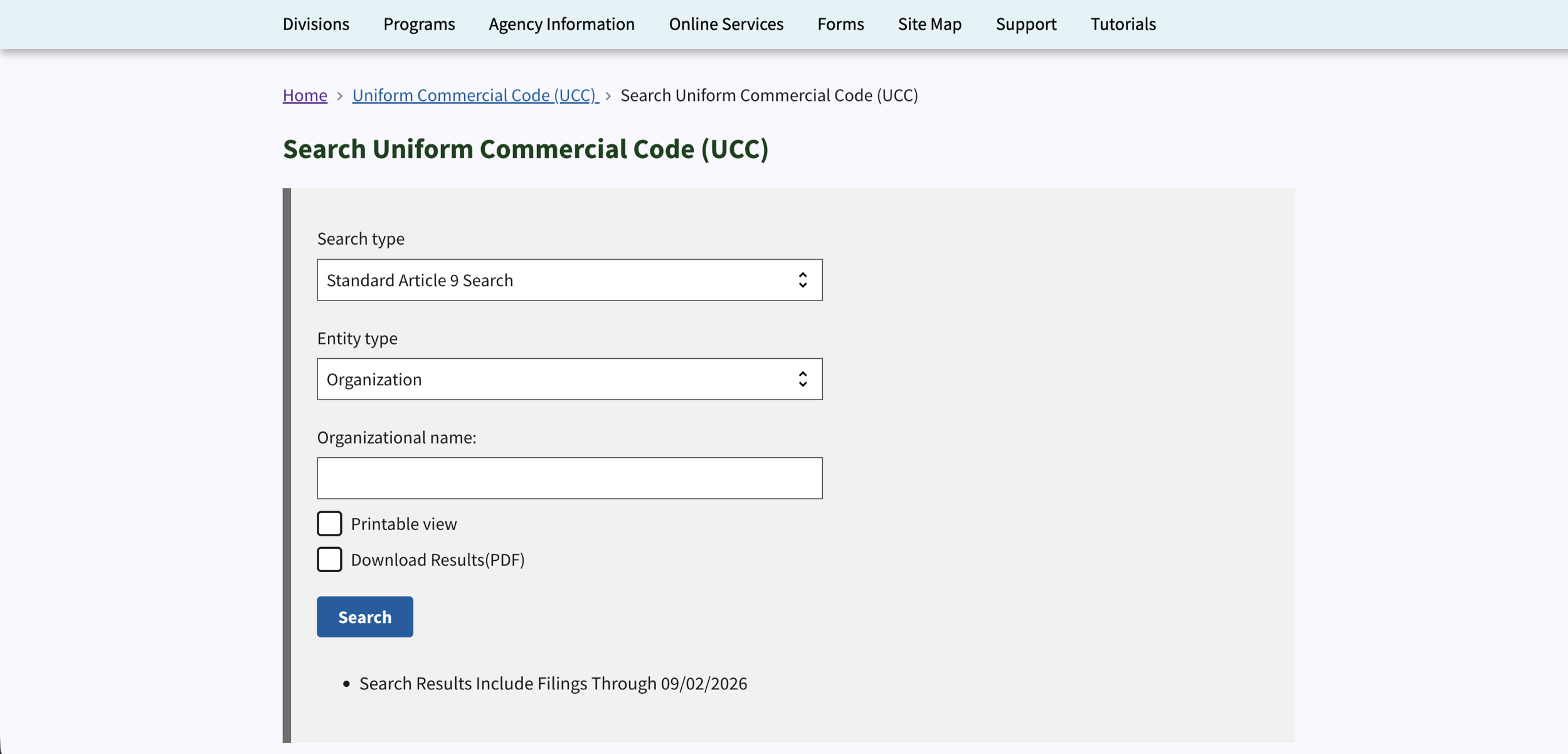
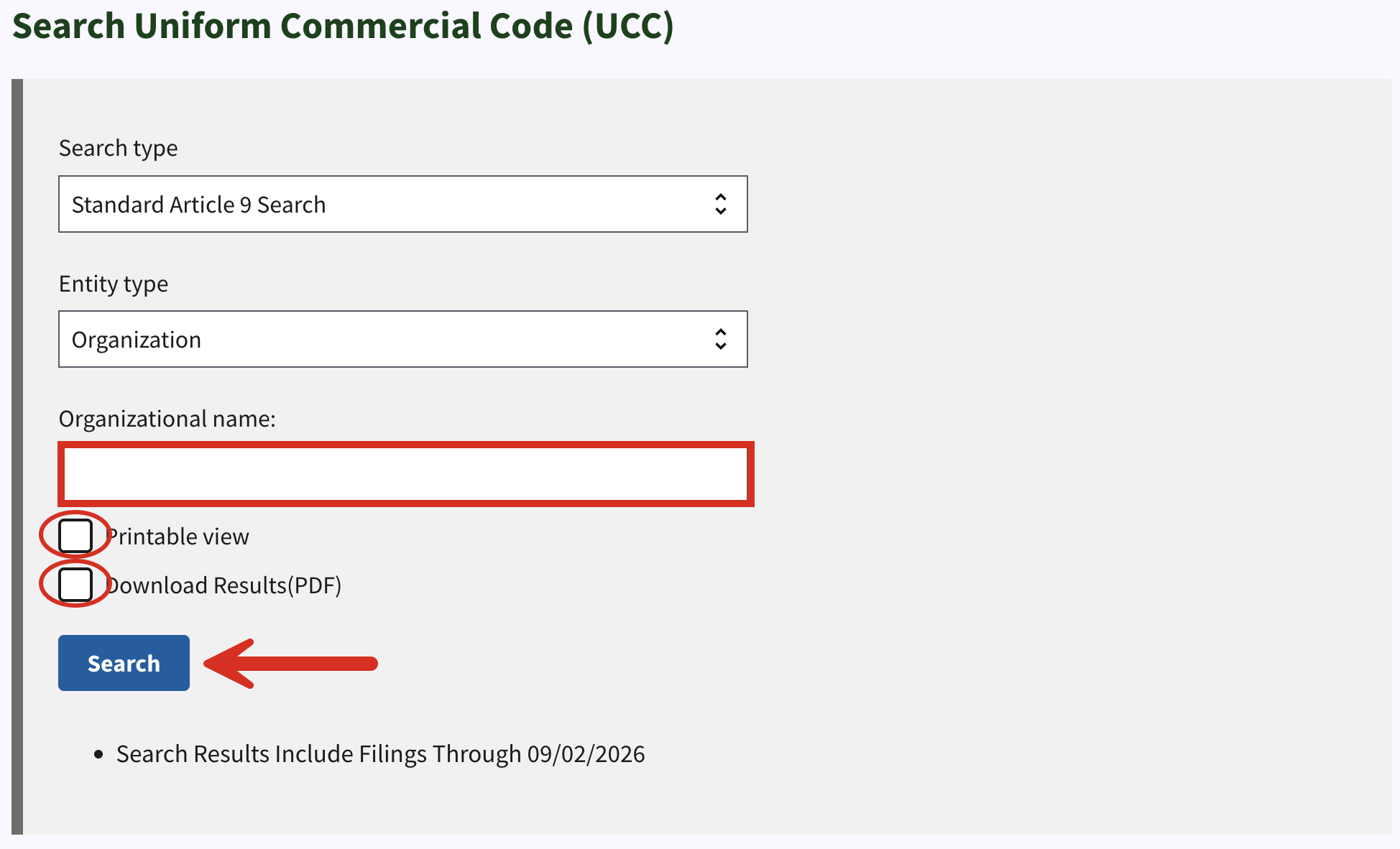
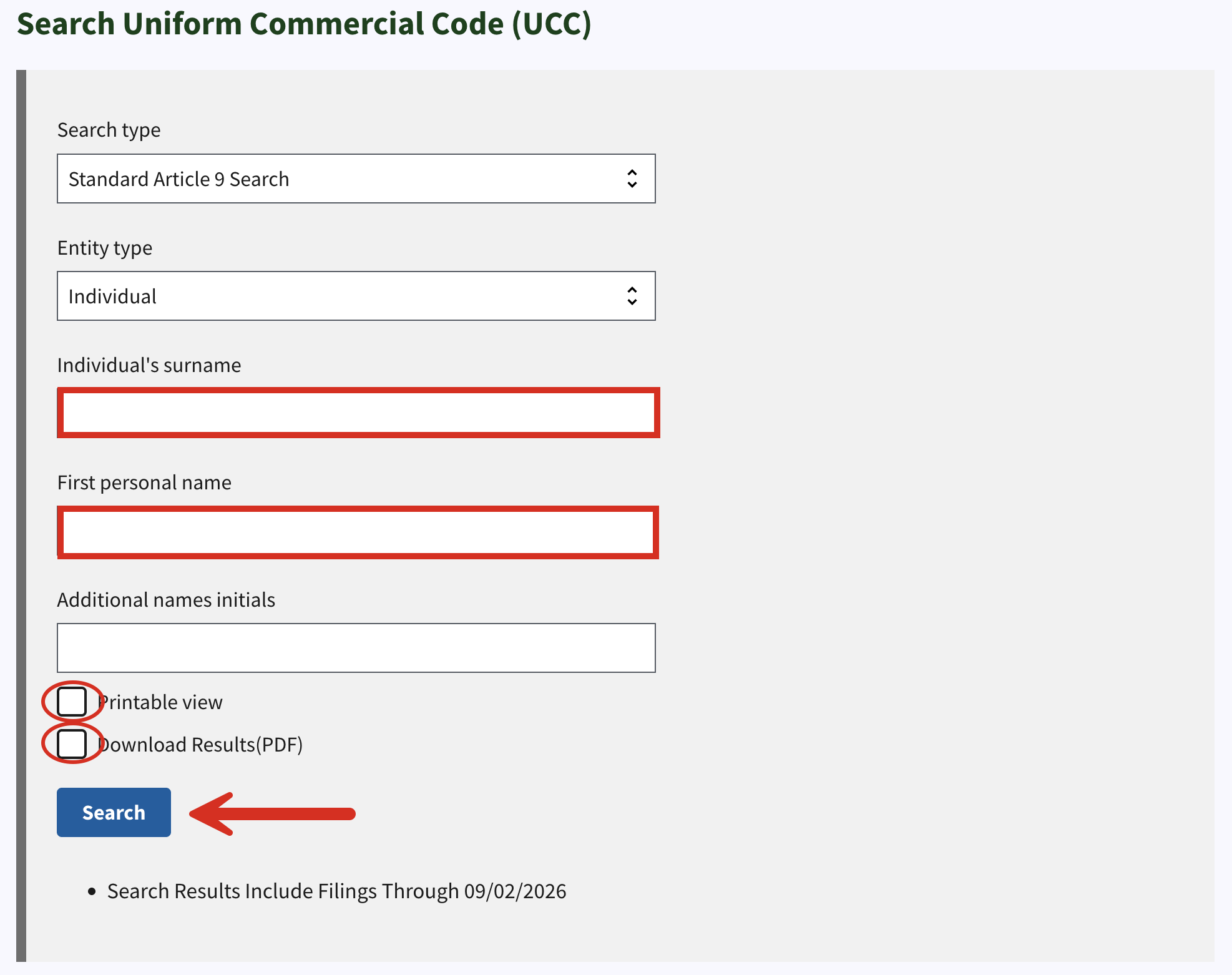
The default search type is the Standard Article 9 Search: a search of UCC filings involving liens against a specific individual or organization’s property. To perform this search, enter the name of the Organization or the Individual (see image). There’s the option to select either the Printable view or to Download Results directly in PDF format.
When ready, click Search.
2b. Search by Name
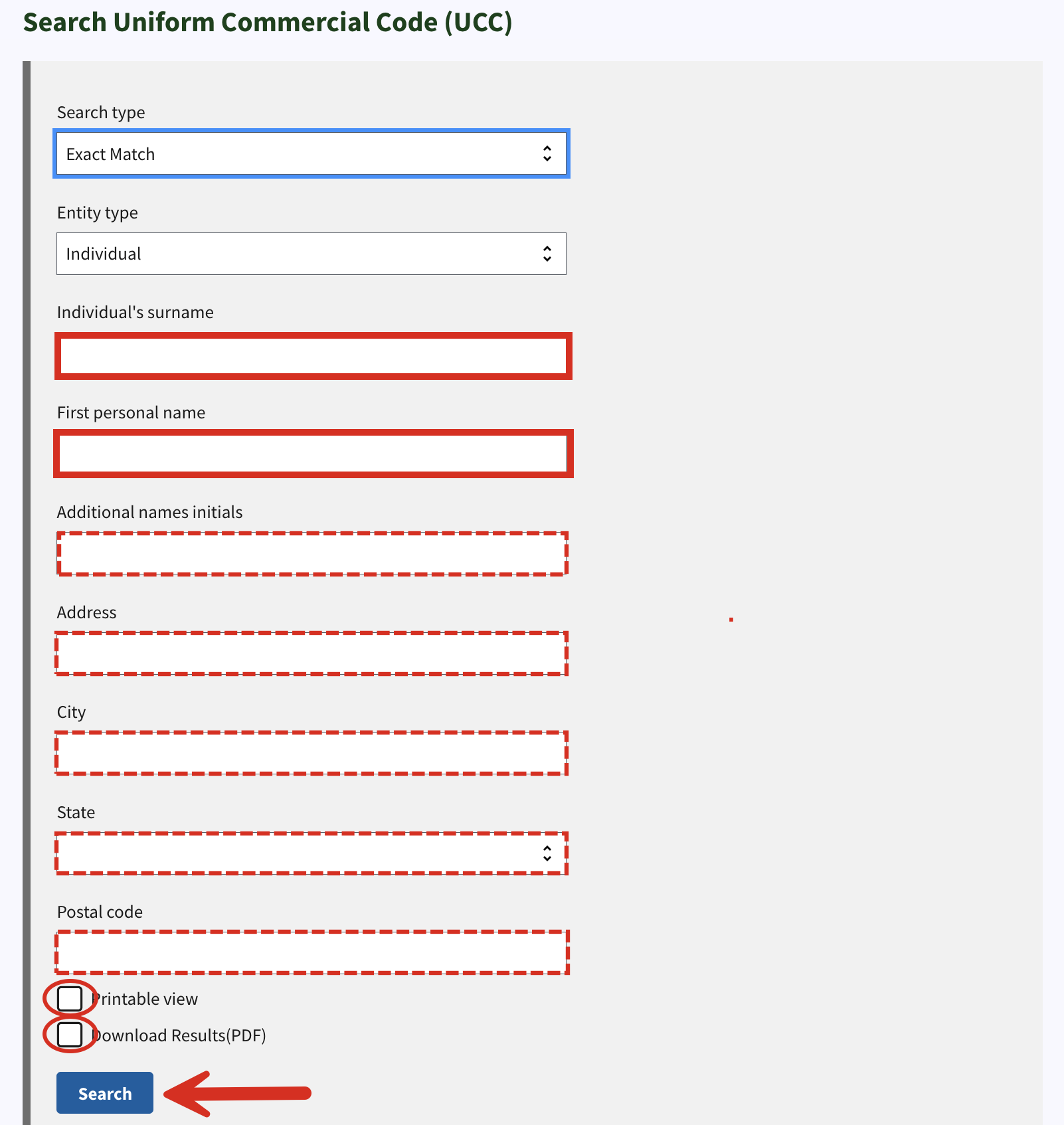
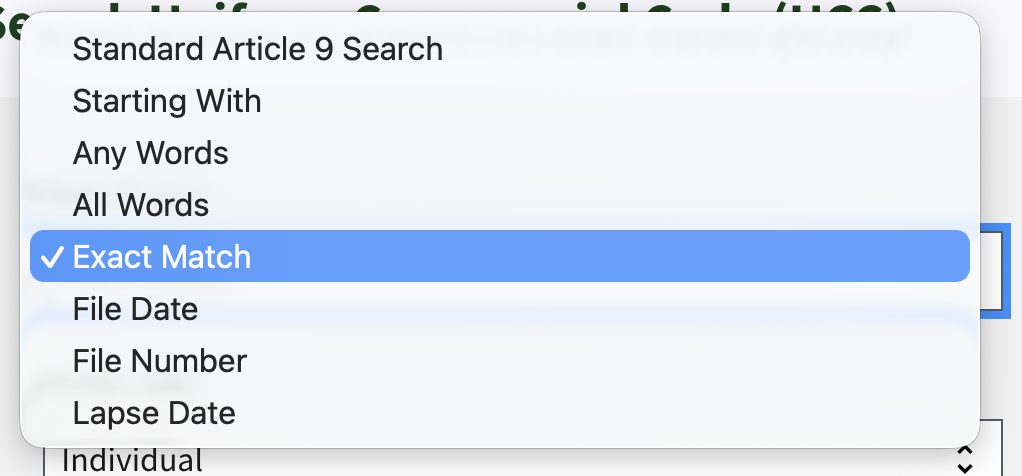
A search of UCC filings can also be carried out using the name and address of an organization or individual (see image). The search types available are: Starting With, Any Words, All Words, Exact Match (see image). Choose Printable view, Download Results(PDF), or proceed without checking either box. Click Search to continue.

2c. Search by Date
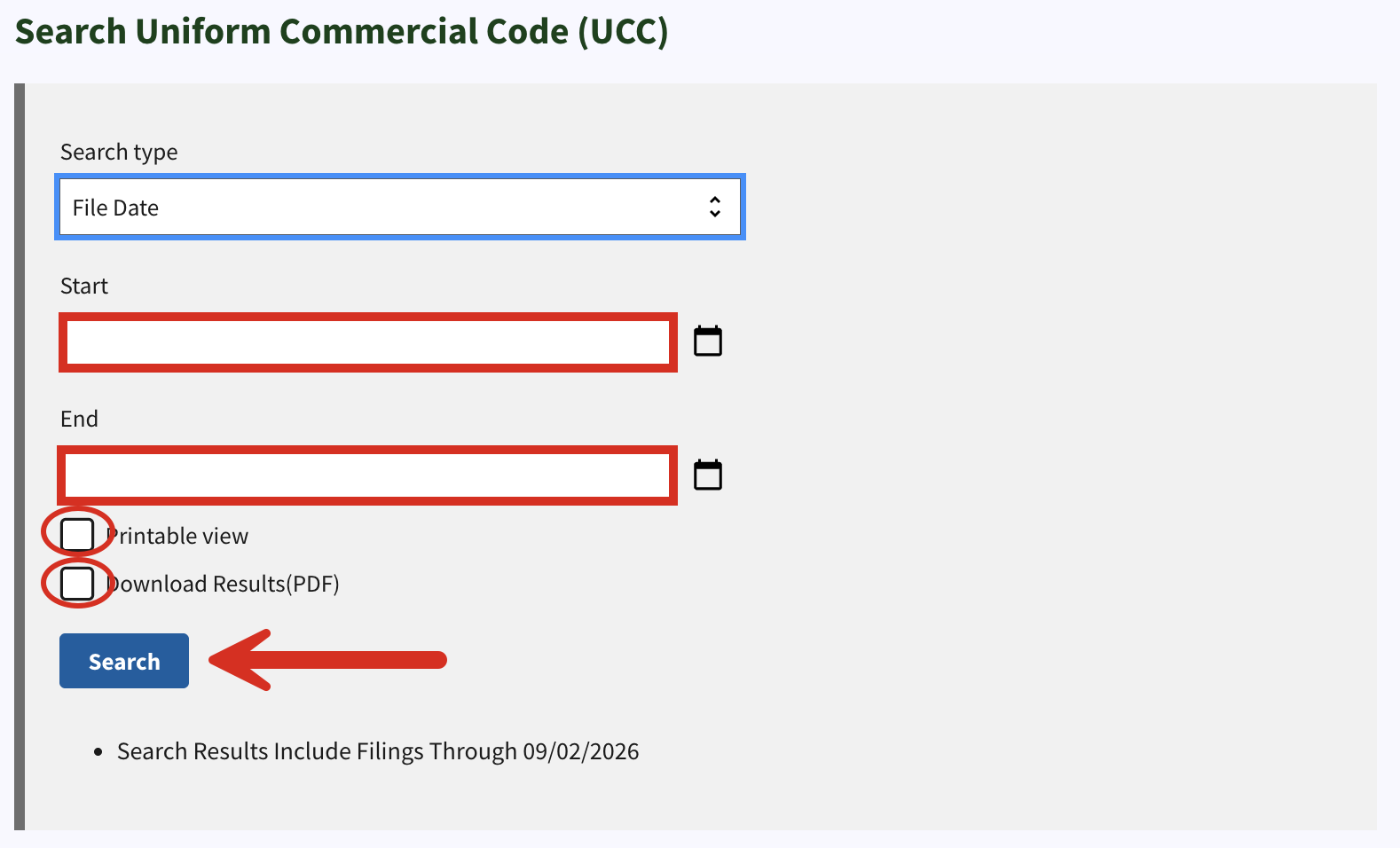
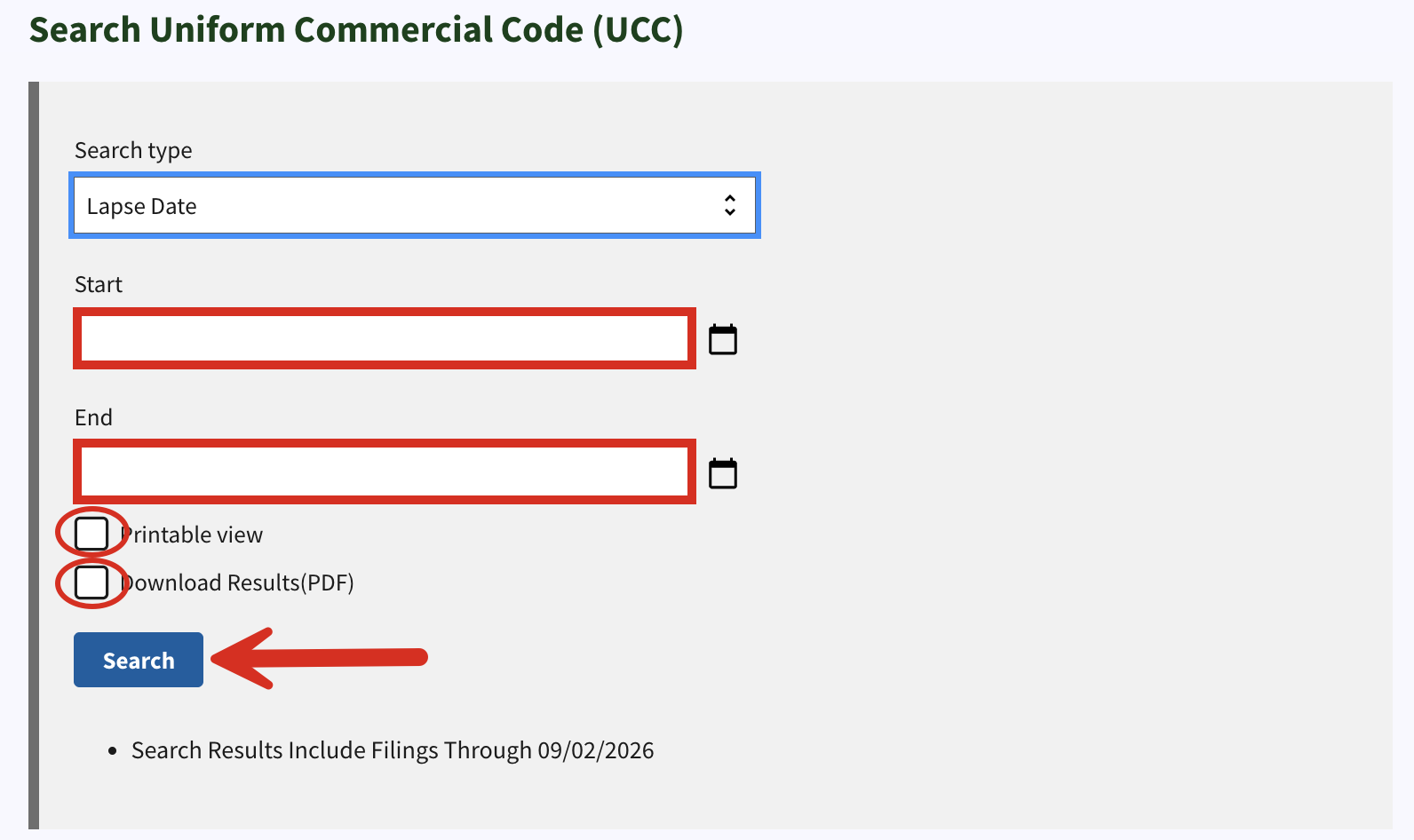
Users can also search by File Date or Lapse Date (see image). Enter the Start and End dates of the period within which the document’s filing occurred. There’s the option to select Printable view or Download Results(PDF) as well.
Click Search to proceed.
2d. Search by File Number
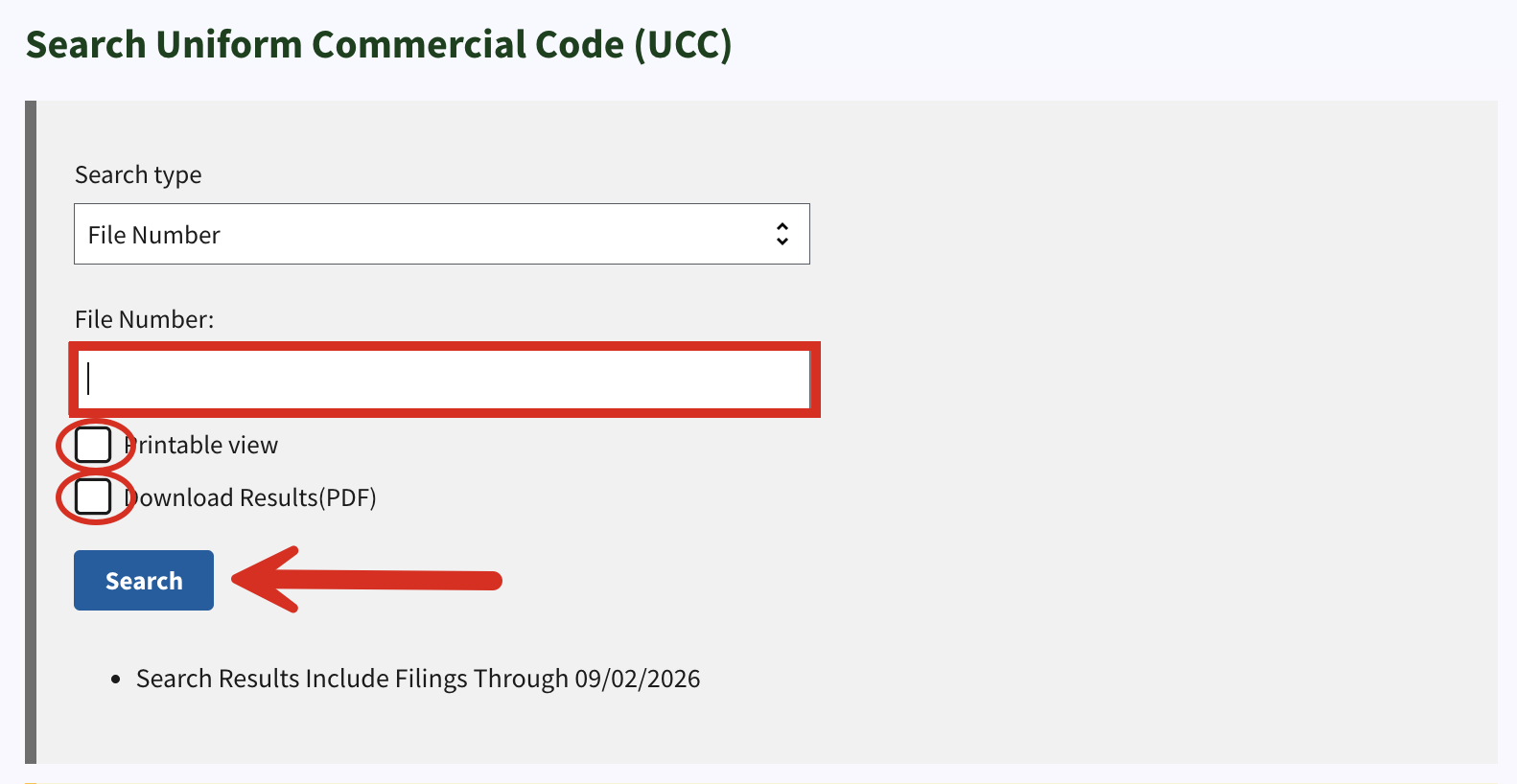
Searching by File Number will present a single filing result. Enter the file number into the available field, choose either Printable view or Download Results(PDF) and click Search.
3. Review Results
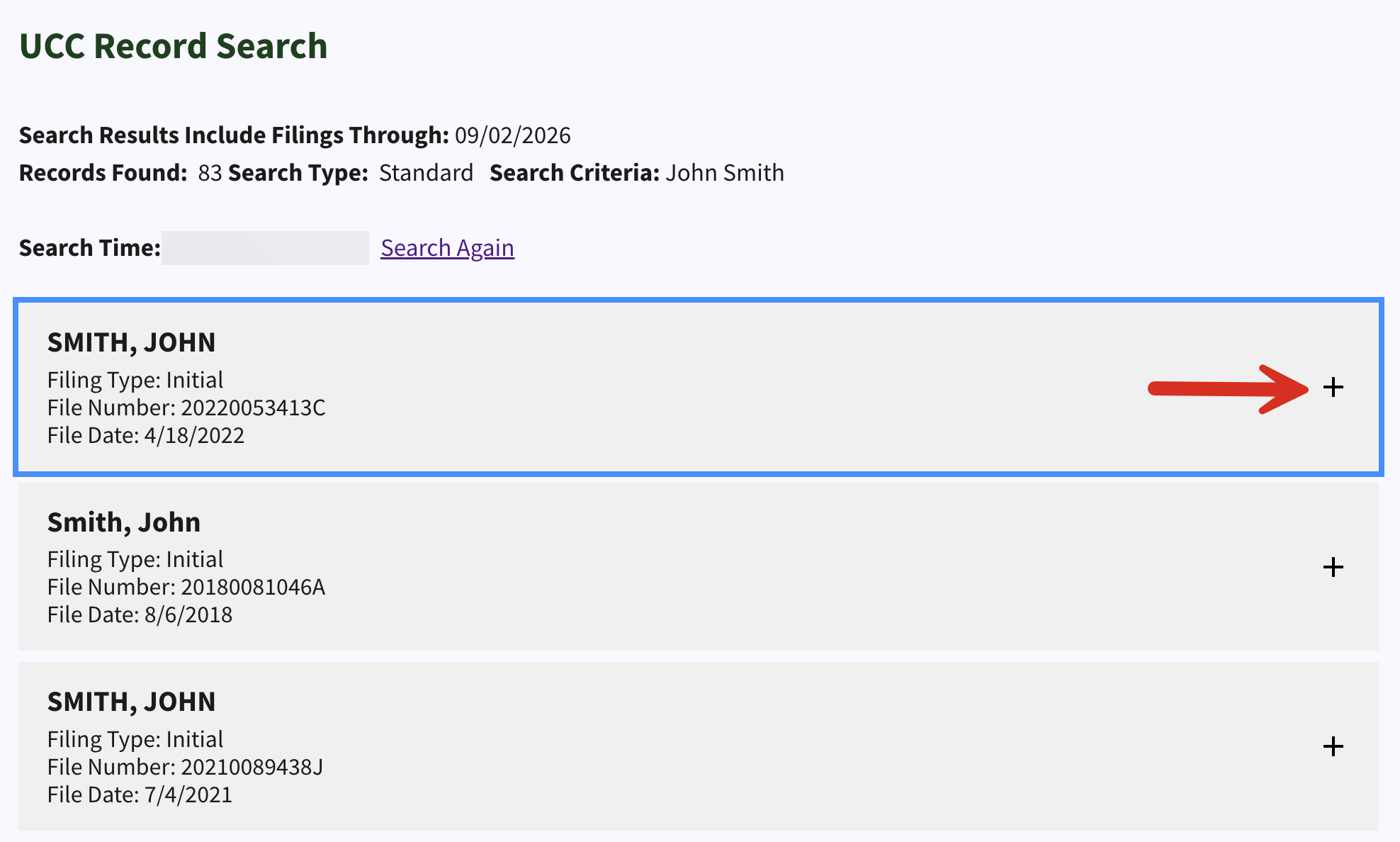
If Printable view or neither checkbox was selected on the previous page, a list of UCC records should appear featuring the name, dates, or number entered on the previous webpage. If no results appear, it means there are no filings that match the search data entered. If Download Results(PDF) was used, the results should download automatically.
To view more filing details on any given link, click the + sign.
4. Open Filing Chain
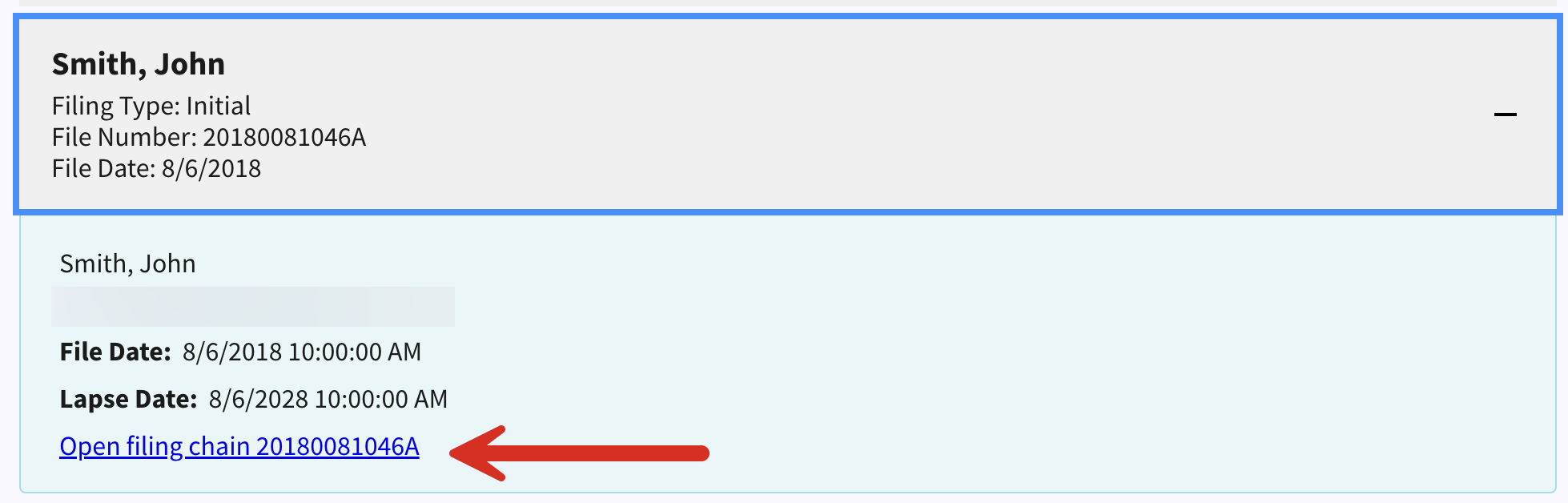
A blue window should appear that includes the File Date and Lapse Date. Click Open filing chain [#] to view more details.
5. Download Filing(s)
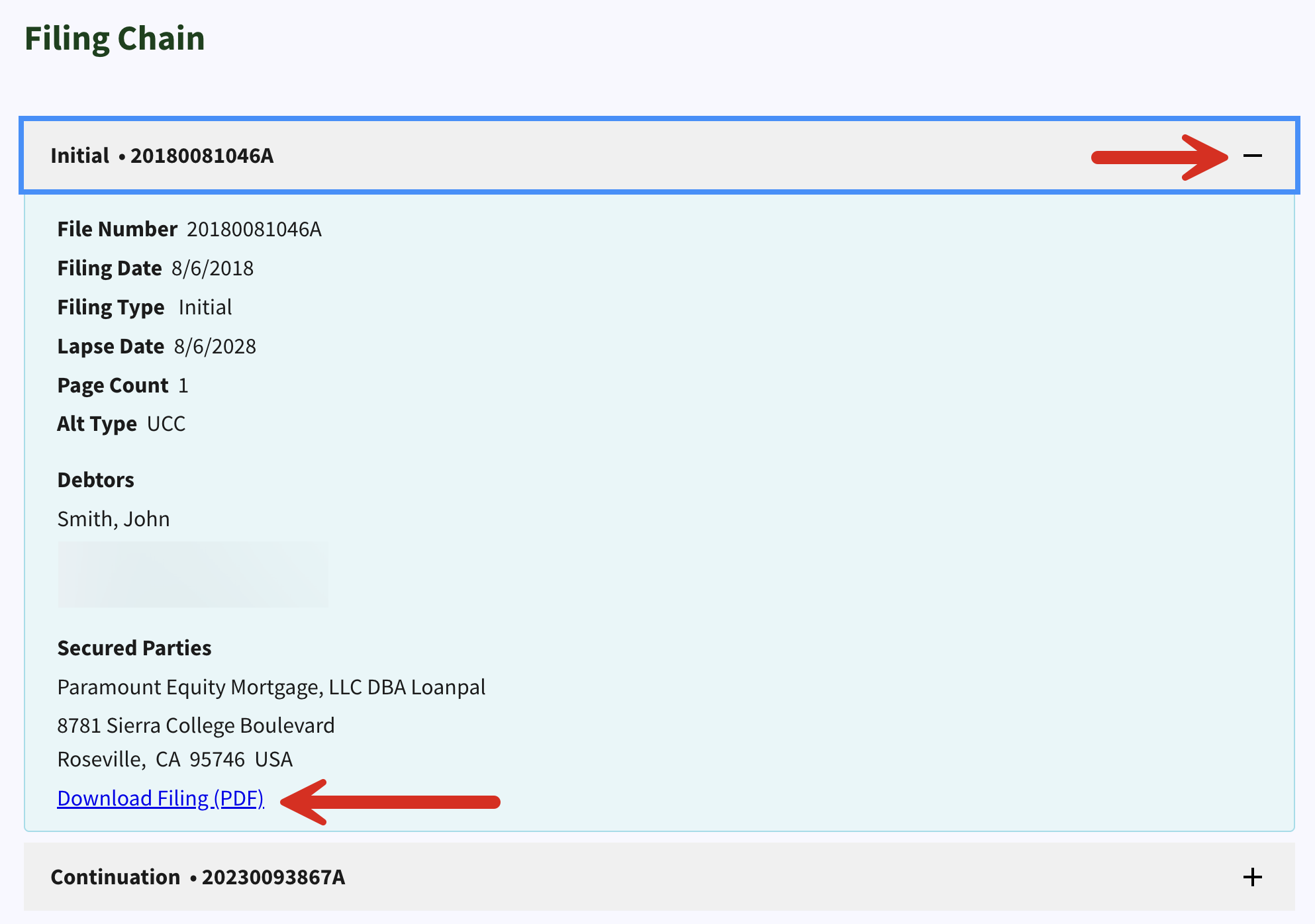
The Filing Chain should present the following info:
- File number
- Filing date
- Filing type
- Lapse date
- Page count
- Type
- Debtor name and address
- Secured parties name and adddress
There should be a Download Filing (PDF) link that provides an uncertified copy of the initial UCC filing. There may also be associated documents listed under the initial filing (as pictured below).
Certified Search
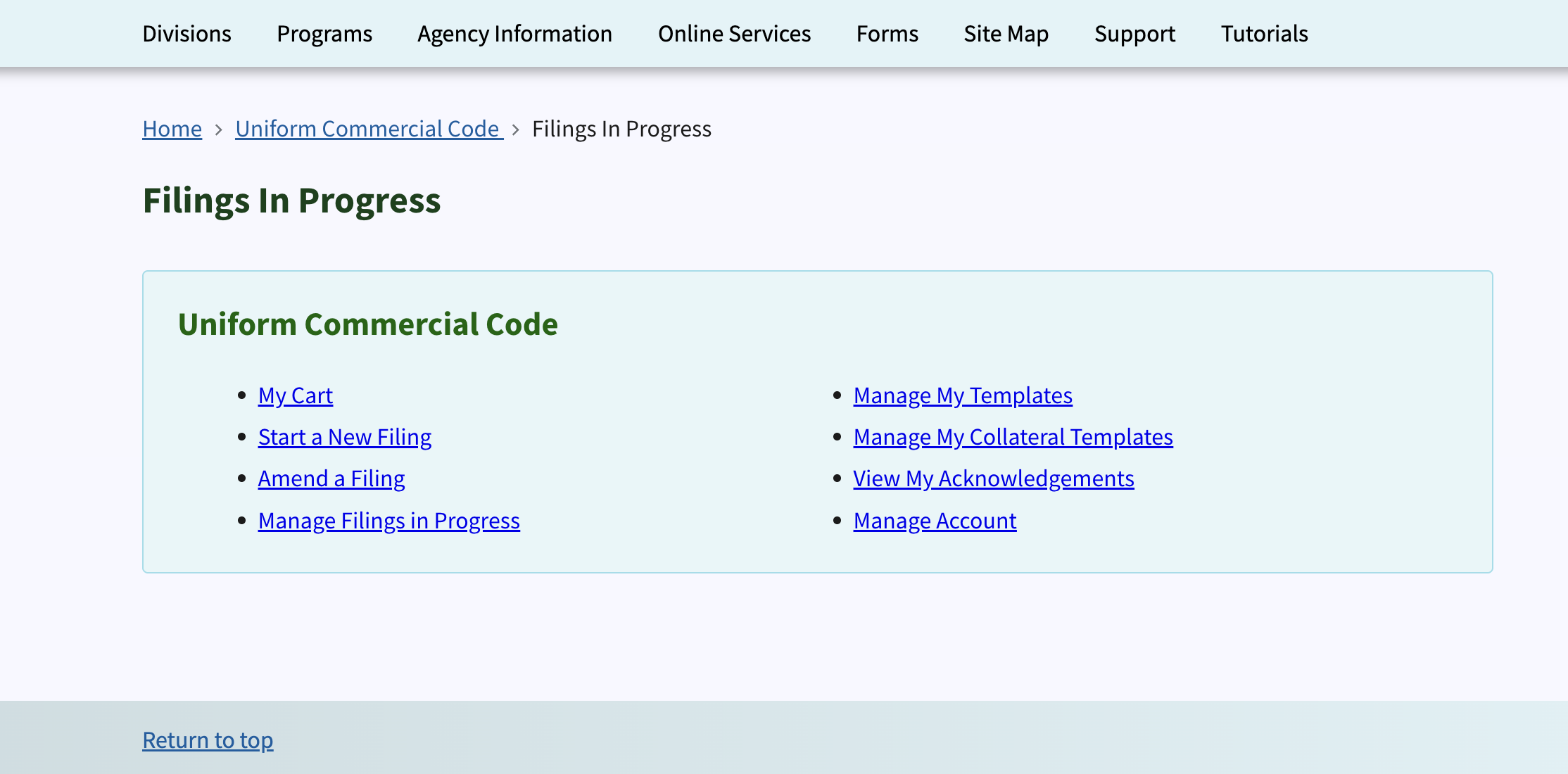
1. Access UCC Dashboard
2. Start a New Filing
Click on Start a New Filing.
3. Enter Info and Packet Number
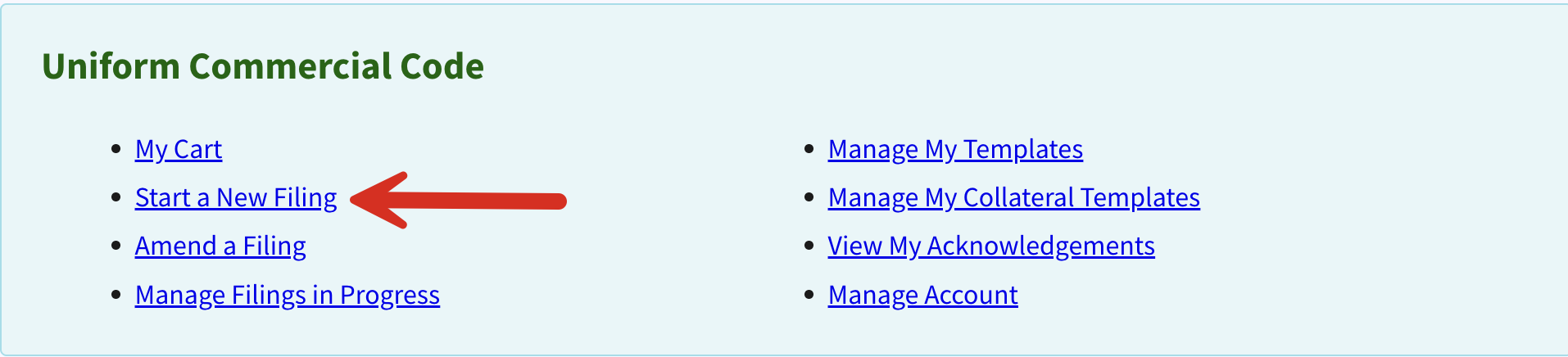
At the top of the first page, enter a Packet number (an identifier entered by the filer). Contact information can also be added at this point. Click Next to move forward.
4. Choose Filing Type and Enter Name
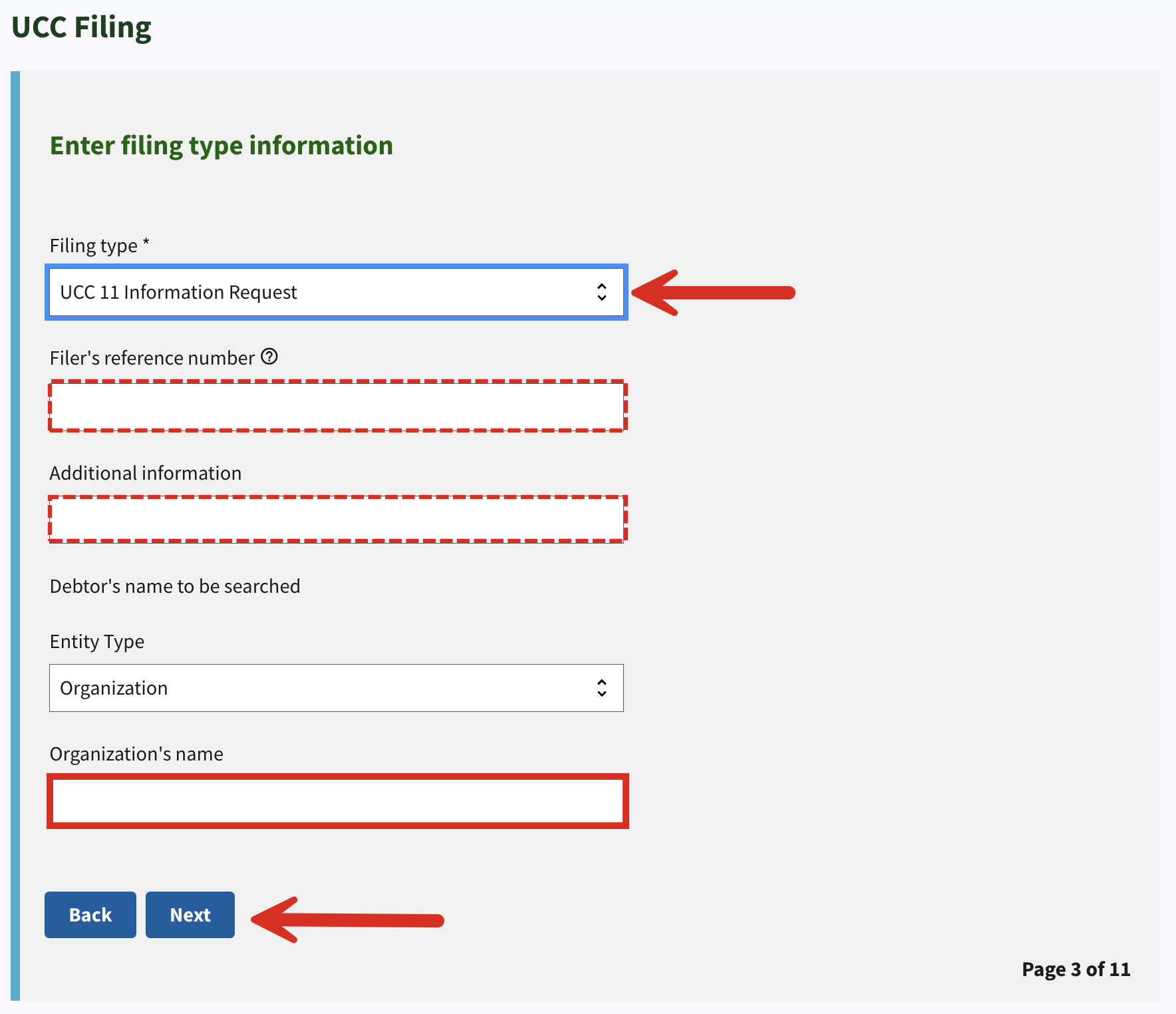
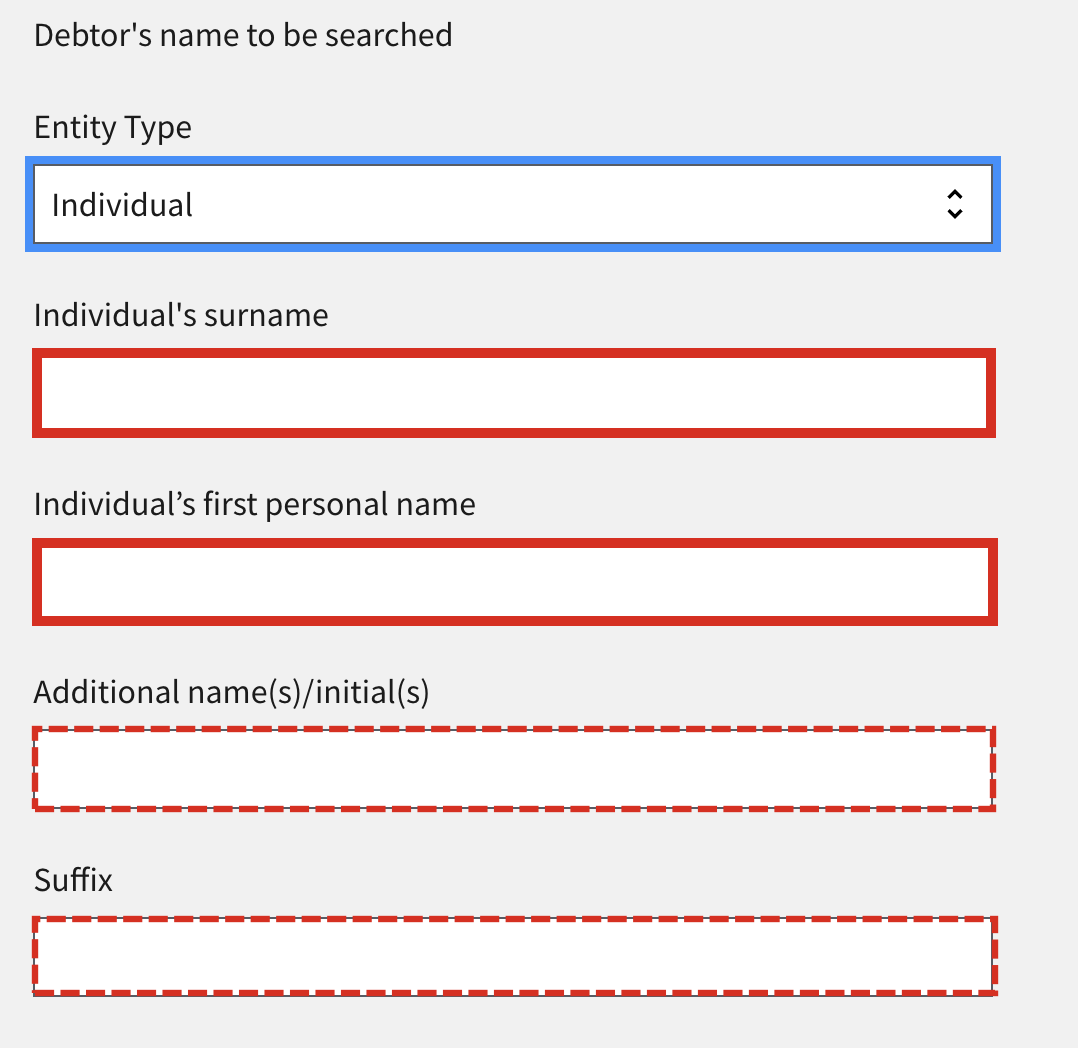
Make sure to select UCC 11 Information Request under Filing type. Next, enter a filer’s reference number and additional information (these are both optional). The debtor’s name should be entered next. It can be either an Organization (see below) or an Individual (see image).
Click Next.
5. Enter Search Options
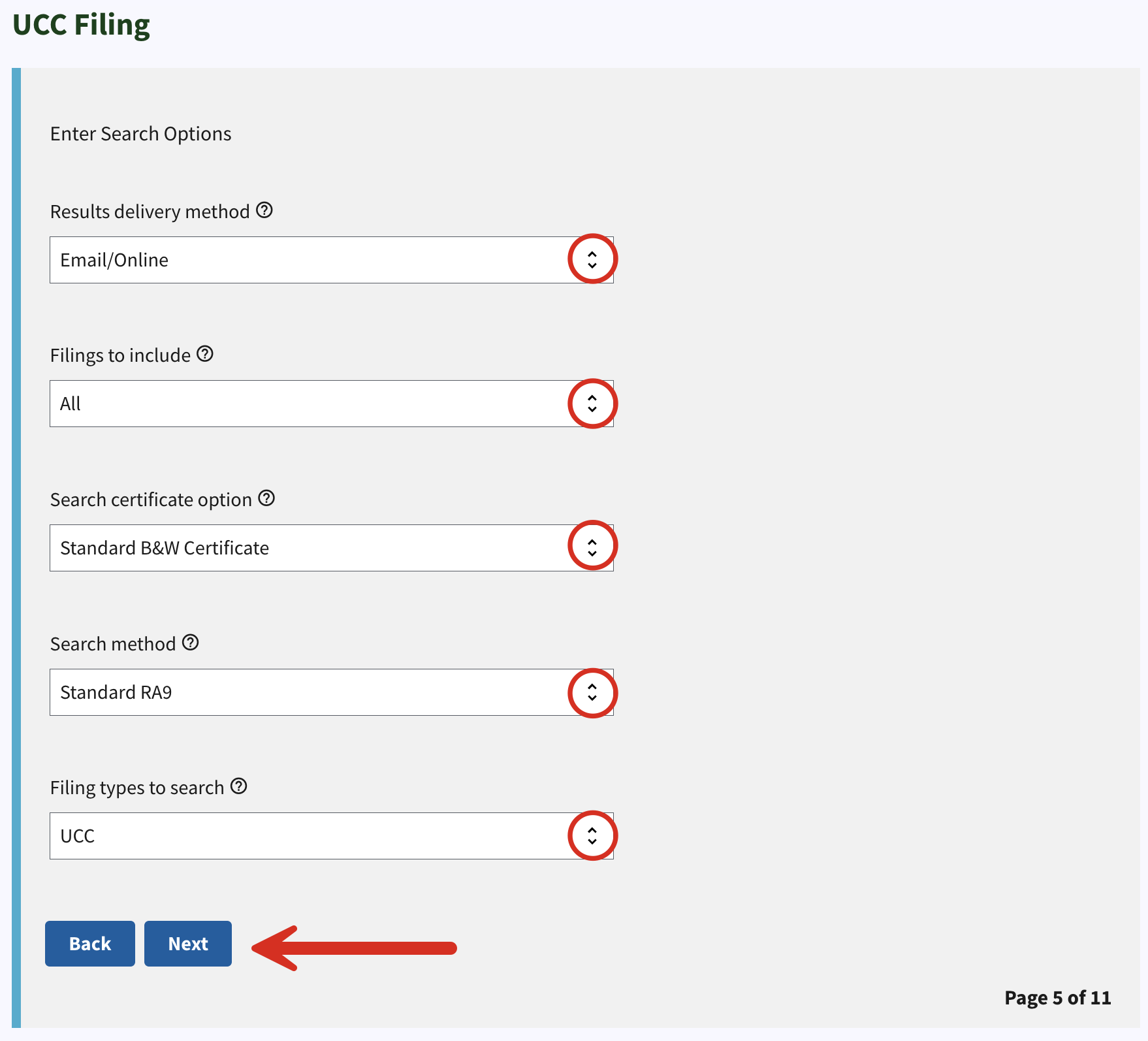
The next page will present a series of search options, including:
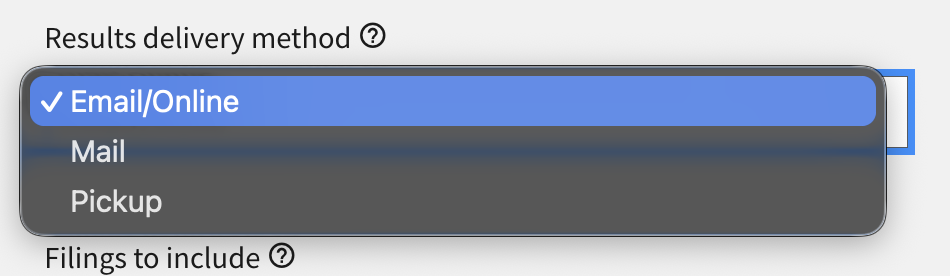
- Results delivery method (see image) – email, mail, or both
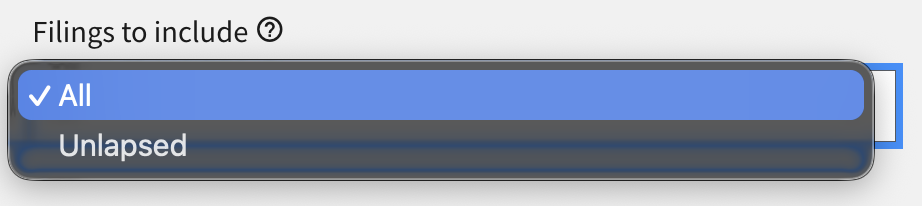
- Filings to include (see image) – all or just unlapsed
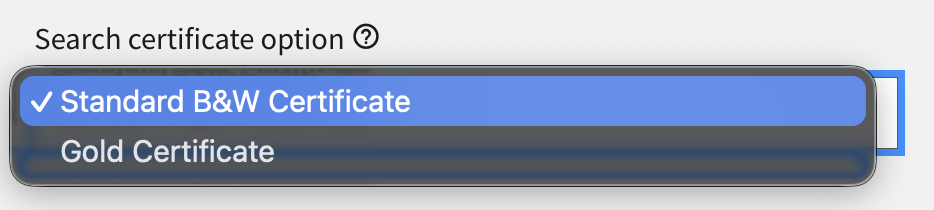
- Search certificate options (see image) – standard or gold
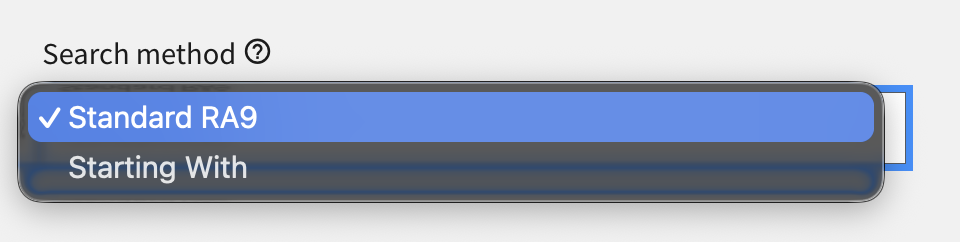
- Search method (see image) – standard RA9 or starting with
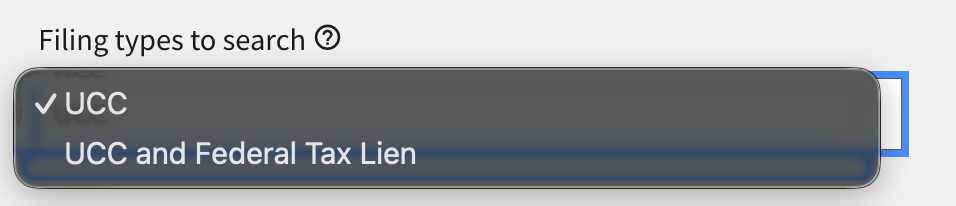
- Filing types to search (see image) – UCC or federal lien
Click Next once the selections have been made.
6. Filing Preview
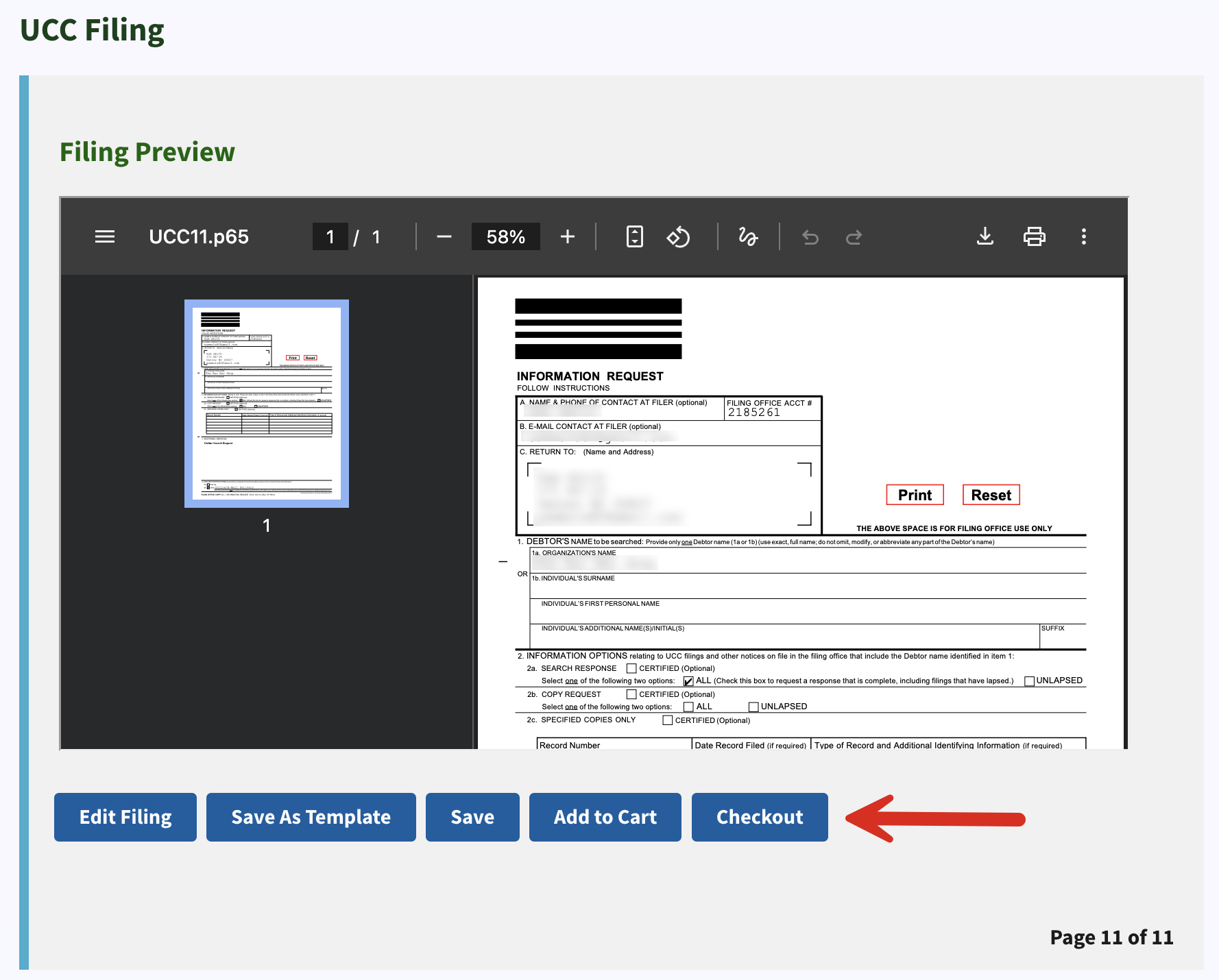
The next window will present the filing preview in PDF of the UCC11 Information Request. At this point, users can Edit Filing, Save as Template, Save the filing, Add to Cart to continue shopping, or Checkout.
7. Review UCC Cart
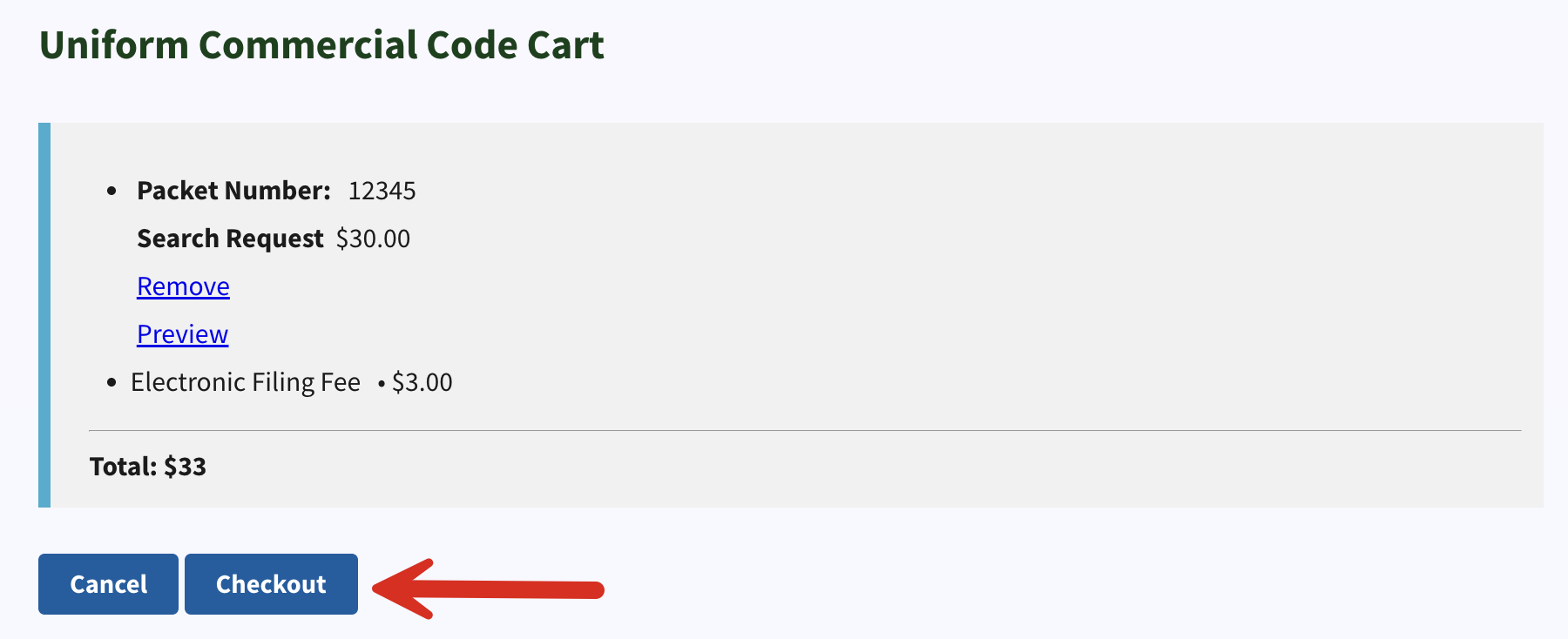
If checking out, the next page will be a breakdown of the filing fee. Click Checkout again to continue.
8. Pay For Filing
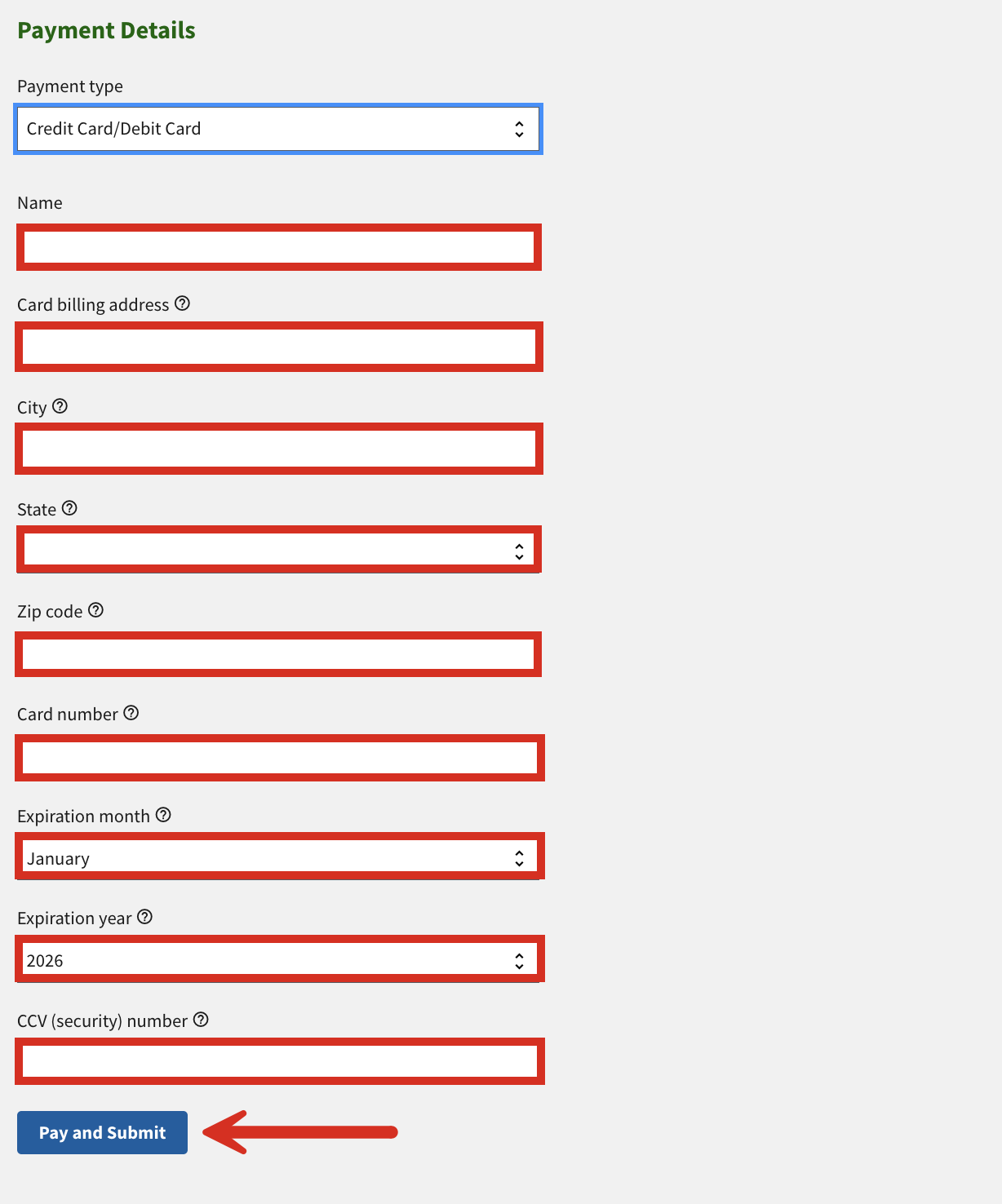
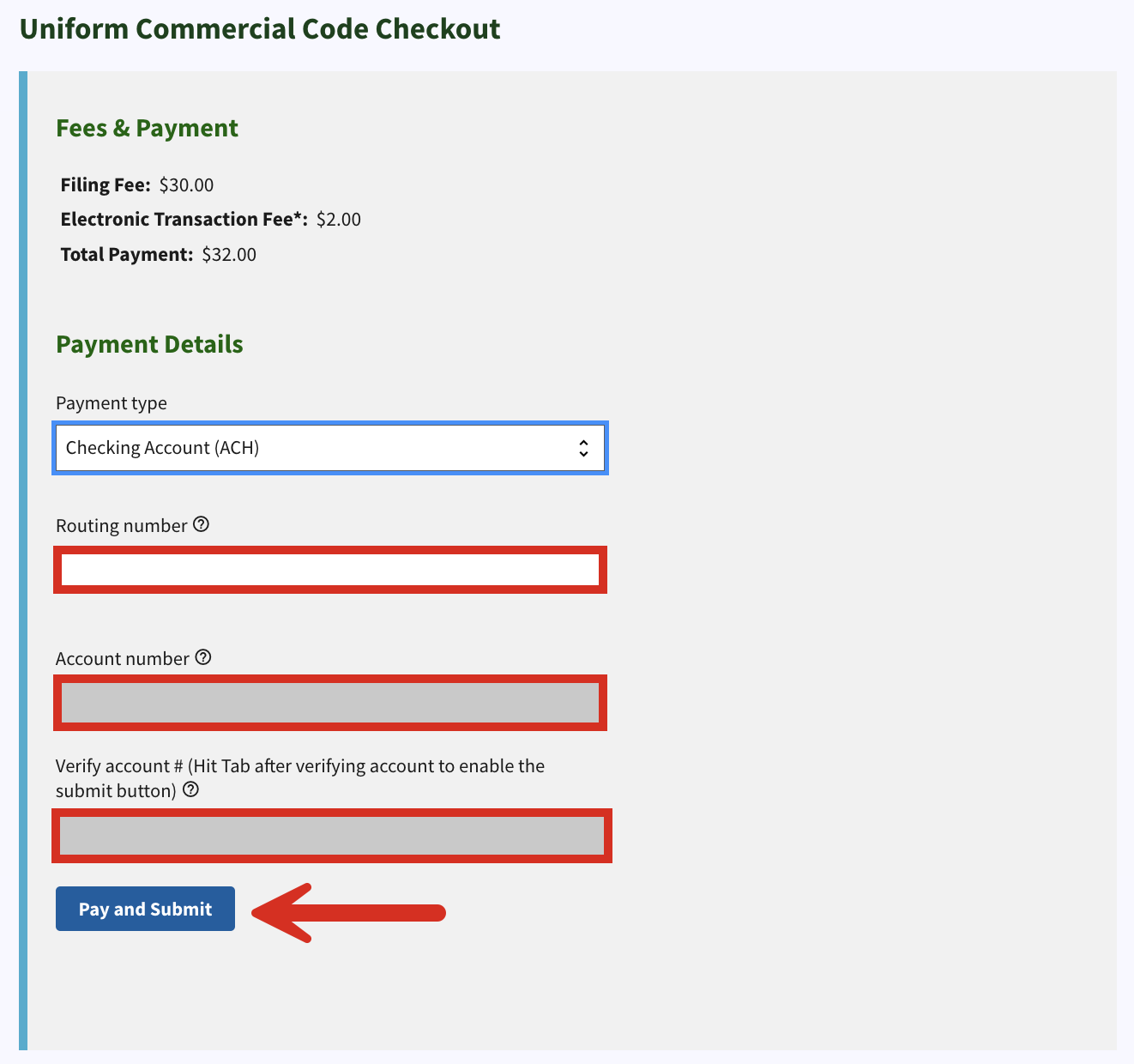
The filing fee can be paid via Checking Account or Credit Card/Debit Card (see image). Enter the account or card information then click Pay and Submit to complete the filing.