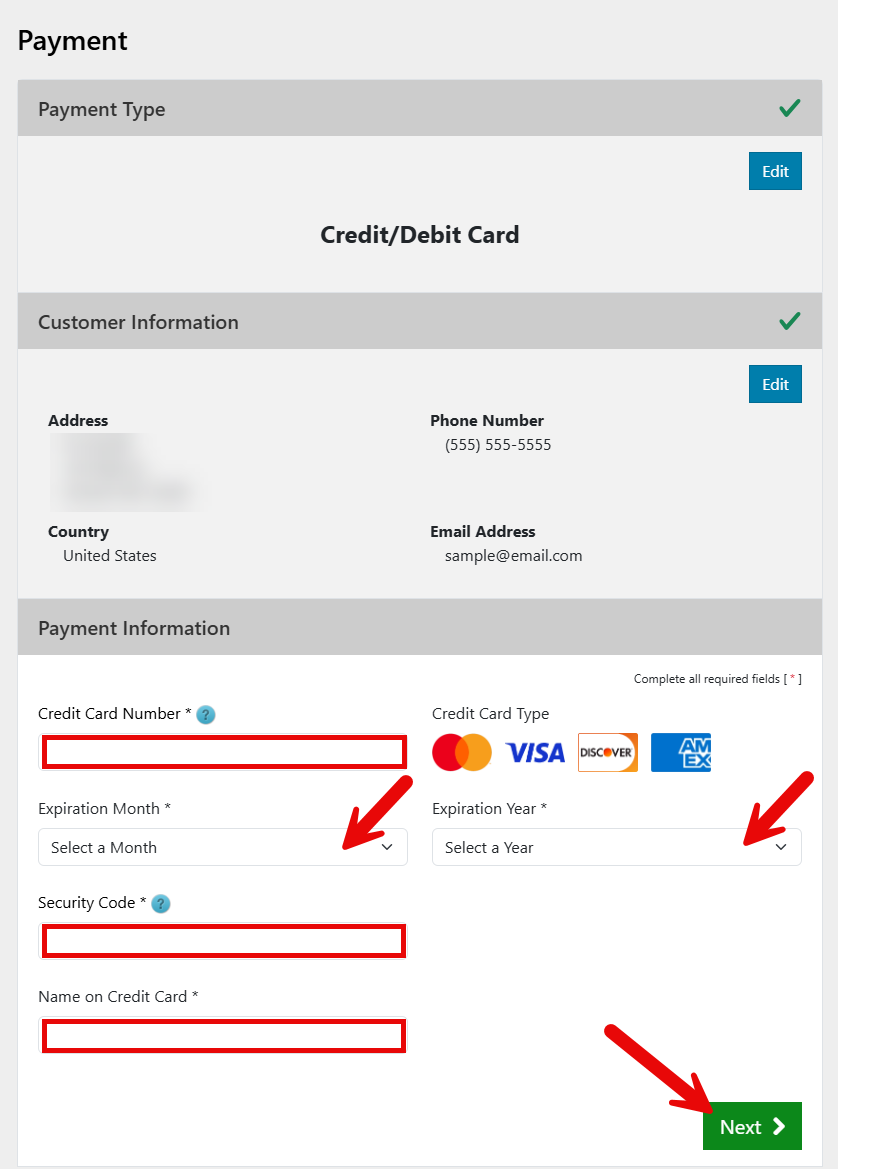

The Nebraska UCC search offers a way to review secured financing transactions processed by the Secretary of State’s office. A file number search shows whether a specific financing statement is active and provides a brief filing summary. Users with an online account can download copies or order certified results through a UCC11 information request.
UCC File Number Search (Uncertified)
1. Visit the Search Page
2. Search for a UCC Filing
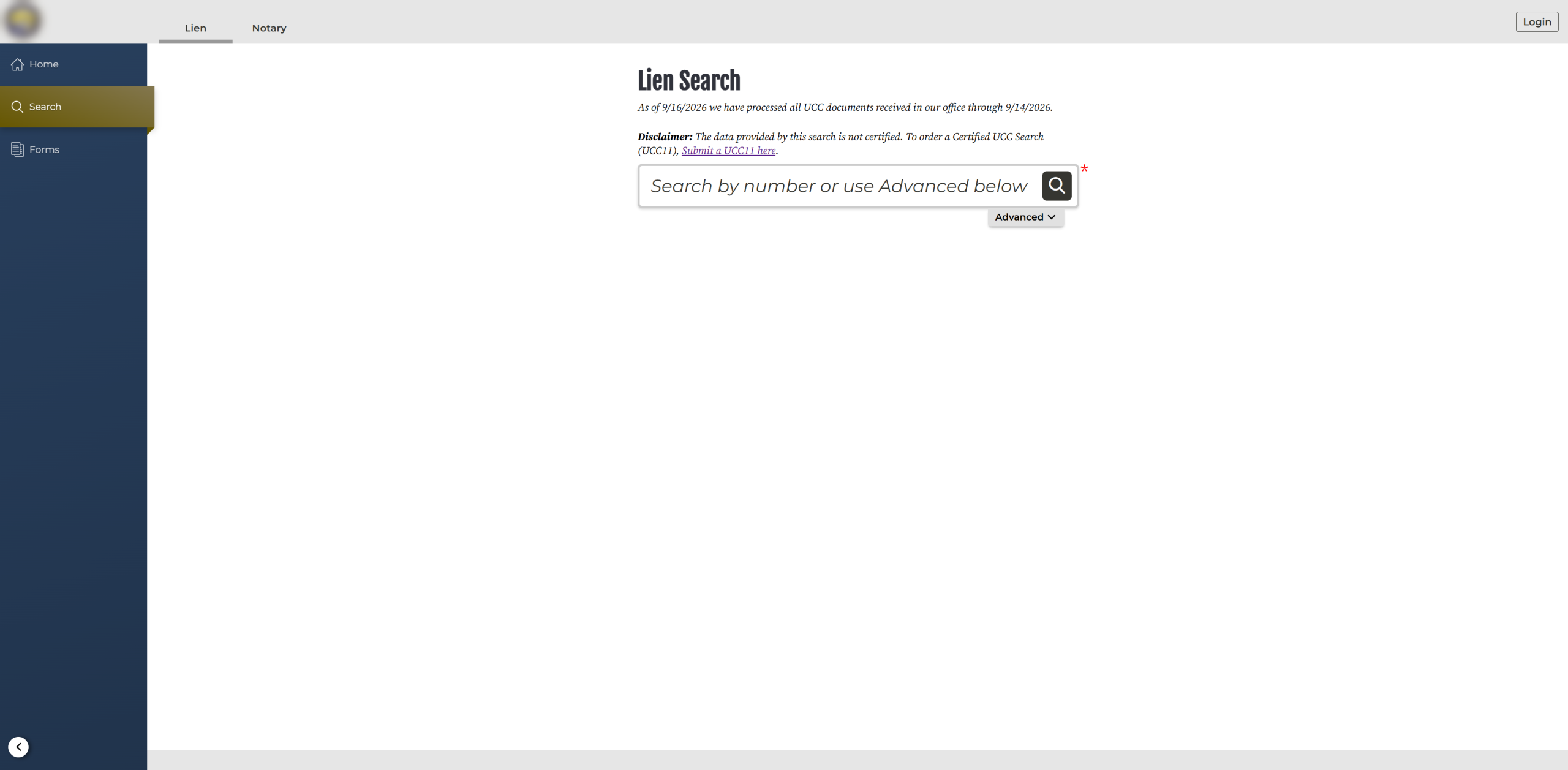
Enter a complete file number in the empty space and select the magnifying glass to search.
Note: The search page indicates that users can select Advanced to use filters (see image). However, at the time of this writing, no search filters are available.
3. Inspect Filing Details
If the file number matches a record in the UCC database, it will appear below the search field along with the debtor and secured party names, filing type, status, filing date, lapse date, and page count.
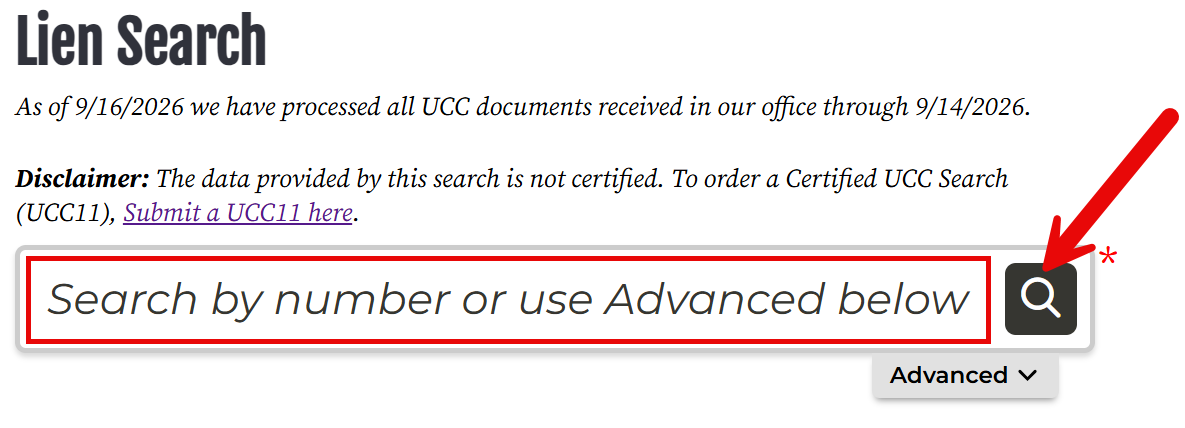
Click the File Number to open a window on the right with additional details.

4. Review Additional Information
The window displayed on the right side of the page shows the following information:
- Document type
- Record number
- Debtor name and address
- Secured party name and address
UCC11 Search (Certifiable)
1. Access the Online Search Form
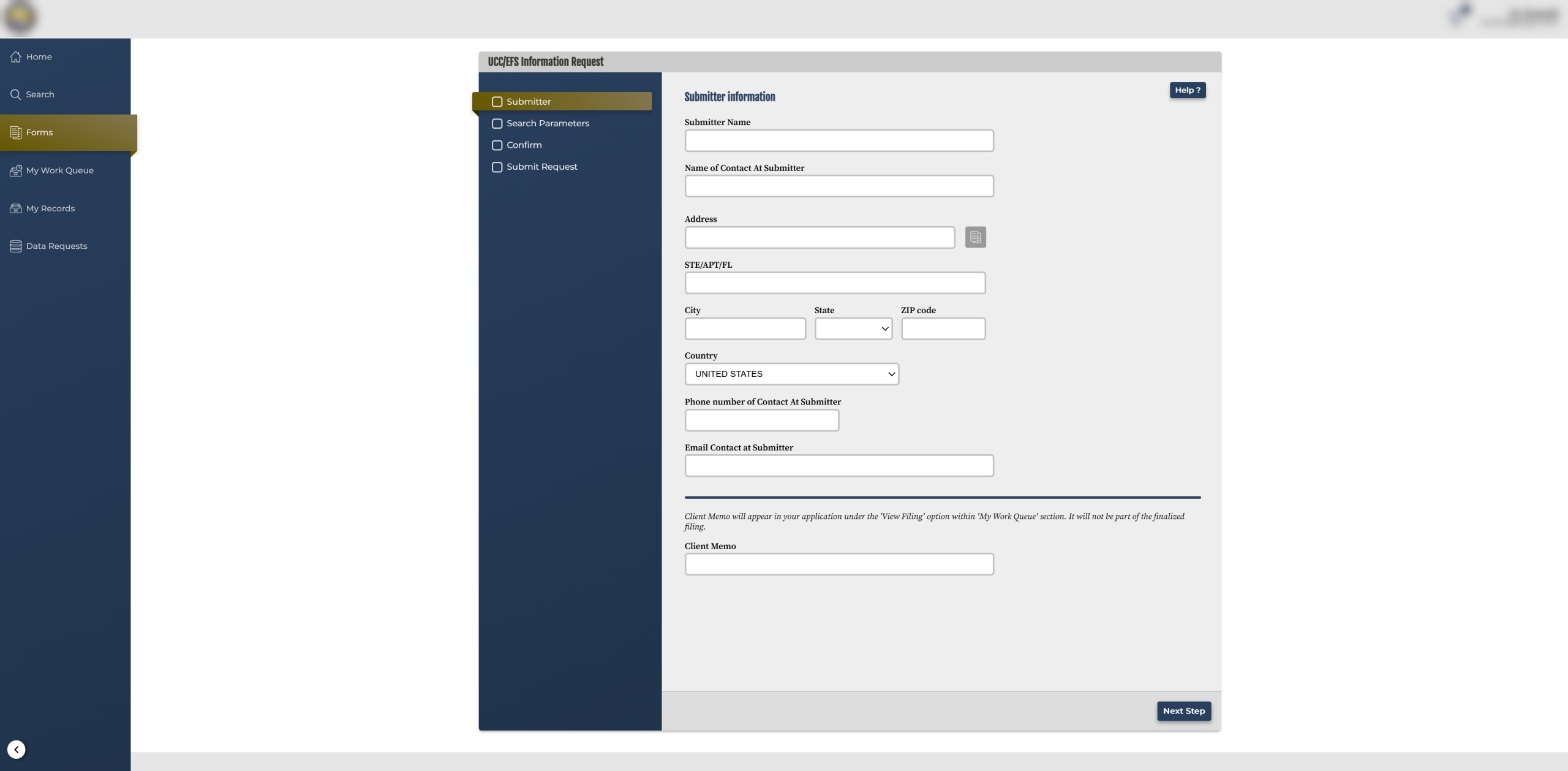
2. Enter Submitter Information (optional)
The following optional details may be supplied on the first page of the UCC search form:
- Submitter name
- Contact name (if different)
- Submitter full address
- Submitter phone number
- Submitter email address
- Client memo
Click Next Step once all optional information has been entered.
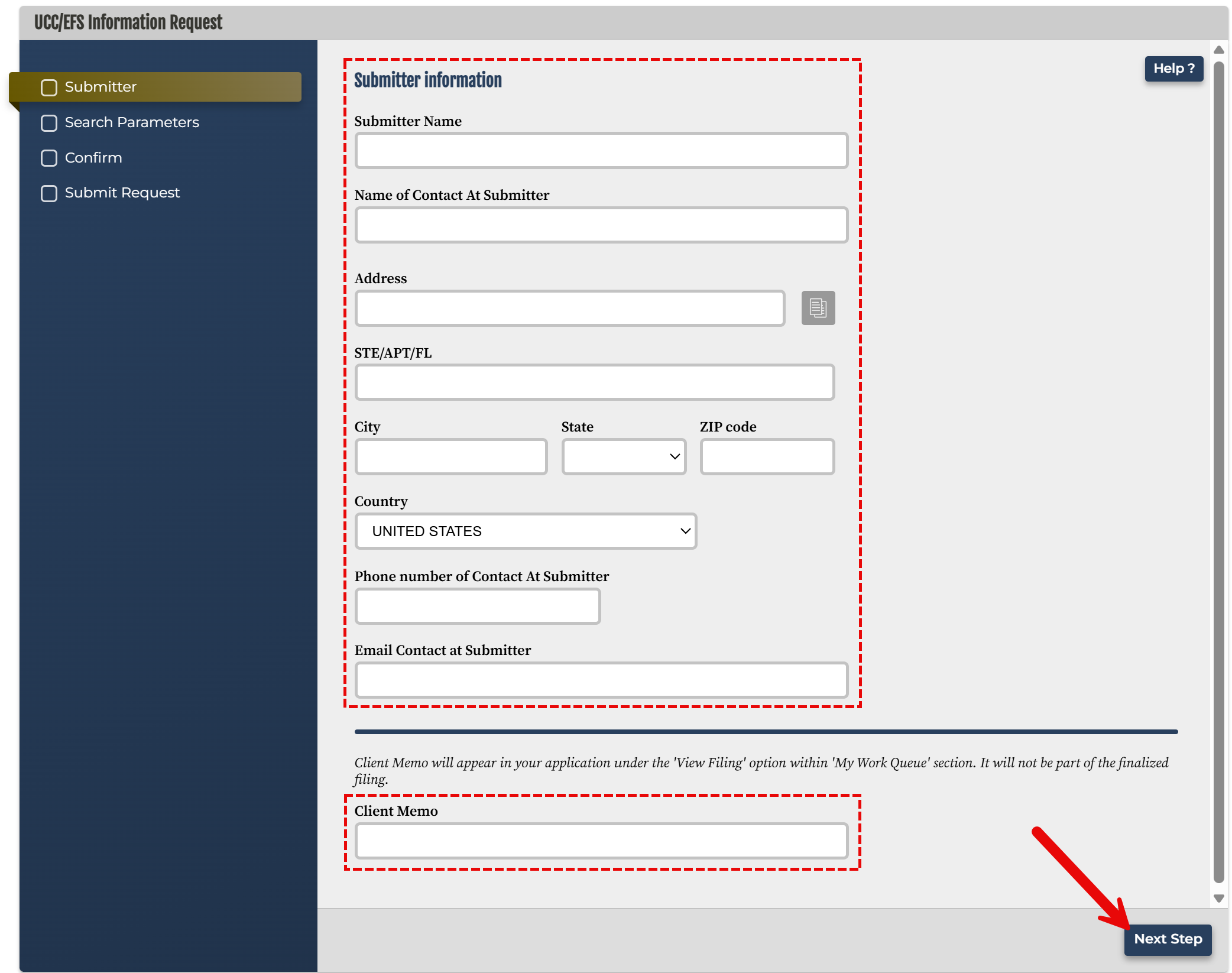
3. Set Initial Search Parameters
If requesting certified results and copies of UCC filings, select Certify the request at the top of the form. Next, set the Search Record Type by choosing one of the available options:
- UCC Records, Federal and State Tax Liens, Judgment Liens, Statutory Agricultural Liens
- Effective Financing Statements
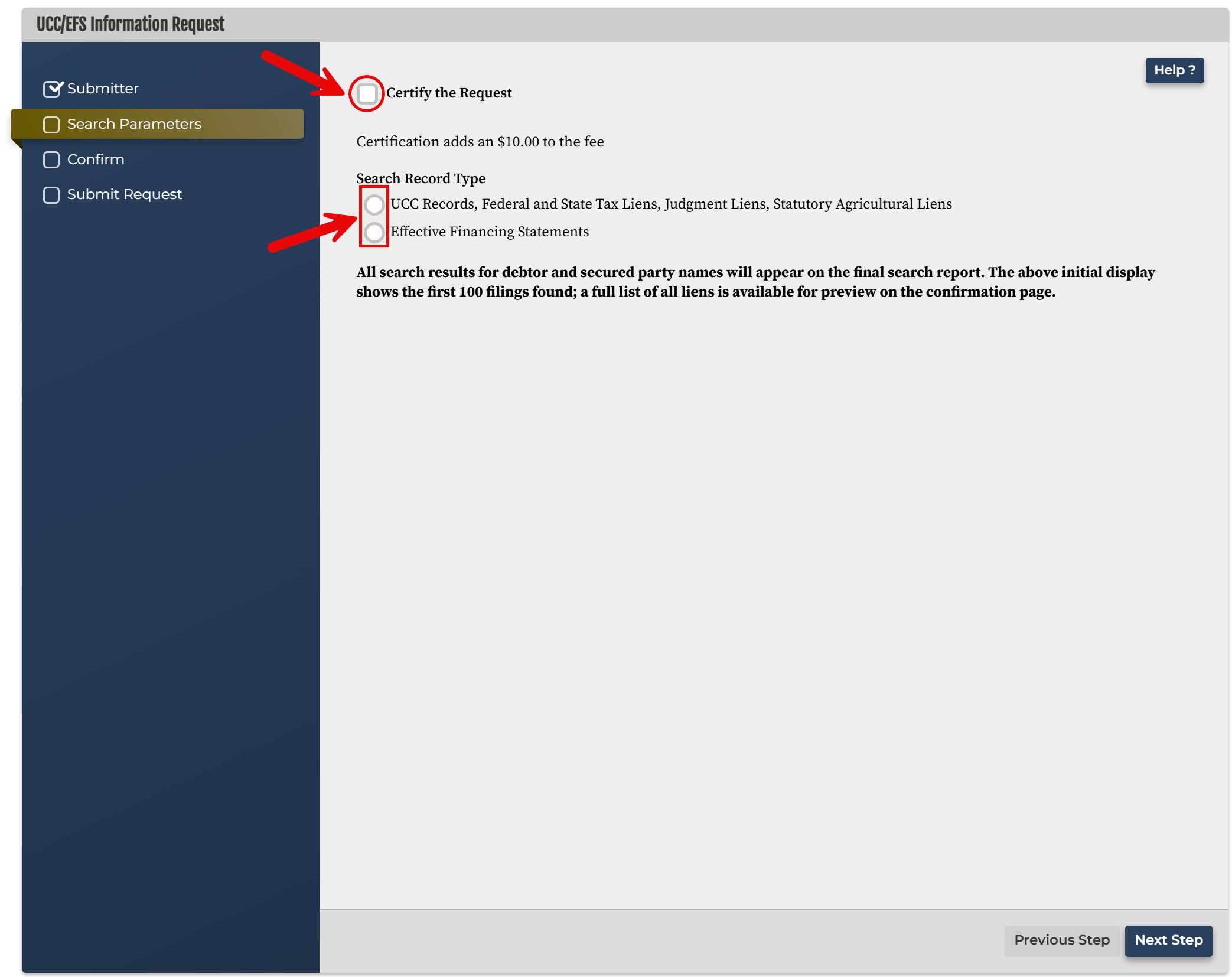
4. Choose a Request Type
Proceed by selecting one of three Request Type options:
- Search Report
- Search Report and Copies
- Copy (single record number)
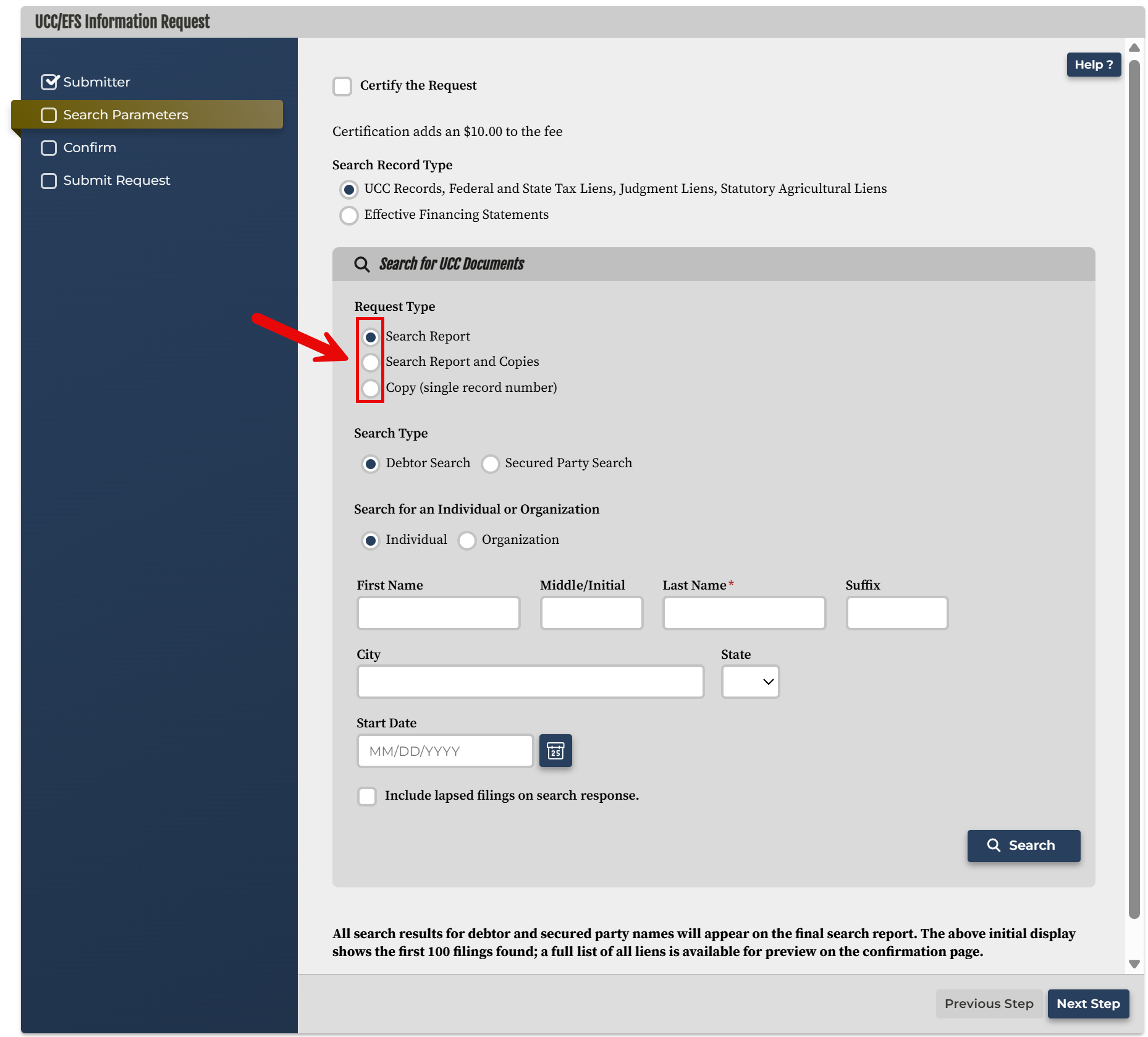
5a. Request a Report or a Report & Copies
If requesting a search report or a search report and copies, choose either Debtor Search or Secured Party Search to indicate the search type, then select whether the search is for an Individual or Organization.
Continue by providing the individual or organization name (city and state are optional). A filing start date may also be entered, and the box near the bottom of the search window can be selected to include lapsed filings in the response.
Click Search to see if any matches are found in the UCC database.
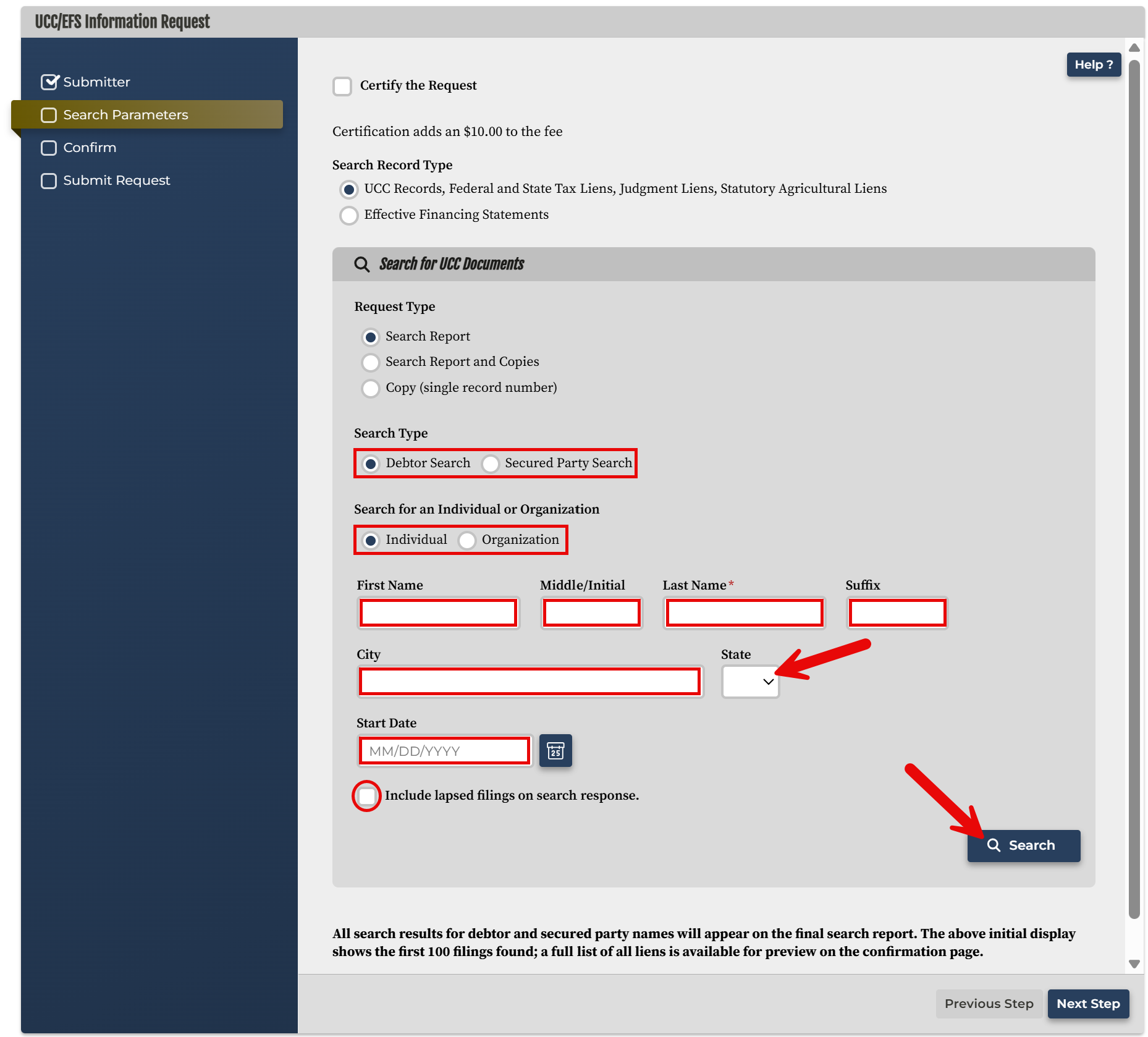
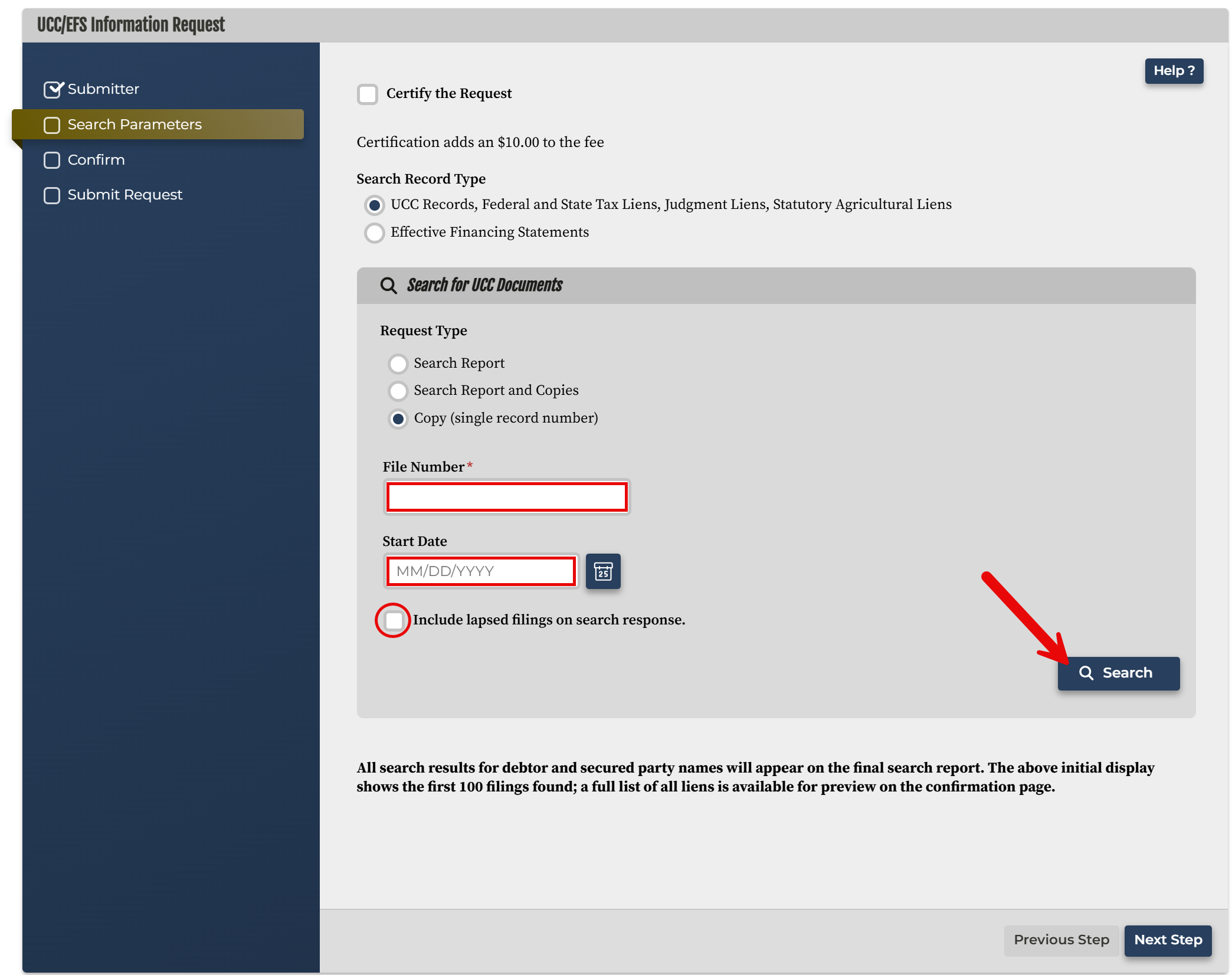
5b. Request a Single Record
If requesting a copy of a single record, enter a file number in the blank field. Optionally, enter a start date to narrow the search and/or select the box to include lapsed UCC filings.
Continue by selecting Search.
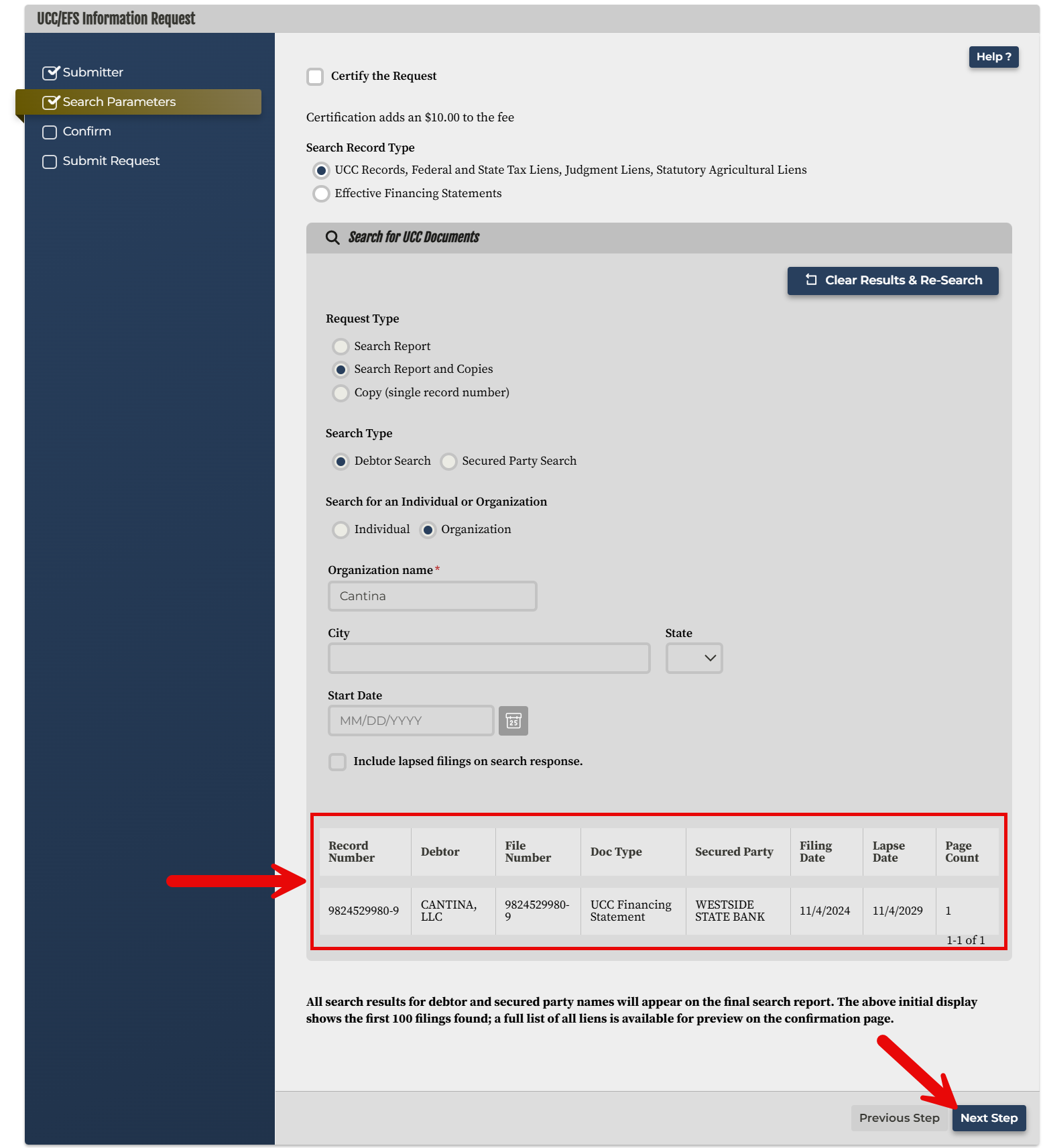
6. View UCC Search Results
Any matches found in the UCC database will appear near the bottom of the search window. The details displayed for each matching record include:
- Record number
- Debtor name
- File number
- Document type
- Secured party name
- Filing date
- Lapse date
- Page count
Select Next Step to proceed to the confirmation page.
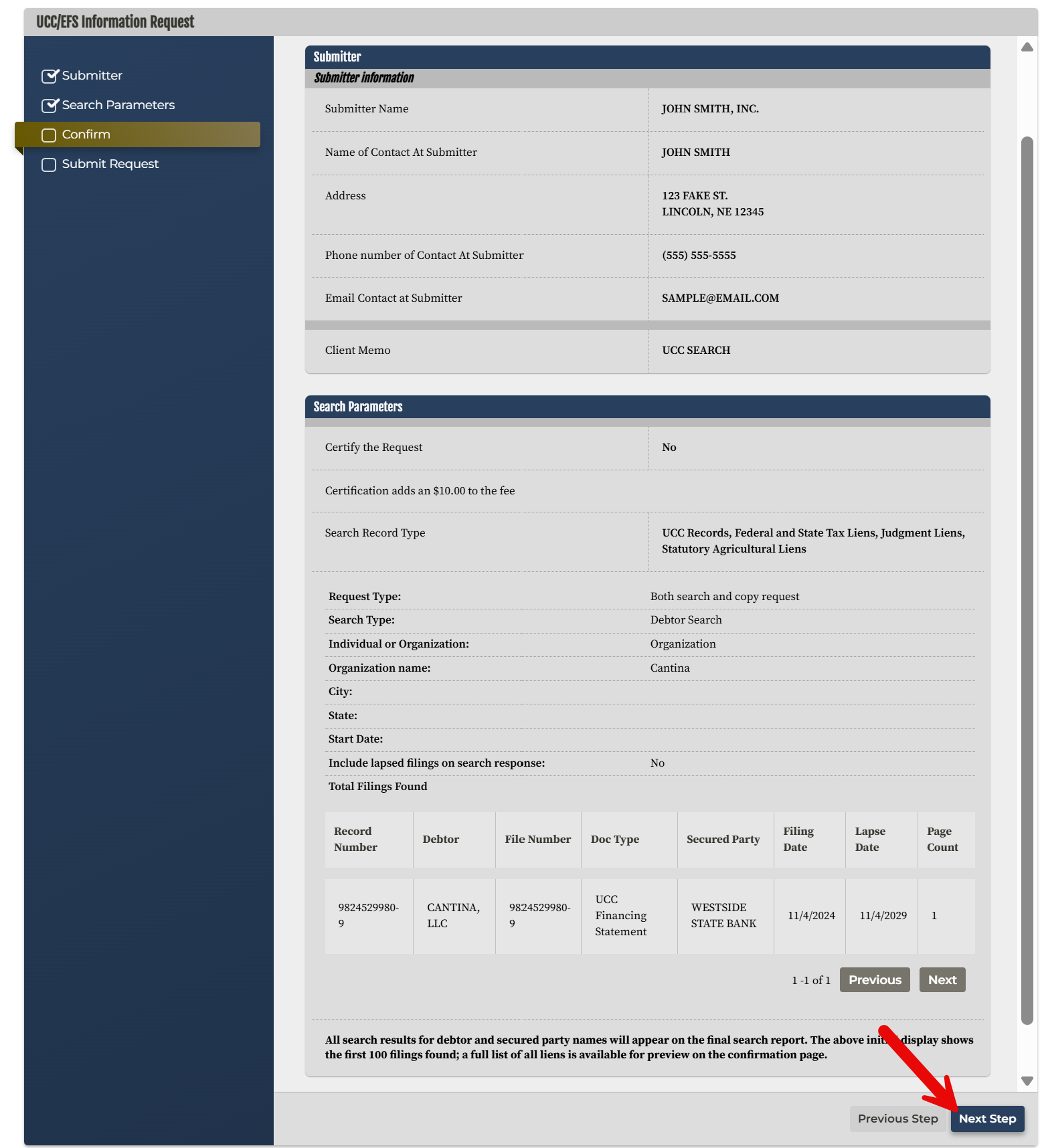
7. Confirm the Request
Review the displayed filing details to confirm that the information was entered correctly. When ready to proceed, click Next Step.
8. Submit the Request
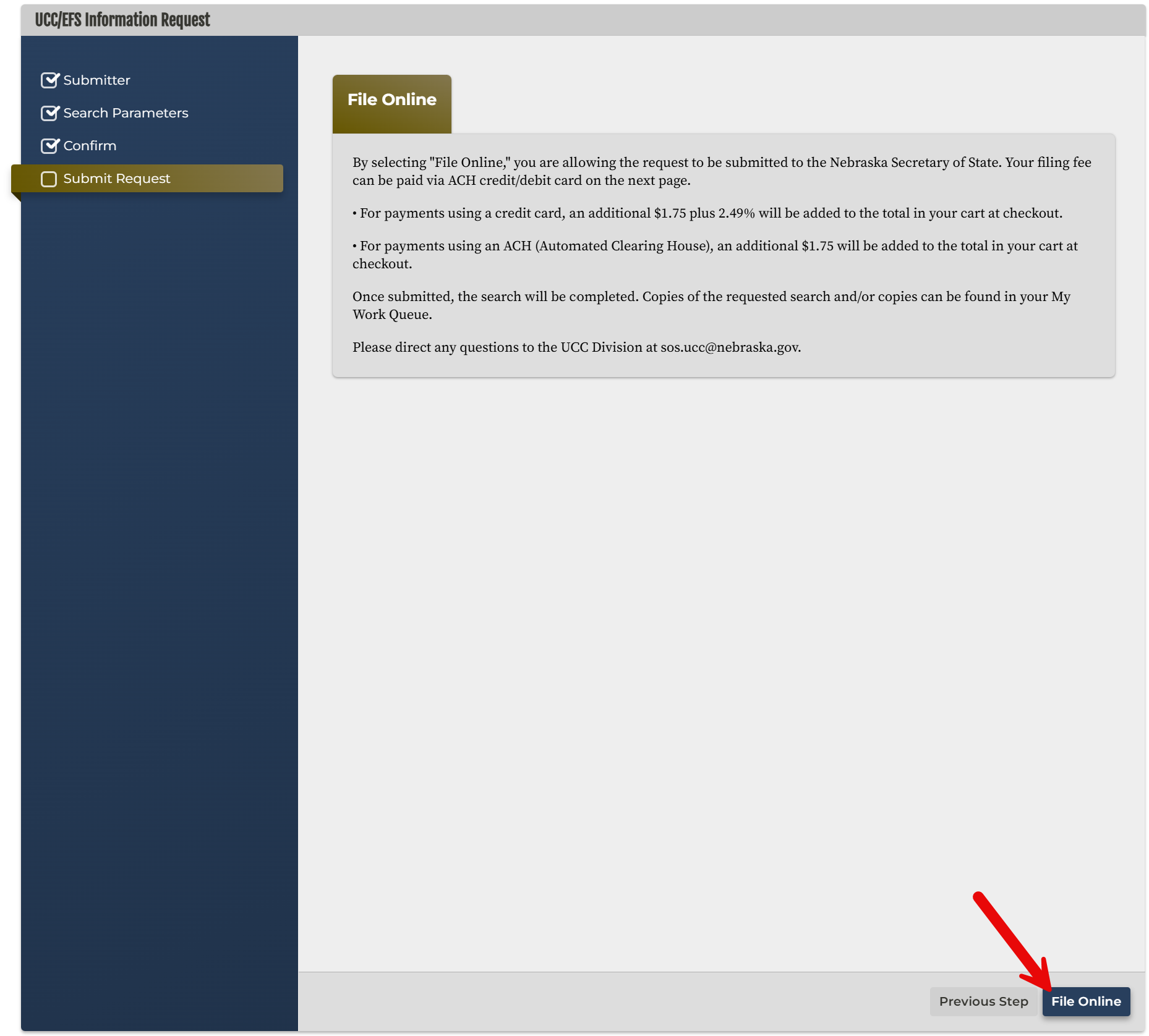
Submit the UCC search request by clicking File Online. A checkout window will then open on the right.
9. Initiate Payment Process
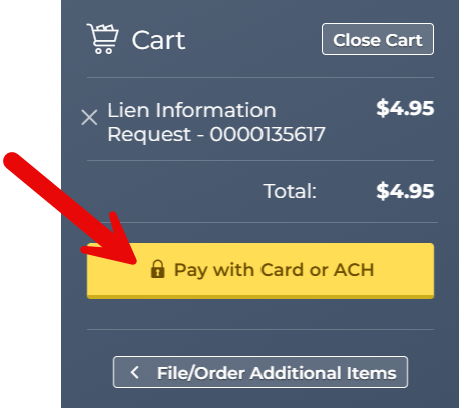
In the checkout window, select Pay with Card or ACH to pay for the search using a credit/debit card or electronic bank transfer. Payment can also be made through a frequent payor account.
10. Enter Customer Information
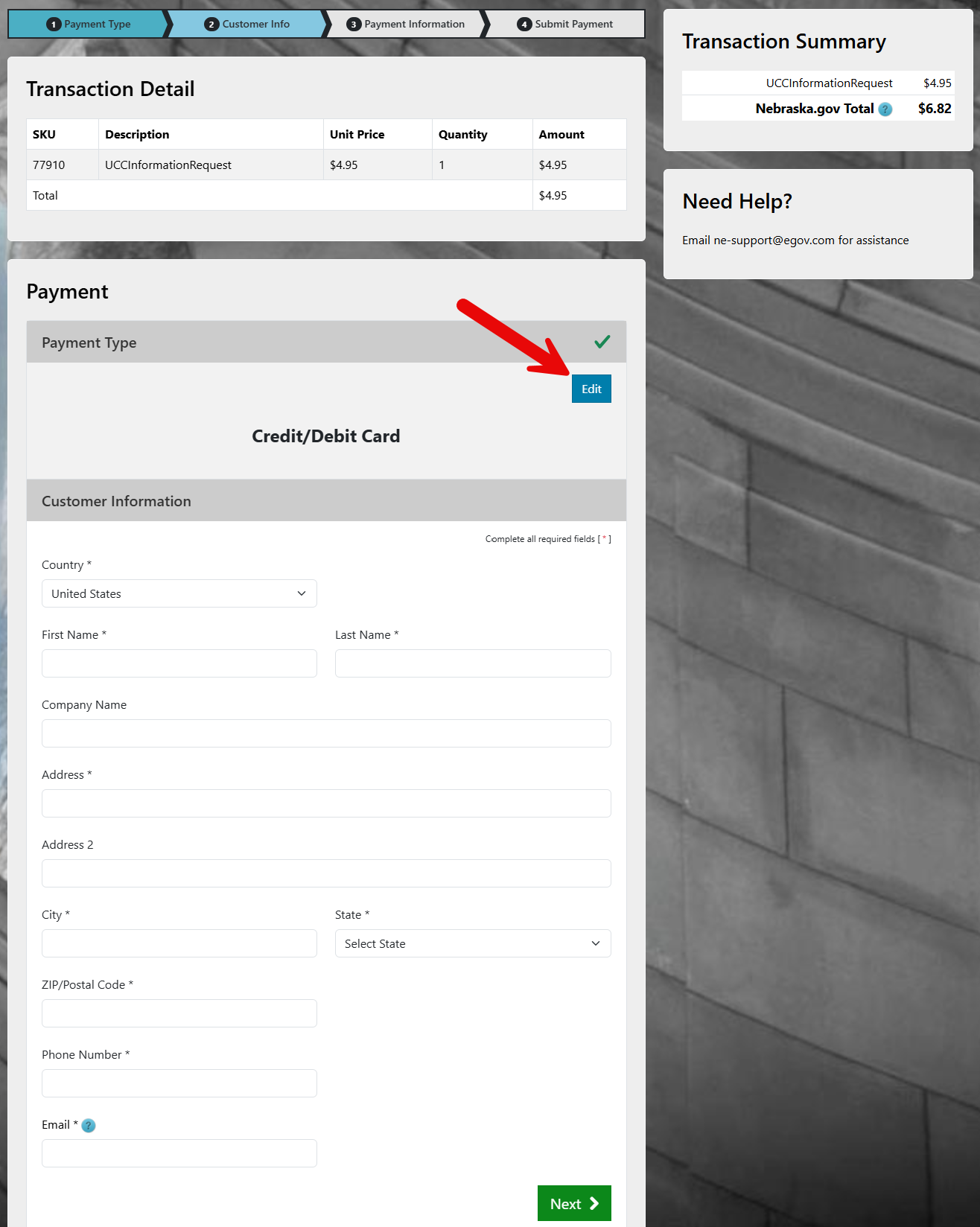
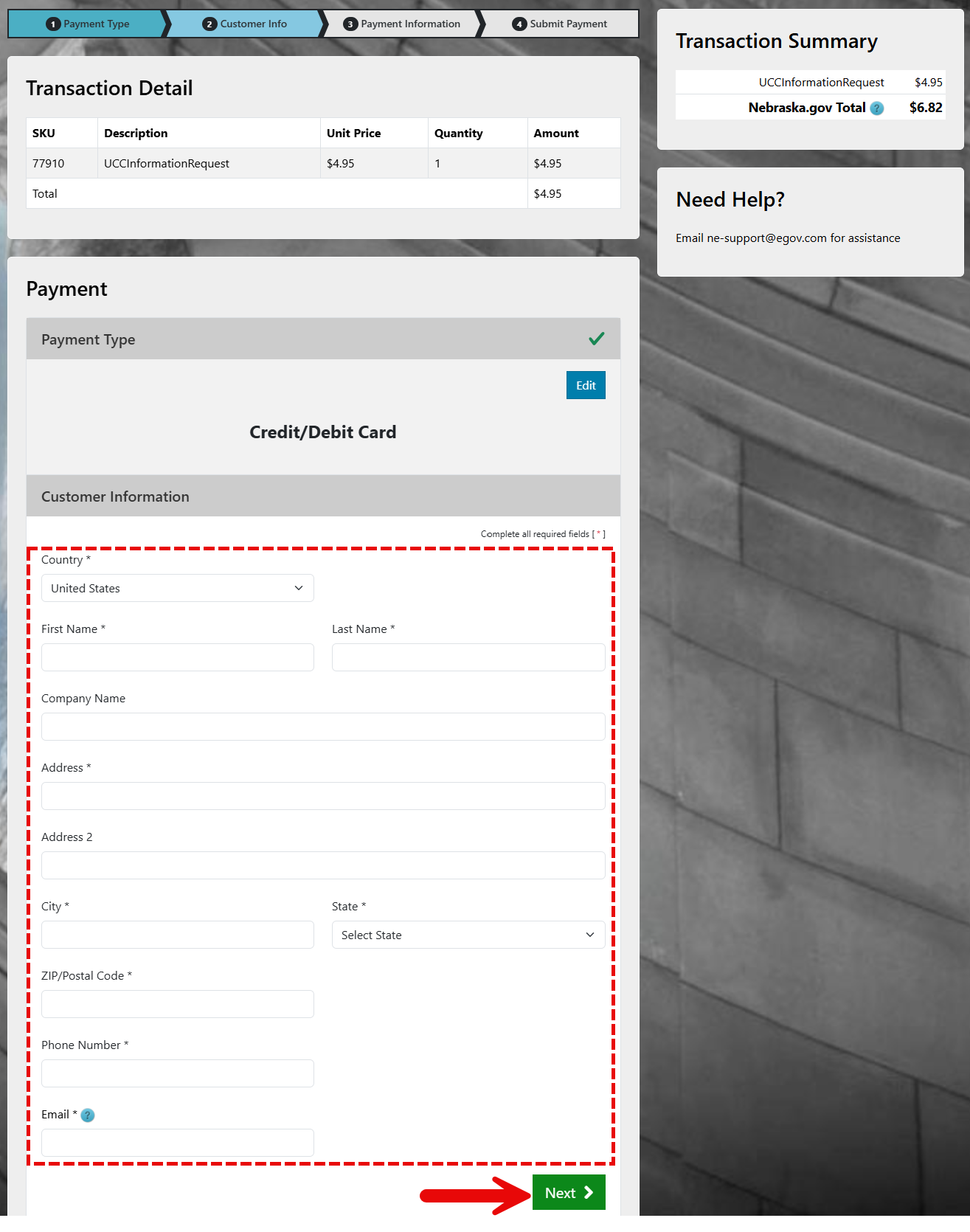
Enter the personal information and contact details of the individual paying for the search request, then click Next. If paying by electronic bank transfer, select Edit to change the payment type (see image).
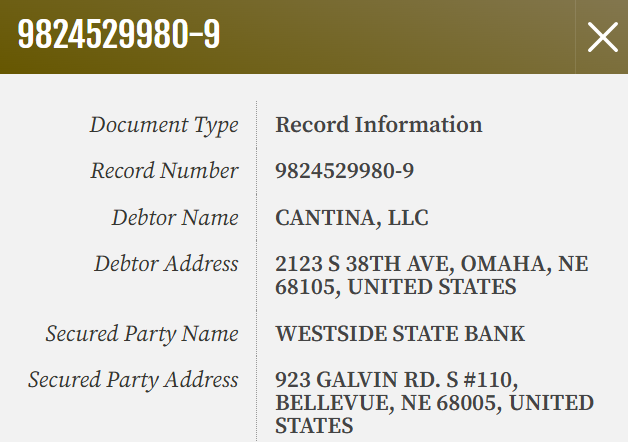
11. Enter Payment Information
Enter the required credit/debit card or banking information and click Next. Follow the remaining prompts to submit payment.
Once the payment is approved, go to the homepage and select My Work Queue (see image). Then, open the Information Request window (see image), where the requested search information will be available for download.