
The Florida professional license search is used to verify the credentials of a professional operating in the State of Florida. The two main license search portals are provided by the Department of Business and Professional Regulation (covers trades, architecture, real estate, and a variety of other professions), and the Department of Health (covers healthcare professionals).
DBPR License Lookup
1. Go to DBPR License Search page
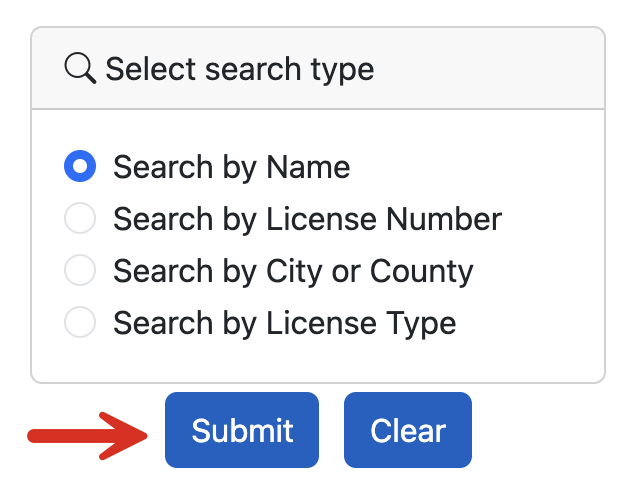
2. Select Search Type
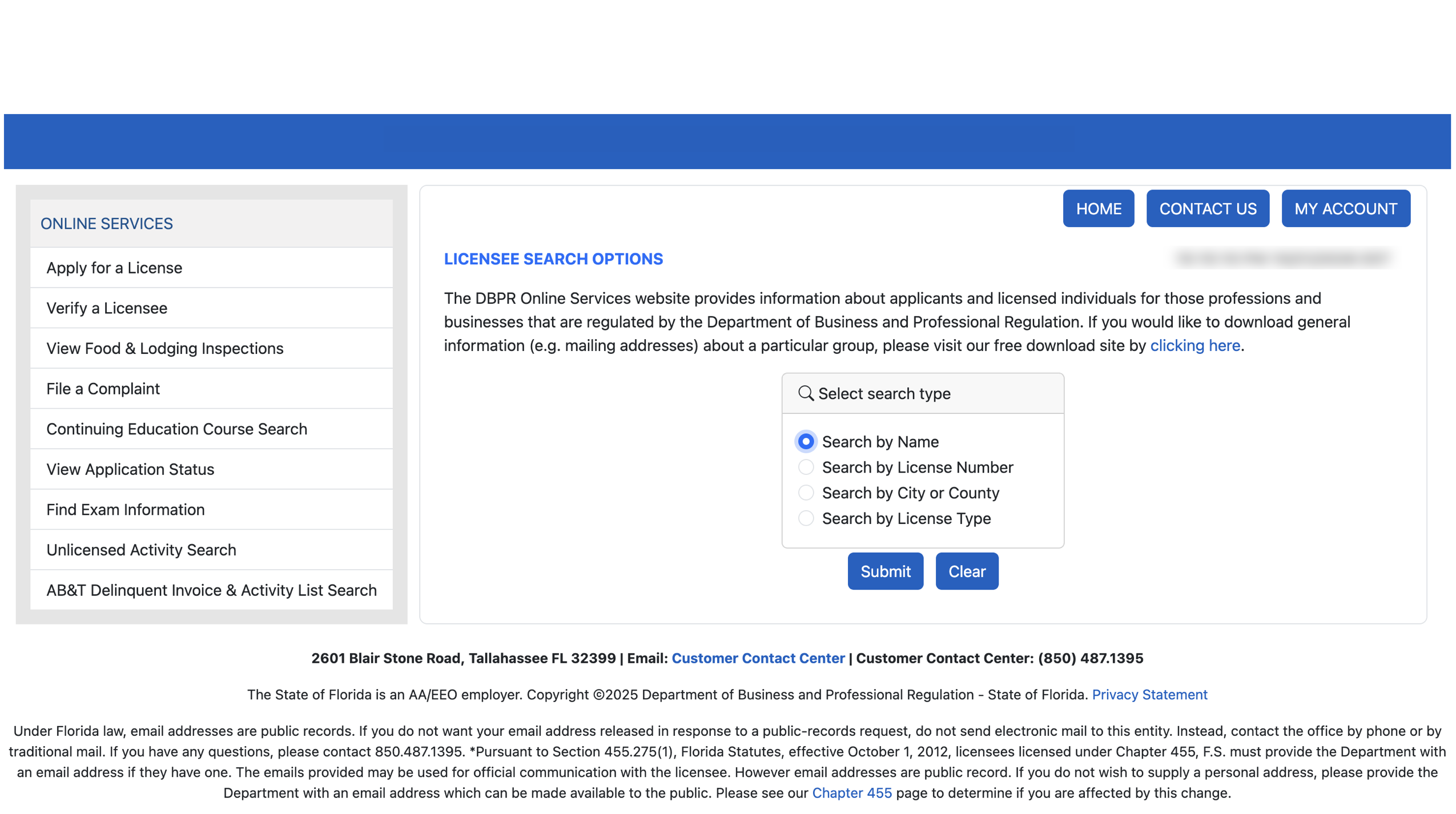
On the homepage, select the search type using the available radio buttons and click Submit to continue.
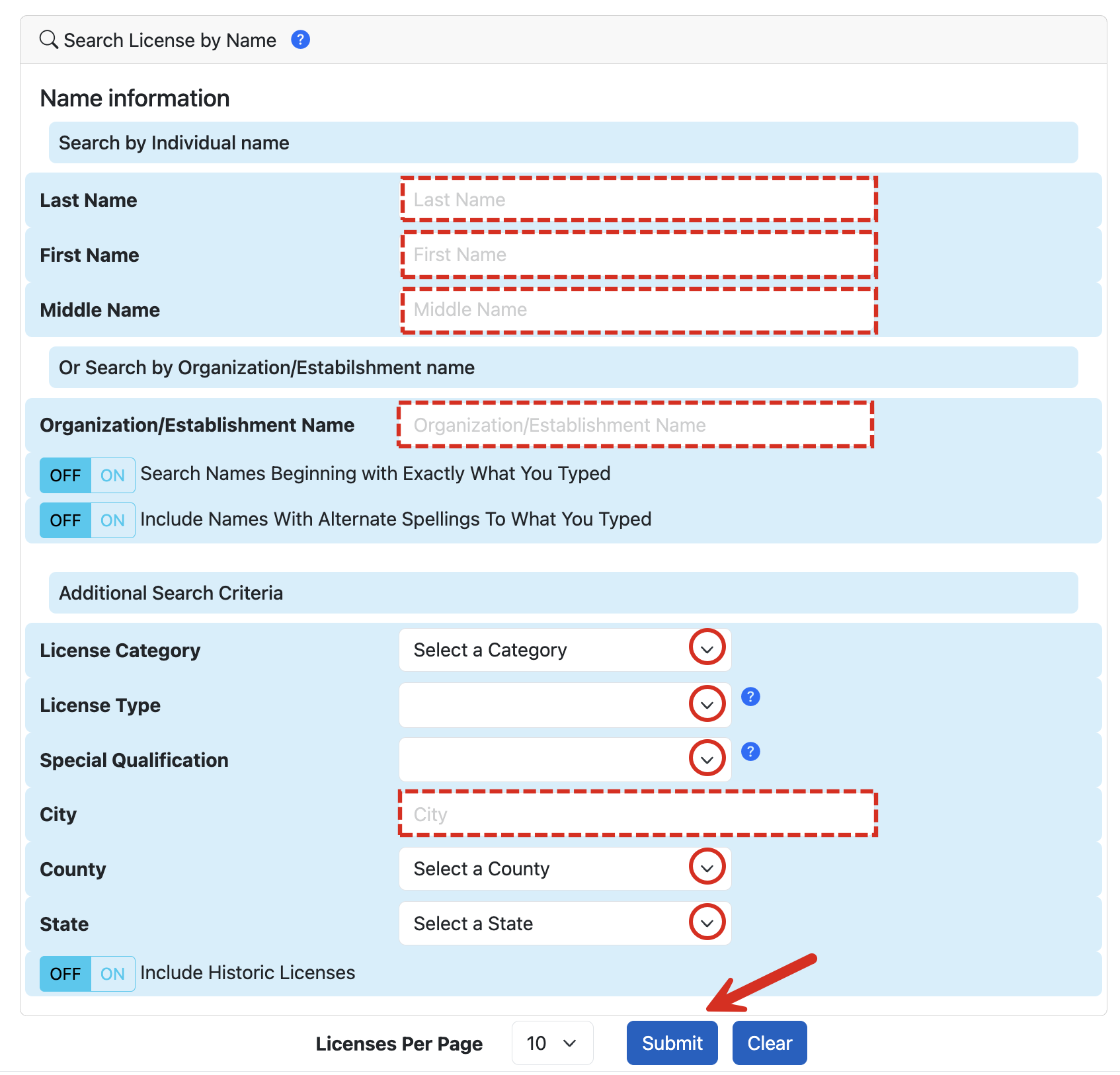
3a. Search License by Name
Choosing to search for a licensee by individual or organization name provides the user with the most options regarding information to submit. In addition to the licensee name, the user can:
- Choose to search names that begin with the entered text.
- Include names with alternate spellings.
- Select a license category (see options), type, and special qualification.
- Enter the licensee’s location (city, county, state).
- Include historic licenses.
When ready, decide the number of licenses per page to relay and click Submit.
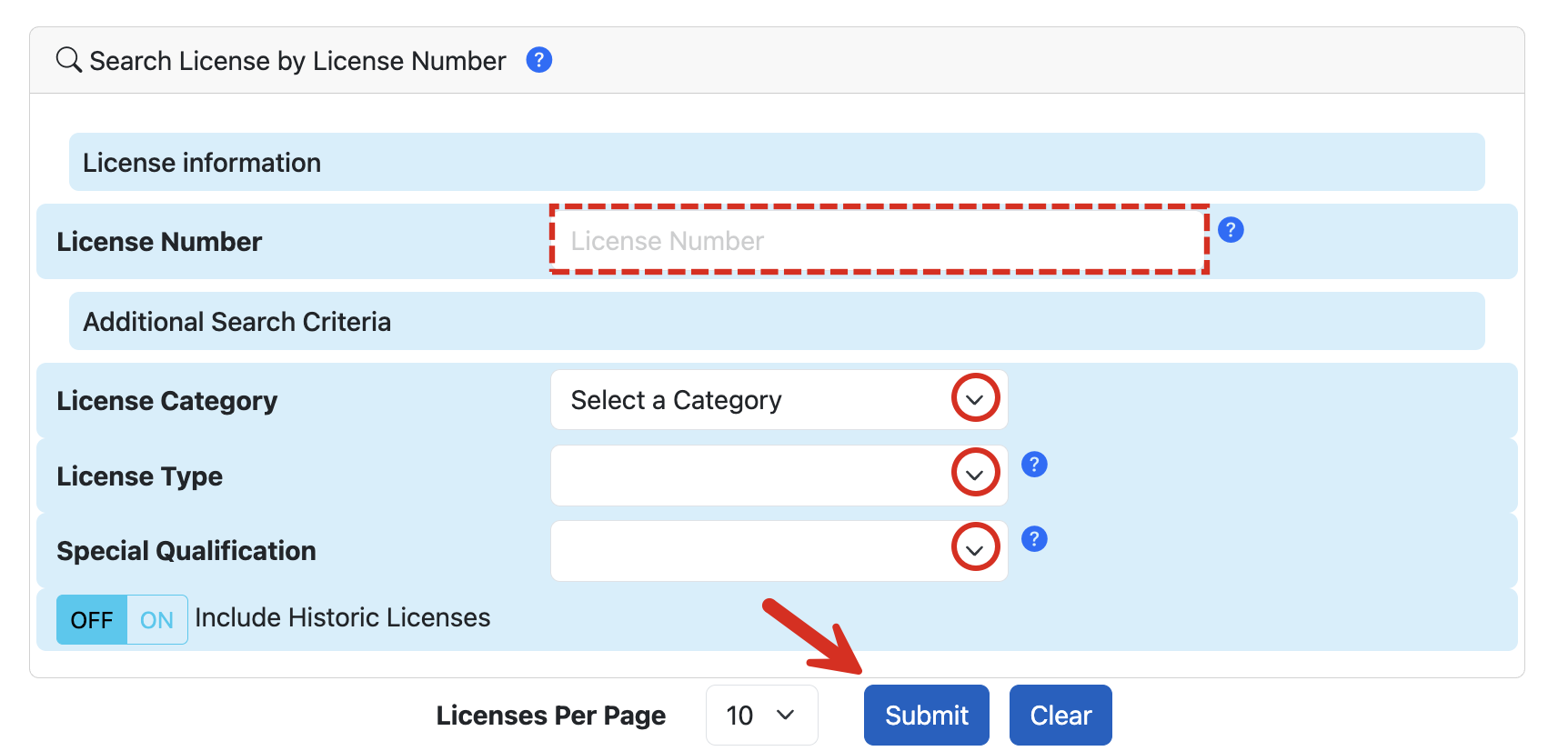
3b. Search License by License Number
Searching by license number will generally produce a singular result. Enter the license number in the available field and click Submit. Additional search criteria can be added as well to narrow the results to a particular profession.
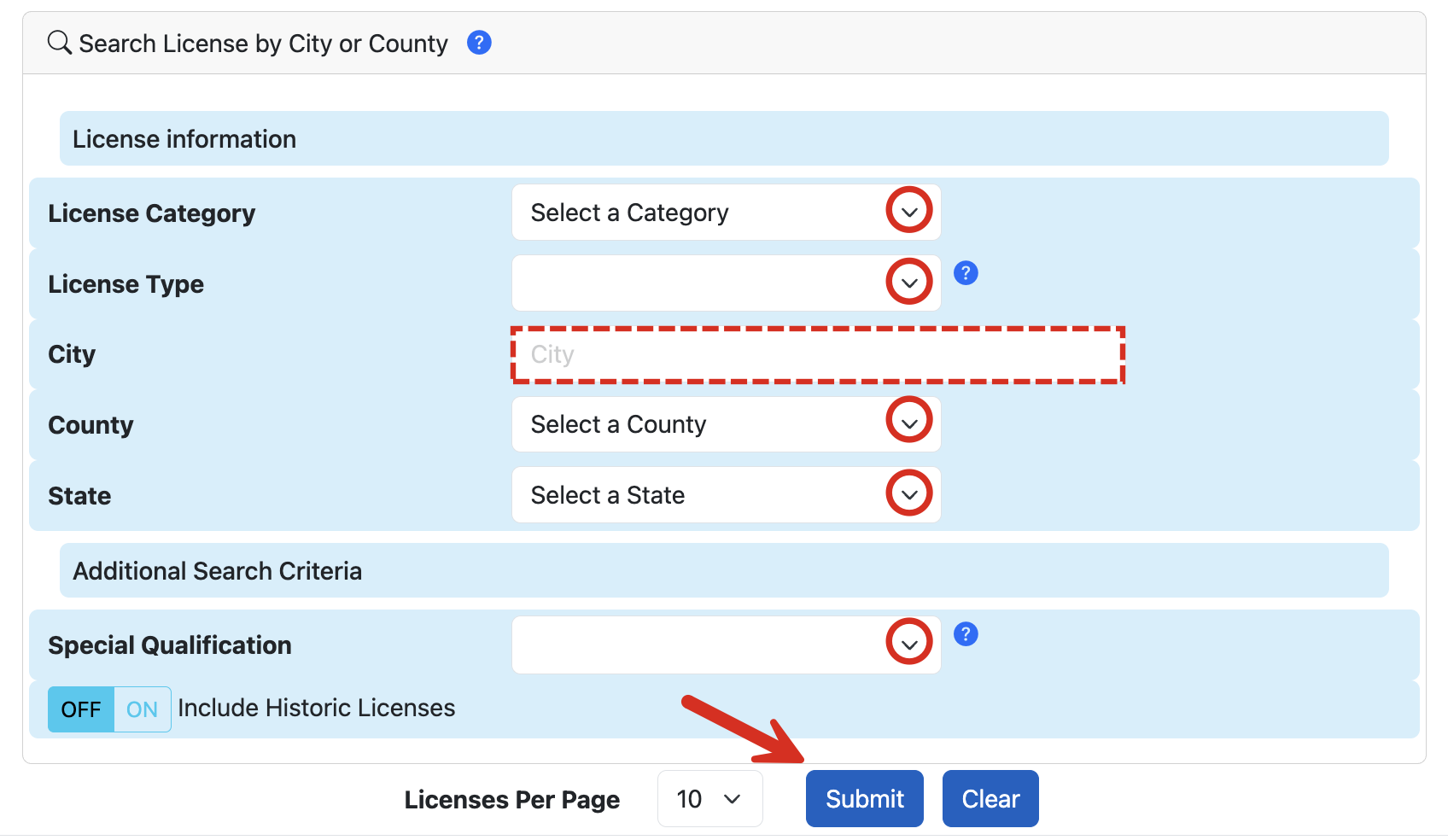
3c. Search License by City or County
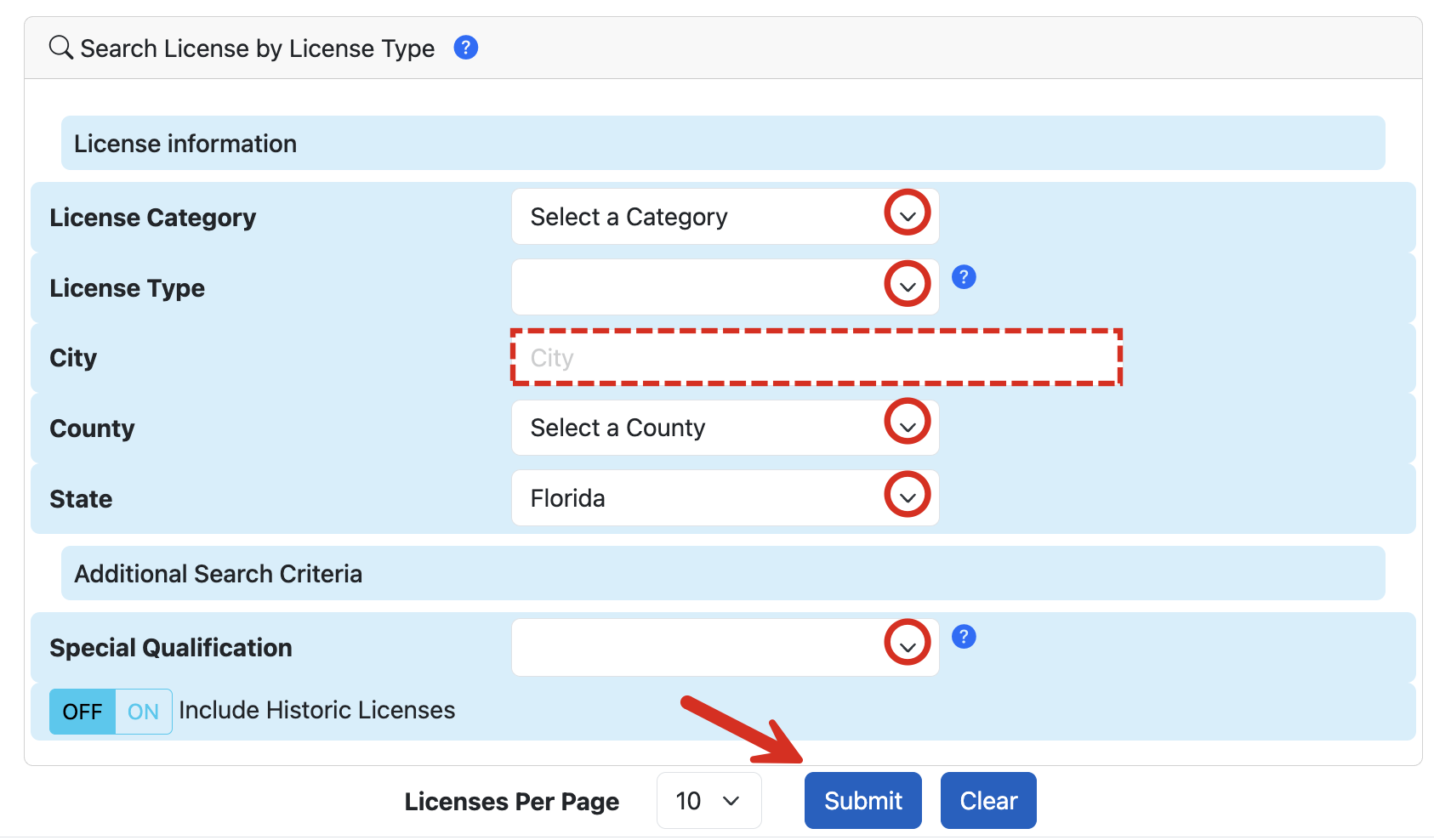
To search by city or county, choose a License Category (see image) and License Type (if applicable). Enter the City, County, or State. If the license involves a Special Qualification, that can be selected from the dropdown list. Click Submit to continue.
3d. Search License by License Type
Searching by license type involves selecting the License Category and the License Type. The other fields on this page are optional but can help narrow the results further. Select Submit to view the search results.
4. Search Results
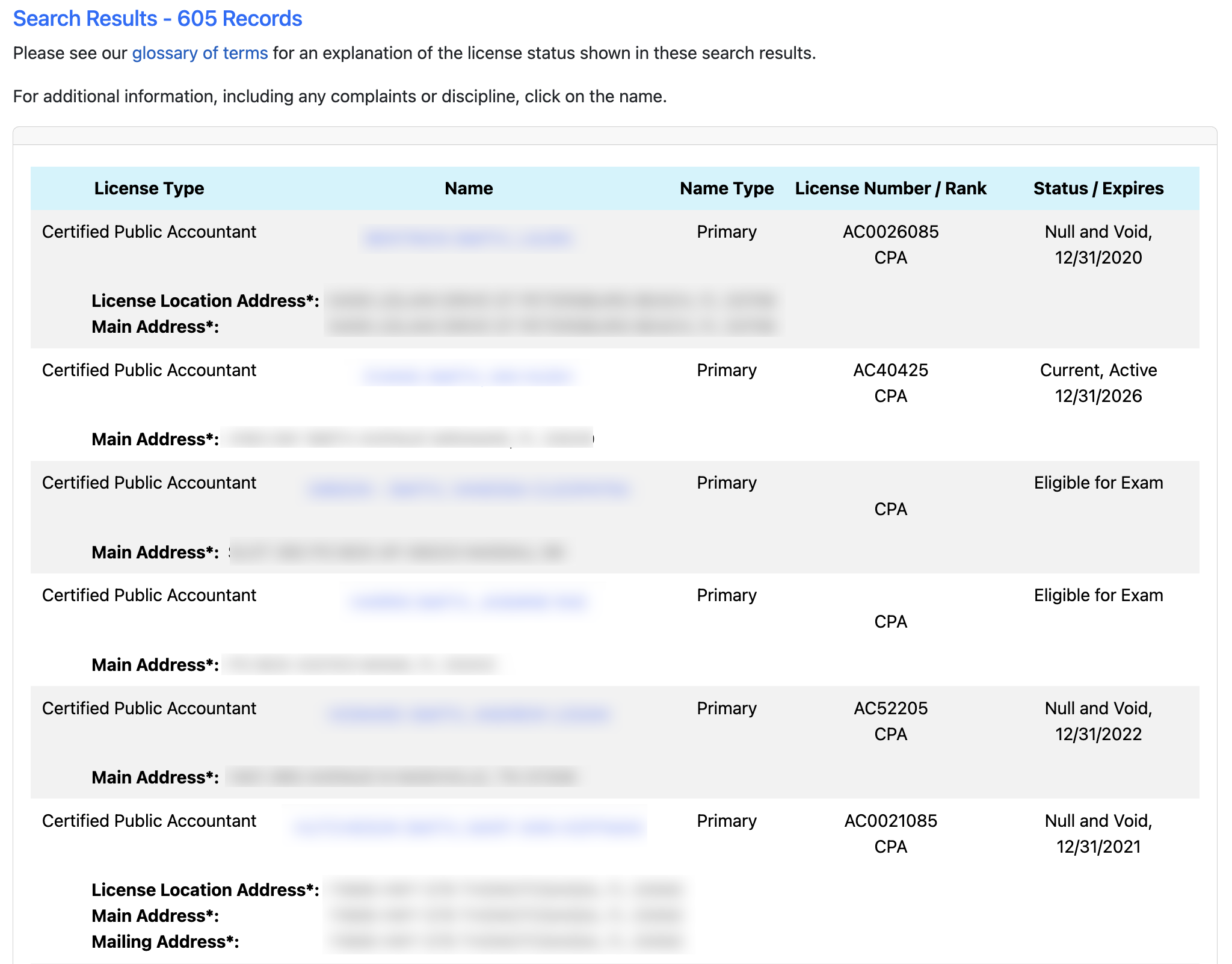
Scroll through the results until the individual has been identified. A user should be able to see the License Type, Name, Name Type, License Number/Rank, and the Status/Expires (expiration date).
Clicking on the blue, name link will reveal more information about that particular licensee.
5. Licensee Details
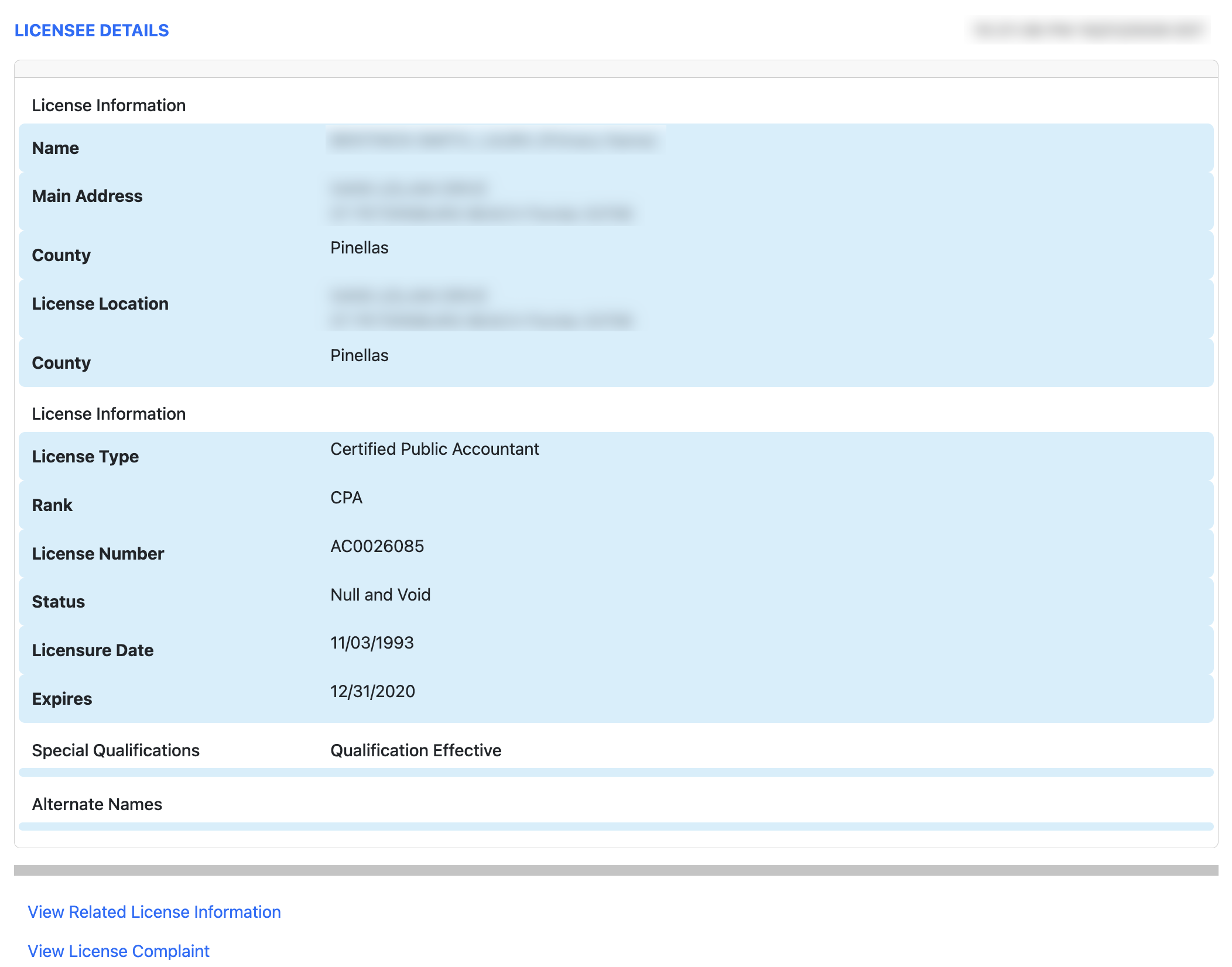
The following information is made available to the public in the licensee details window:
- Name
- Main address of licensee
- County of licensee
- License location
- County of license
- License type and rank
- License number
- Current status
- Licensure date
- Date of expiration
- Special qualifications
- Alternate names
Click View Related License Information or View License Complaint to see licenses related ot the licensee or their history of complaints.
Department of Health Licensee Lookup
1. Go to DOH License Search page
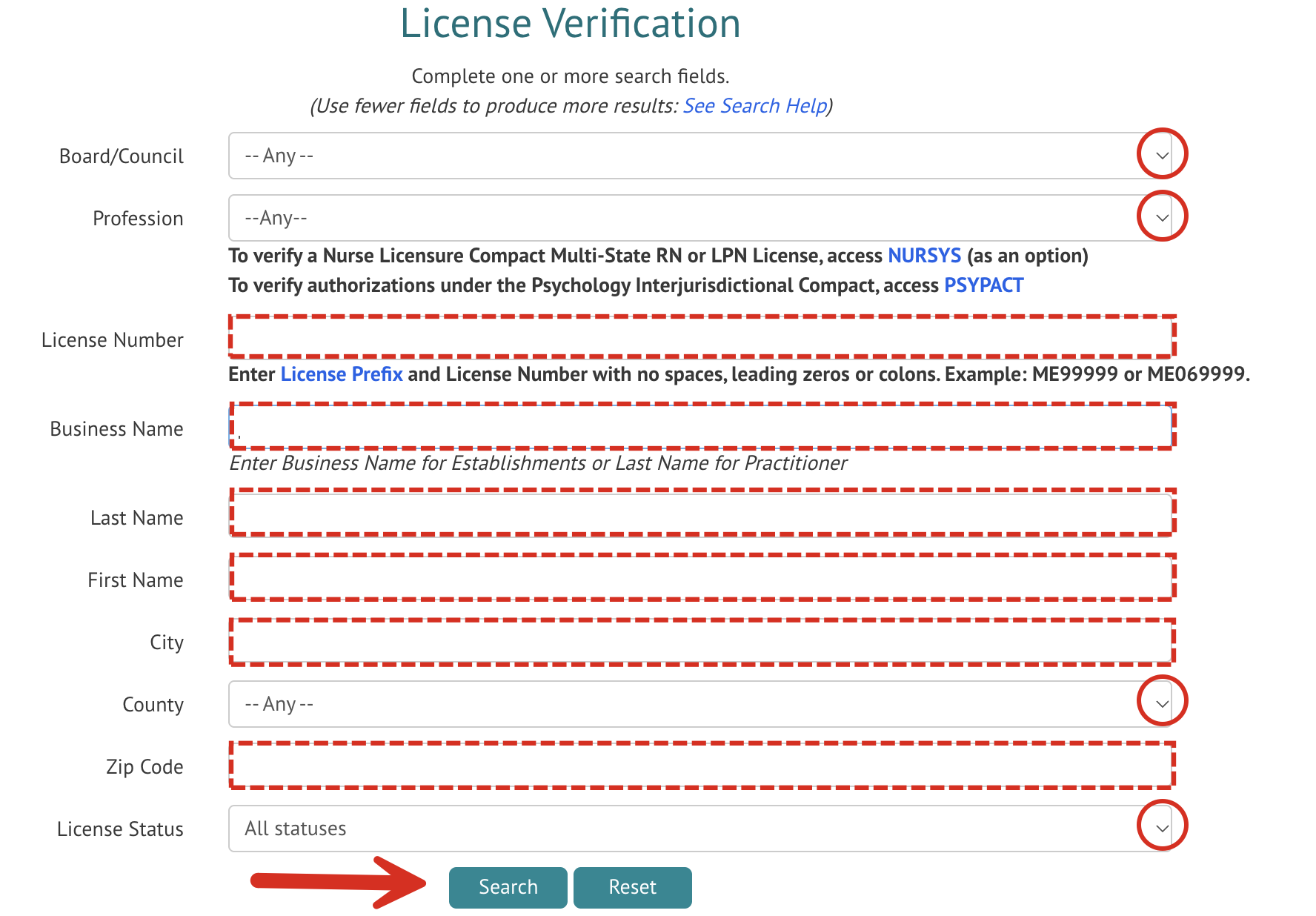
2. Complete One or More Search Fields
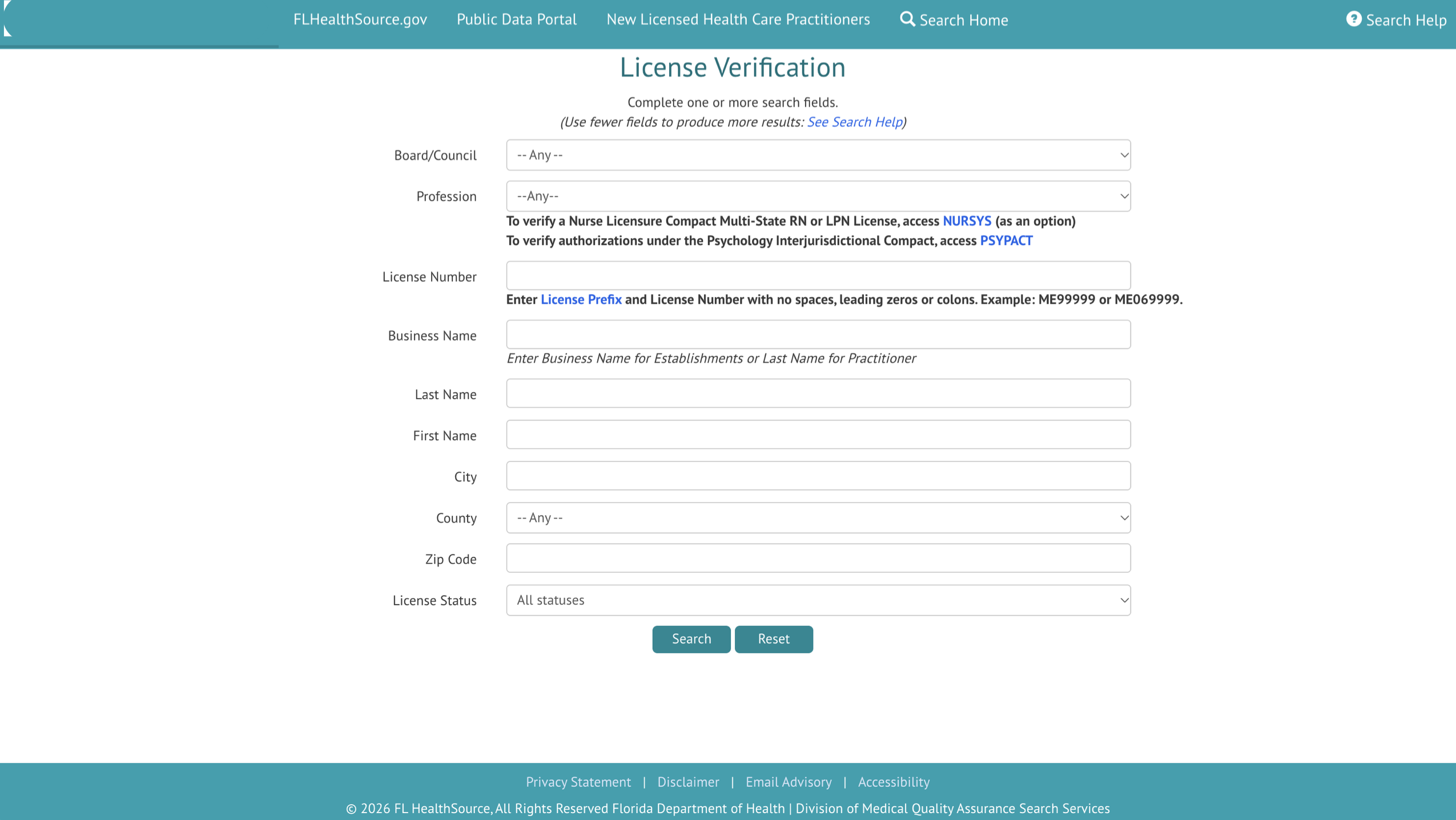
The Department of Health license verification page enables users to search using any of the below information.
- Board/council (see options)
- Profession (see options)
- License number
- Business name
- Last name
- First name
- City
- County
- Zip code
- License status (see image)
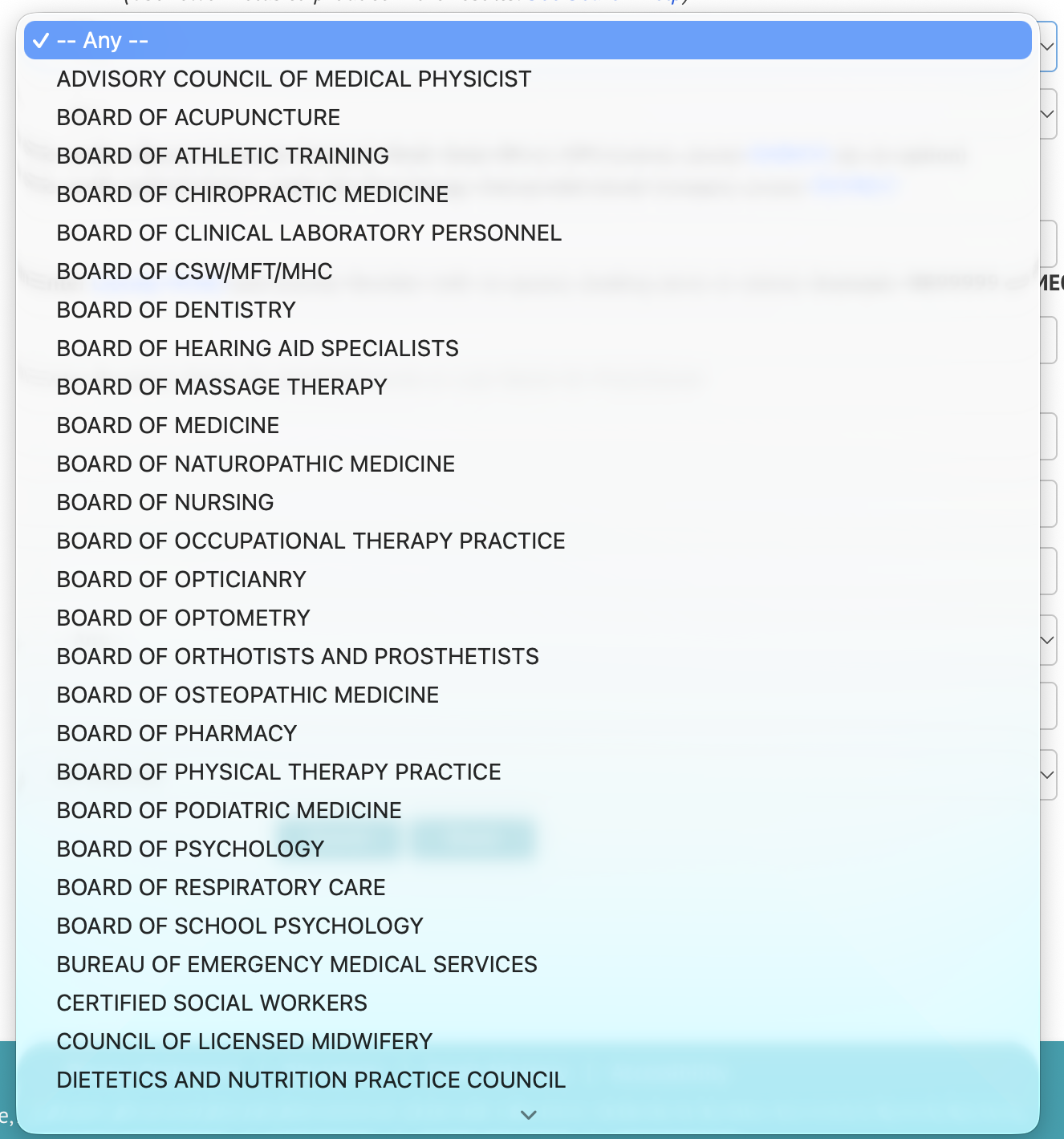
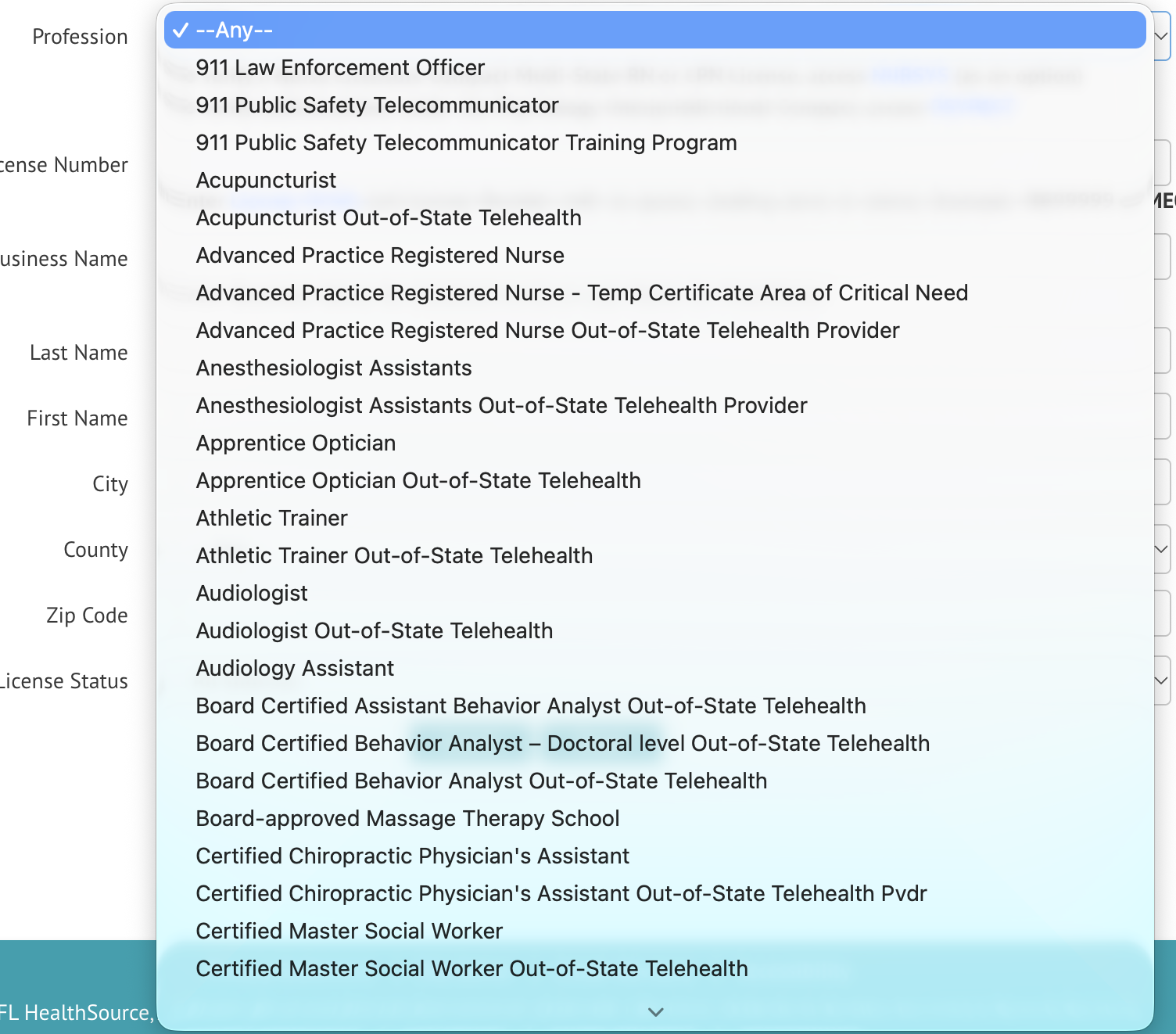

Click Search when ready.
3. View Results
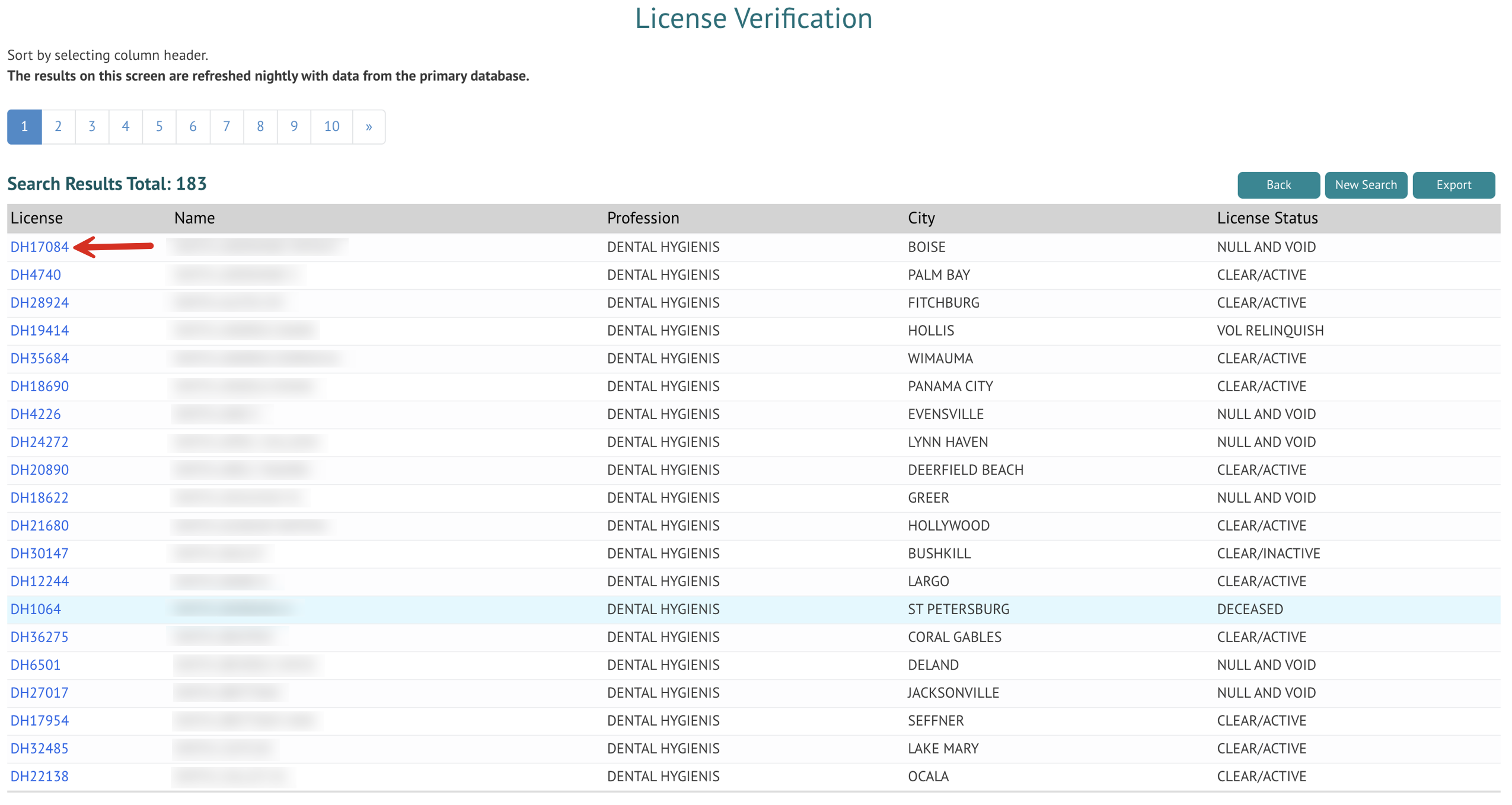
The results will list every license that matches the data entered on the previous page. Click the blue License number to view further information about that licensee.
4. Look Through Licensee Details
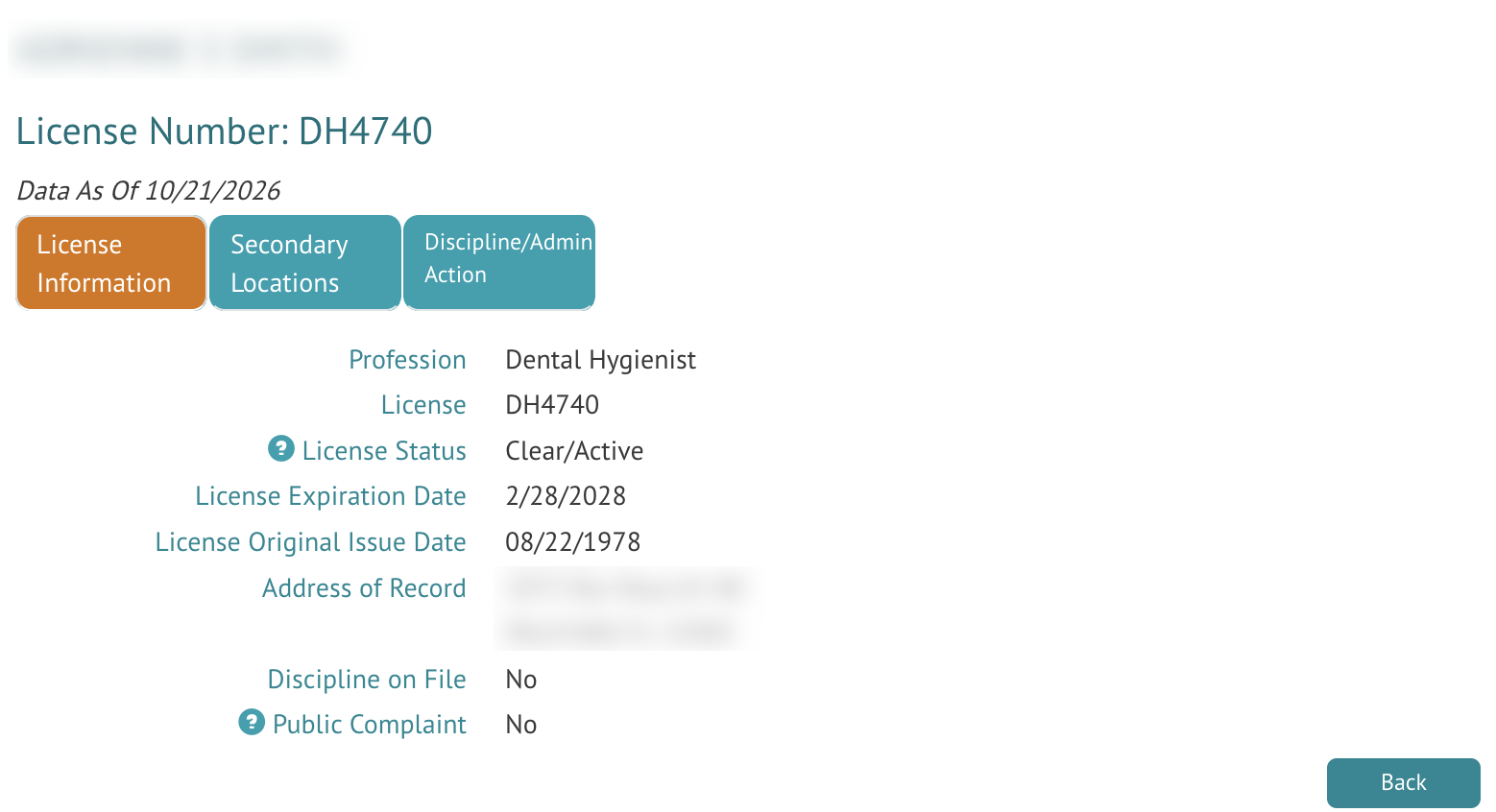
On the details page, users should be able to see the following information under License Information:
- Profession
- License number
- Status
- Expiration date and issue date
- Address of record
- Whether licensee has been disciplined
- Whether licensee has received public complaints
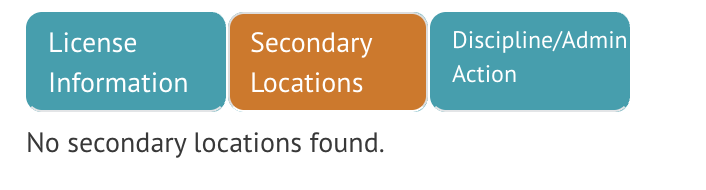
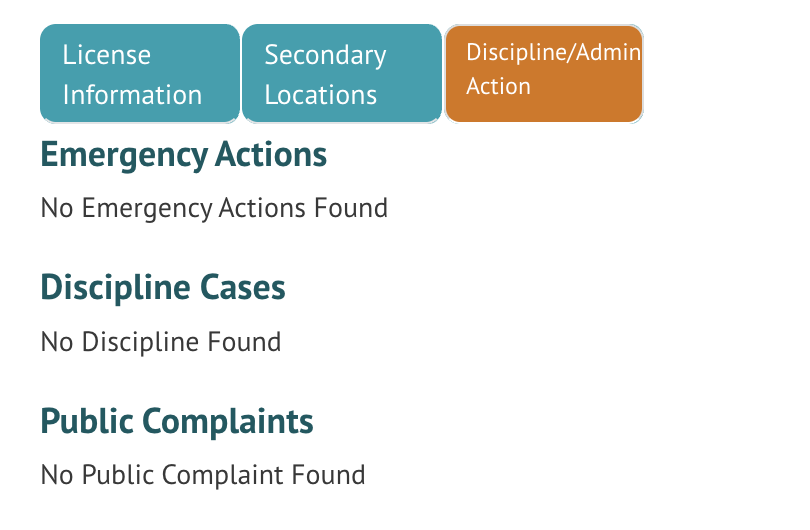
The Secondary Locations (see image) tab will relay any other addresses associated with the licensee while Discipline/Admin Action (see image) will reveal any disciplinary actions.